





What are the best GPU settings for high FPS & low input lag in competitive gaming?

The Quest for Competitive Advantage: High FPS & Low Input Lag
In the high-stakes world of competitive gaming, every millisecond counts. A smooth, responsive experience isn’t just a luxury; it’s a necessity that can mean the difference between victory and defeat. While a powerful GPU is the foundation, merely having one isn’t enough. The true potential for high Frame Rates Per Second (FPS) and minimal input lag is unlocked through meticulous optimization of your GPU settings, both at the driver level and within your games.
This guide will walk you through the essential GPU settings and system tweaks that can give you the edge, ensuring your hardware works in harmony to deliver the best possible performance and responsiveness for your competitive endeavors.
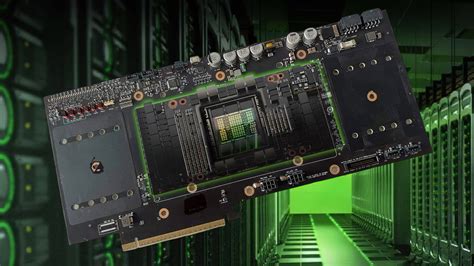
Optimal GPU Driver Settings (NVIDIA Control Panel / AMD Radeon Software)
Your GPU’s control panel is the command center for its global performance. Tweaking these settings correctly can yield significant improvements.
NVIDIA Control Panel:
- Low Latency Mode: Set this to Ultra. This queues frames just-in-time for the GPU, significantly reducing input lag.
- Max Frame Rate: If your FPS frequently exceeds your monitor’s refresh rate (e.g., you’re getting 300 FPS on a 144Hz monitor), consider capping it slightly above your monitor’s refresh rate (e.g., 147 FPS for 144Hz). This can reduce frame time variations and minimize tearing without V-Sync. Experiment to find your sweet spot.
- Power Management Mode: Choose Prefer maximum performance. This ensures your GPU always runs at its highest clock speeds, preventing performance dips during intense moments.
- Texture Filtering – Quality: Set to High performance. This prioritizes FPS over visual fidelity for textures, a minor visual downgrade for a potential FPS boost.
- Shader Cache Size: Keep this on Driver Default or increase it to a higher value if you play many games (e.g., 100GB). This stores compiled shaders, reducing loading times and stutters.
AMD Radeon Software:
- Radeon Anti-Lag: Enable this. Similar to NVIDIA’s Low Latency Mode, Anti-Lag helps reduce input lag by dynamically adjusting frame pacing.
- Radeon Boost: Consider enabling this for some titles. It dynamically lowers resolution in fast-motion scenes, boosting FPS. While it can introduce minor visual changes, the performance gain can be significant.
- Max FPS (Radeon Chill / Frame Rate Target Control): Use this to cap your FPS just above your monitor’s refresh rate, similar to NVIDIA’s Max Frame Rate. This can improve frame consistency and power efficiency.
- Texture Filtering Quality: Set to Performance.
- Tessellation Mode: Set to Override application settings and choose a lower level or Off for maximum performance, though modern GPUs handle tessellation well.

Optimizing In-Game Graphics Settings
Even with perfect driver settings, your in-game choices are paramount. Prioritize performance and responsiveness over visual bells and whistles.
- Display Mode: Always select Fullscreen Exclusive. This gives the game direct control over your display, bypassing the Desktop Window Manager, which can introduce latency.
- Resolution: Stick to your monitor’s native resolution. While lowering it can boost FPS, it often makes distant targets harder to see.
- Refresh Rate: Ensure this matches your monitor’s highest available refresh rate (e.g., 144Hz, 240Hz).
- V-Sync (Vertical Sync): Disable it. V-Sync eliminates screen tearing but introduces significant input lag by forcing your GPU to wait for the monitor’s refresh cycle. Modern adaptive sync technologies (G-Sync, FreeSync) are better alternatives if you experience tearing and can tolerate a slight input lag increase, but for pure competitive play, off is usually best.
- Graphics Quality Presets/Individual Settings: Generally, set everything to Low or Off. This includes shadows, anti-aliasing (unless absolutely necessary for clarity), post-processing effects, volumetric fog, reflections, and ambient occlusion. These settings are often CPU and GPU intensive and offer minimal competitive advantage.
- Field of View (FOV): While not directly a GPU setting, a higher FOV can provide a wider view of your surroundings, but it also renders more on screen, potentially impacting FPS. Find a balance that suits your playstyle and performance.
- Motion Blur/Film Grain: Always disable these. They are purely cosmetic and can obscure vision.
Windows and System-Level Optimizations
Don’t overlook operating system settings that can impact your gaming performance.
- Game Mode (Windows 10/11): Ensure Game Mode is ON. This prioritizes your game’s resources and suppresses background tasks.
- Hardware-accelerated GPU scheduling (Windows 10 2004+): Found in Graphics settings, enable this if available and if your GPU supports it. It can reduce latency and improve performance in some scenarios by offloading GPU scheduling tasks from the CPU.
- Power Plan: Set your Windows Power Plan to High Performance or Ultimate Performance. This prevents your CPU from throttling during gaming sessions.
- Monitor Refresh Rate: Double-check in Windows Display Settings that your monitor is set to its highest refresh rate. Go to Display Settings -> Advanced display settings -> Display adapter properties for Display [X] -> Monitor tab.
- Disable Fullscreen Optimizations: For specific game executables, right-click the .exe, go to Properties > Compatibility, and check ‘Disable fullscreen optimizations.’ This can sometimes reduce input lag for older or problematic titles.

Monitoring and Testing Your Settings
Optimization is an iterative process. What works best for one system or game might not for another.
- Use an FPS Counter: Most game launchers (Steam, Epic), GPU overlays (NVIDIA GeForce Experience, AMD Radeon Software), or third-party tools (MSI Afterburner) offer in-game FPS counters. Monitor your FPS constantly to see the impact of your changes.
- Latency Monitors: Tools like NVIDIA Reflex Latency Analyzer (requires compatible monitor/mouse) or even simple frame time graphs can help you quantify input lag improvements.
- Trial and Error: Change one setting at a time, test in a consistent scenario (e.g., a specific training map or benchmark run), and observe the results before moving on.
- Keep Drivers Updated: Regularly update your GPU drivers. Manufacturers frequently release performance optimizations and bug fixes for popular competitive titles.
Conclusion: Consistency and Responsiveness Win Games
Achieving high FPS and low input lag in competitive gaming is a finely tuned balance of hardware, driver settings, and in-game configurations. By systematically applying these optimizations – focusing on performance over visual fidelity, leveraging driver-level latency reduction, and ensuring your operating system is primed for gaming – you can significantly improve your responsiveness and game feel. Remember, the goal isn’t just raw FPS but consistent, stable frame delivery with minimal delay between your actions and what you see on screen. Master these settings, and you’ll equip yourself with a competitive edge that can truly elevate your gameplay.


