





What are the best monitor settings for competitive FPS gaming (Hz, response, sync)?
Dominating the Digital Battlefield: Essential Monitor Settings
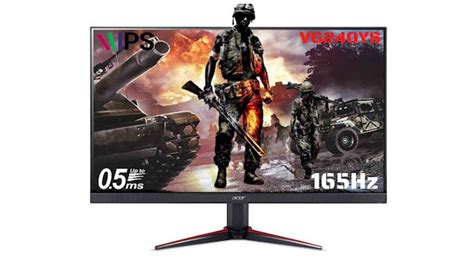
In the high-stakes world of competitive First-Person Shooter (FPS) gaming, every millisecond and every visual detail counts. Your monitor is the primary window into the game, and its settings can significantly impact your performance. Beyond just having a powerful graphics card, understanding and configuring your monitor’s refresh rate, response time, and sync technologies is paramount to gaining a decisive edge.
Understanding Refresh Rate (Hz): The Key to Fluidity
The refresh rate, measured in Hertz (Hz), determines how many times your monitor updates the image on the screen per second. For competitive FPS gaming, a higher refresh rate directly translates to smoother motion, less ghosting, and a more responsive feel. While 60Hz was once standard, serious gamers now gravitate towards 144Hz, 240Hz, or even 360Hz monitors.
A higher refresh rate allows you to see enemy movements and visual cues earlier and with greater clarity, making it easier to track targets and react faster. Ensure your in-game settings match your monitor’s highest refresh rate, and that your GPU can consistently output frame rates close to or exceeding this number for the best experience.
The Importance of Response Time: Eliminating Ghosting
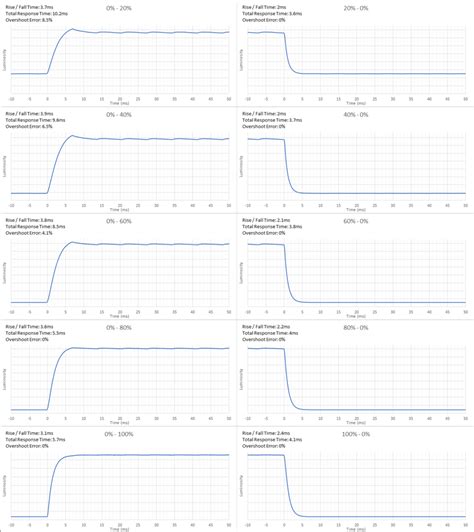
Monitor response time refers to the speed at which a pixel can change from one color to another, typically measured in milliseconds (ms). For competitive FPS gaming, a low response time is critical to prevent motion blur, ghosting, and streaking artifacts, which can obscure fast-moving targets.
You’ll often see response times listed as GtG (Gray-to-Gray) or MPRT (Moving Picture Response Time). For competitive play, aim for a monitor with a 1ms GtG response time. Some monitors also feature an ‘Overdrive’ setting which can further reduce response time, but be cautious as aggressive overdrive can introduce inverse ghosting or overshoot artifacts. Test different overdrive levels to find the sweet spot for your monitor.
Adaptive Sync Technologies: G-Sync and FreeSync
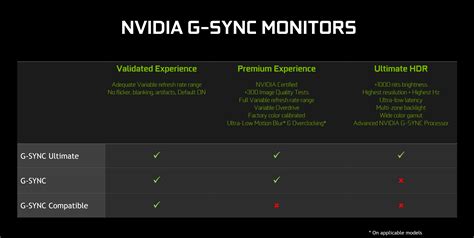
Screen tearing and stuttering are common visual artifacts that occur when your graphics card’s frame rate doesn’t synchronize with your monitor’s refresh rate. Adaptive sync technologies, primarily NVIDIA’s G-Sync and AMD’s FreeSync, solve this by allowing the monitor’s refresh rate to dynamically adjust and match the GPU’s frame rate.
- G-Sync: Proprietary NVIDIA technology requiring a dedicated hardware module in the monitor. Generally offers a wider variable refresh rate (VRR) range and excellent performance.
- FreeSync: An open-standard technology (part of VESA Adaptive Sync) that works with AMD GPUs and increasingly with NVIDIA cards (as ‘G-Sync Compatible’). It’s more common and generally more affordable.
Enabling adaptive sync eliminates tearing and stuttering, leading to a much smoother and more immersive gaming experience without the input lag often associated with traditional V-Sync. Choose the technology compatible with your graphics card.
Beyond the Big Three: Calibration and Other Settings
While Hz, response time, and sync are paramount, other monitor settings also play a role in optimizing your competitive edge:
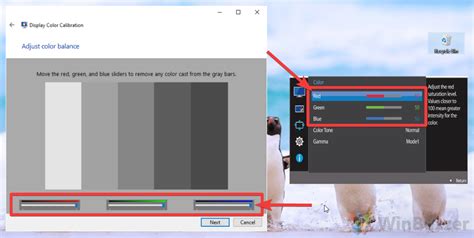
- Brightness & Contrast: Adjust to suit your room lighting, ensuring dark areas are visible without washing out highlights.
- Gamma: Affects the brightness of mid-tones. Adjusting gamma can help reveal enemies hiding in shadows.
- Color Temperature: Often set to ‘Warm’ or ‘Standard’ for competitive play to ensure accurate color representation, avoiding overly blue or yellow tints.
- Low Input Lag Mode: Many gaming monitors feature a ‘low input lag’ or ‘game mode’ that bypasses image processing to reduce the delay between your input and the on-screen action. Always enable this.
Putting It All Together for Your Setup
Configuring your monitor for competitive FPS gaming isn’t just about turning on the highest settings; it’s about finding the optimal balance for your specific hardware and preferences. After adjusting your monitor’s OSD (On-Screen Display) settings, remember to:
- Update your graphics drivers.
- Set the correct refresh rate in your operating system’s display settings.
- Verify and enable adaptive sync in your GPU control panel (NVIDIA Control Panel or AMD Radeon Software).
- Confirm in-game settings match your desired monitor configurations.
Experimentation is key. Play a few rounds, adjust, and see what feels best and gives you the most clarity and responsiveness. The goal is to minimize any visual impediments and maximize your reaction time.
Conclusion
Investing in a high-performance gaming monitor is only half the battle. To truly excel in competitive FPS titles, you must meticulously configure its settings. By prioritizing a high refresh rate, low response time, and leveraging adaptive sync technologies, along with careful calibration, you’ll create a gaming environment that not only looks stunning but also provides the responsiveness and clarity needed to outperform your opponents. Master these settings, and you’ll be well on your way to becoming a top-tier competitor.


