





What are the essential BIOS settings for max gaming FPS on a new Ryzen build?

Unlocking Peak Performance: Essential BIOS Tweaks for Your Ryzen Build
Building a new Ryzen-powered gaming PC is exciting, but simply assembling the components isn’t always enough to achieve maximum performance. The BIOS (Basic Input/Output System), or more accurately, UEFI (Unified Extensible Firmware Interface), is a critical gateway to unlocking your hardware’s full potential. Adjusting a few key settings can significantly impact your gaming FPS and system stability. Let’s dive into the essential BIOS settings to optimize your new Ryzen rig for maximum gaming FPS.
Enabling High-Speed RAM: EXPO/XMP Profiles
One of the most common oversights for new builders is failing to enable their RAM’s advertised speeds. DDR4 and DDR5 memory modules often ship with a default JEDEC speed (e.g., 2133MHz or 2400MHz), significantly lower than their marketed speed (e.g., 3600MHz or 6000MHz). AMD platforms utilize EXPO (Extended Profiles for Overclocking) for DDR5, while older DDR4 systems and many current motherboards still use XMP (Extreme Memory Profile).
To enable this, navigate to the ‘OC’ (Overclocking), ‘Tweaker’, or ‘Advanced Memory Settings’ section of your BIOS. Look for an option to load ‘EXPO Profile 1’ or ‘XMP Profile 1’. Activating this will automatically configure your RAM to its advertised frequency, timings, and voltage, providing a substantial boost to gaming performance, especially on Ryzen systems which are highly dependent on memory speed.

Unleashing CPU Power: Precision Boost Overdrive (PBO) & Curve Optimizer
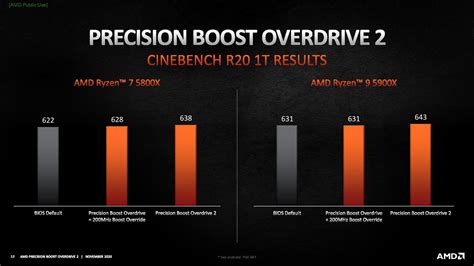
AMD’s Ryzen processors feature Precision Boost 2 and Precision Boost Overdrive (PBO), technologies designed to automatically push your CPU to its performance limits. PBO takes this a step further by allowing the CPU to exceed standard power, thermal, and current limits imposed by the motherboard. Enabling PBO can lead to higher clock speeds for longer durations, resulting in better multi-core and sometimes single-core performance in games.
You’ll typically find PBO settings under ‘Advanced CPU Settings’ or ‘AMD Overclocking’. Start by setting PBO to ‘Enabled’ or ‘Auto’. For advanced users, exploring ‘PBO Advanced’ allows you to manually set limits or use ‘Motherboard Limits’. Furthermore, the ‘Curve Optimizer’ (often found within PBO settings) allows you to undervolt your CPU per core by a negative offset, potentially improving efficiency and allowing for higher sustained boost clocks within the same power envelope. Exercise caution and stability test thoroughly when using Curve Optimizer.
Optimizing Infinity Fabric (FCLK) for Ryzen
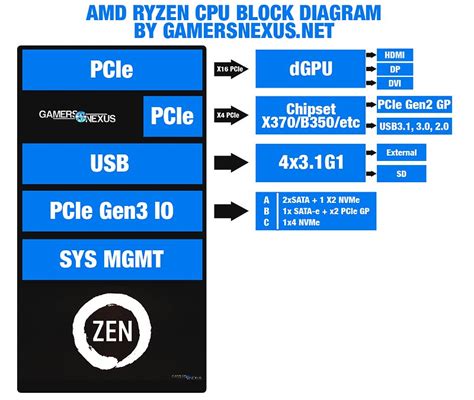
The Infinity Fabric Clock (FCLK) is crucial for Ryzen CPU performance, acting as the communication backbone between various components within the CPU, including the core complex dies (CCDs) and the memory controller. On Ryzen 3000/5000 series, aiming for a 1:1 ratio between your FCLK and your memory clock (MCLK, which is half your effective DDR speed) is ideal for lowest latency and best performance. For example, with DDR4-3600 (1800MHz MCLK), an FCLK of 1800MHz is optimal. With DDR5, the 1:1 ratio is often not achievable due to higher memory speeds, but maintaining a high, stable FCLK is still beneficial.
You can usually find the FCLK setting under ‘Advanced Frequency Settings’ or ‘AMD Overclocking’. While enabling EXPO/XMP often sets FCLK automatically, it’s worth checking to ensure it’s running optimally for your memory speed. Pushing FCLK too high without adequate voltage can lead to instability, so proceed with careful testing.
Graphics Card Enhancements: Resizable BAR (ReBAR)
Resizable BAR (ReBAR), or Smart Access Memory (SAM) on AMD systems, is a PCIe feature that allows the CPU to access the GPU’s entire video memory buffer at once, rather than in small 256MB chunks. This can lead to performance improvements in many modern games, especially when paired with compatible CPUs and GPUs (e.g., Ryzen 5000/7000 series with AMD Radeon RX 6000/7000 series or NVIDIA RTX 30/40 series). To enable ReBAR:
- Ensure your BIOS is in UEFI mode (not CSM).
- Enable ‘Above 4G Decoding’.
- Then, enable ‘Resizable BAR Support’.
These options are typically found under ‘PCIe Subsystem Settings’ or ‘Advanced’ settings within your BIOS. Remember to update your GPU drivers and potentially your motherboard BIOS to the latest versions for full compatibility.
![[Release] Resizable BAR BIOS EFI Module - BIOS modules (PCI ROM, EFI ...](/images/aHR0cHM6Ly90czMubW0uYmluZy5uZXQvdGg/aWQ9T0lQLlpnLTI5TGduZTdZY2xRQnhqeTFOR0FIYUVLJnBpZD0xNS4x.webp)
Other Key Considerations
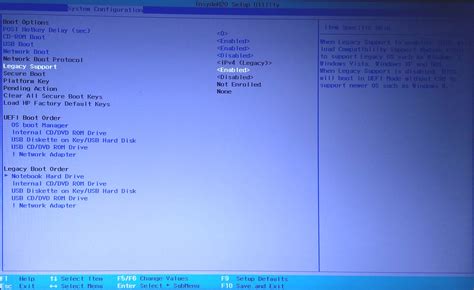
- Disable CSM (Compatibility Support Module): For modern systems, disabling CSM and ensuring your system boots in pure UEFI mode can improve boot times and is a prerequisite for features like Resizable BAR. This is usually found under the ‘Boot’ section.
- Virtualization (SVM Mode): If you’re not planning to run virtual machines (like Hyper-V or Bluestacks), you can often disable ‘SVM Mode’ (Secure Virtual Machine Mode) under ‘CPU Configuration’. While its impact on gaming FPS is usually negligible, some prefer to disable it to remove any potential overhead.
- Global C-States: These are power-saving states for your CPU. While generally harmless, some enthusiasts disable them for maximum stability during heavy overclocking or to prevent minor stuttering in some niche scenarios. For most users, leaving them on ‘Auto’ or ‘Enabled’ is fine as the power savings are beneficial.
Final Thoughts and Testing
After adjusting these BIOS settings, it’s crucial to save your changes, restart your system, and rigorously test for stability. Use stress testing tools like OCCT, Prime95, or Cinebench for your CPU, and MemTest86 for your RAM. For real-world gaming performance, monitor your FPS in several demanding titles. Remember that every system is unique, and what works best for one build may require slight adjustments for another. With a bit of patience and careful tuning, you can ensure your new Ryzen gaming PC is performing at its absolute best.



