





What BIOS settings and Windows optimizations boost gaming FPS on older hardware?
Revitalize Your Old Rig: Unlocking Gaming Performance
Gaming on older hardware can be a challenging, yet rewarding, experience. While a new PC is always the ideal solution for modern titles, savvy optimizations at the BIOS and operating system levels can surprisingly boost your Frame Per Second (FPS) count, making many games more playable. This guide delves into the specific settings and tweaks that can breathe new life into your aging gaming machine.
BIOS Settings for Core Performance Gains
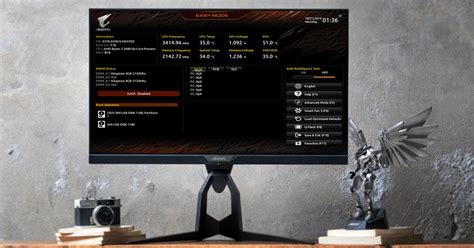
The BIOS (Basic Input/Output System) or UEFI (Unified Extensible Firmware Interface) is the fundamental software that initializes your hardware. Tweaking it correctly can unlock latent performance.
Memory (RAM) Optimization
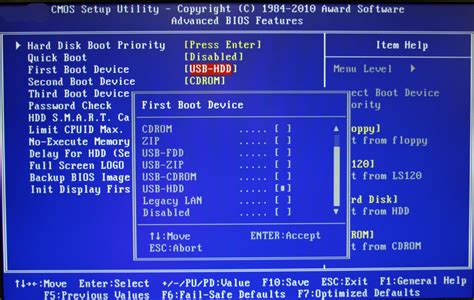
- Enable XMP/DOCP/AMP: If your RAM supports it, enabling Extreme Memory Profile (XMP for Intel) or DOCP/AMP (for AMD) in the BIOS allows your RAM to run at its advertised speeds and timings, which can be significantly faster than default JEDEC profiles. This is often found under ‘Overclocking Settings’ or ‘Memory Settings’.
- Adjust Memory Frequency: Ensure your RAM is running at its optimal frequency. While XMP usually handles this, manually setting it to the highest stable frequency supported by your CPU and motherboard can yield gains.
CPU Optimization and Power Management
- Disable C-States (or Enhanced Halt State): C-states are power-saving modes for your CPU. Disabling them keeps your CPU active at all times, preventing potential micro-stutters in games, though it might increase power consumption and heat slightly.
- Disable Virtualization Technology (VT-x/AMD-V): If you’re not running virtual machines, disabling this feature (often found under CPU configuration) can free up a tiny bit of overhead.
- Set CPU Fan Control: Ensure your CPU fan is set to a performance profile or manually configure it to ramp up aggressively with temperature. Keeping your CPU cool prevents thermal throttling, where the CPU reduces its speed to prevent overheating.
- Power Management/Performance Modes: Many BIOSes have an overall system performance setting. Ensure it’s set to ‘High Performance’ or similar, rather than ‘Balanced’ or ‘Power Saving’.
Integrated Graphics Disablement
If your CPU has integrated graphics (e.g., Intel HD Graphics, AMD Radeon Graphics on some CPUs) and you have a dedicated graphics card, make sure the integrated graphics are disabled in the BIOS. This ensures all system resources are directed to your dedicated GPU, preventing potential conflicts or wasted resources.
Windows Optimizations for Gaming Performance
Once past the BIOS, Windows itself offers numerous settings to fine-tune for better gaming FPS.
Power Plan Settings
Navigate to Control Panel > Hardware and Sound > Power Options. Select the “High Performance” plan. This prevents Windows from downclocking your CPU or GPU to save power, ensuring they run at maximum speed when needed. For even more control, some systems may have an “Ultimate Performance” plan.

Visual Effects and Background Processes
- Adjust Visual Effects: Right-click
This PC > Properties > Advanced system settings > Performance Settings > Visual Effects. Select “Adjust for best performance”. This will disable fancy animations and shadows that consume CPU/GPU cycles unnecessarily. - Disable Startup Programs: Press
Ctrl+Shift+Escto open Task Manager, go to the “Startup” tab, and disable any unnecessary programs that launch with Windows. Fewer background processes mean more resources for your game. - Turn Off Background Apps: Go to
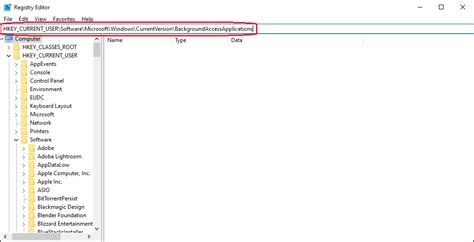
Settings > Privacy > Background appsand toggle off any applications you don’t need running in the background. - Disable Notifications and Focus Assist:
Settings > System > Notifications & actions. Turn off notifications, and consider enabling Focus Assist to suppress alerts during gaming.
Driver Updates and System Maintenance
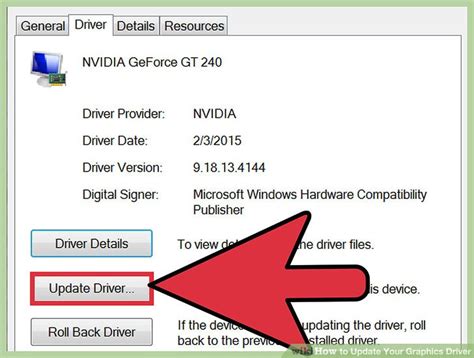
- Update Graphics Drivers: This is paramount. Always ensure you have the latest drivers for your NVIDIA, AMD, or Intel graphics card. Visit their official websites regularly.
- Update Chipset Drivers: Go to your motherboard manufacturer’s website and download the latest chipset drivers for your specific model.
- Game Mode and Xbox Game Bar: In Windows 10/11,
Settings > Gaming > Game Mode. Ensure Game Mode is On, as it prioritizes your game’s resources. Consider turning Off Xbox Game Bar if you don’t use its features, as it can sometimes consume resources. - Disk Cleanup and Defragmentation: Regularly run Disk Cleanup (search for it in Windows) to remove temporary files. For HDDs, periodic defragmentation (search “Defragment and Optimize Drives”) is beneficial. For SSDs, ensure TRIM is enabled, but avoid manual defragmentation.
- Disable Windows Updates During Gaming: Configure active hours or use third-party tools (with caution) to prevent Windows updates from interrupting or slowing down your system during gaming sessions.
Conclusion: Every Frame Counts
While an older PC will never match the performance of a brand-new, high-end system, implementing these BIOS settings and Windows optimizations can yield noticeable improvements in gaming FPS and overall system responsiveness. Remember to make changes one by one and test them to identify what works best for your specific hardware configuration. A little patience and these tweaks can help you squeeze out every last frame, extending the life and gaming enjoyment of your trusted older rig.


