What GPU settings optimize competitive FPS for my gaming monitor?
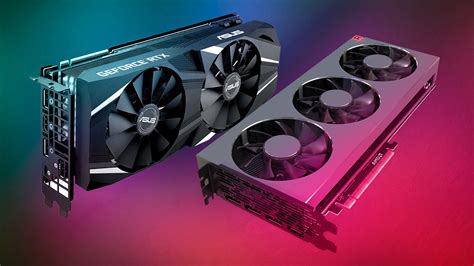
Achieving peak performance in competitive first-person shooter (FPS) games isn’t just about raw hardware power; it’s also about meticulously fine-tuning your GPU settings to work in harmony with your gaming monitor. Optimizing these settings can significantly boost your frame rates, reduce input lag, and provide a smoother, more responsive gameplay experience, giving you a crucial edge over the competition.
Understanding Your Monitor’s Core Capabilities
Before diving into GPU settings, it’s vital to understand what your gaming monitor brings to the table. Key factors include its refresh rate (e.g., 144Hz, 240Hz, 360Hz), response time (e.g., 1ms GTG), and whether it supports adaptive sync technologies like NVIDIA G-Sync or AMD FreeSync. Your goal is to generate frames at or above your monitor’s refresh rate while minimizing latency.
Essential In-Game Graphics Settings for FPS
The first line of defense in optimizing for competitive FPS is within the game itself. Prioritize performance over visual fidelity for competitive play. Set your game’s resolution to your monitor’s native resolution. Then, focus on lowering graphics-intensive settings such as:
- Texture Quality: Medium or Low. High textures consume VRAM.
- Shadows: Low or Off. Shadows are computationally expensive.
- Anti-Aliasing: Off or set to a less demanding option like FXAA. Reduces jagged edges but blurs frames and consumes resources.
- Post-Processing Effects: Off or Low. These include motion blur, depth of field, and lens flare, which add latency and reduce visibility.
- V-Sync: Always Off. V-Sync introduces input lag; adaptive sync is preferred if available, otherwise just let frames render freely.
- Render Scale: Keep at 100%. Adjusting this can make the game render at a higher or lower resolution internally, impacting performance significantly.
NVIDIA Control Panel & AMD Adrenalin Global Settings
Beyond in-game options, your GPU driver’s control panel offers powerful global settings that can universally impact performance across all your games. Here are critical settings to adjust:
For NVIDIA Users (NVIDIA Control Panel):
- Low Latency Mode: Set to ‘Ultra’ or ‘On’. This minimizes the render queue, significantly reducing input lag.
- Power Management Mode: Set to ‘Prefer Maximum Performance’. Ensures your GPU always operates at its highest clock speeds.
- Preferred Refresh Rate (Monitor specific): Set to ‘Highest available’.
- Texture Filtering – Quality: Set to ‘High performance’.
- Vertical Sync: ‘Off’. Allow the game to manage frame rendering or rely on adaptive sync.
For AMD Users (AMD Adrenalin Software):
- Radeon Anti-Lag: Enable. Similar to NVIDIA’s Low Latency Mode, it reduces input lag.
- Radeon Boost: Can be enabled for dynamic resolution scaling during fast motion, but may not be preferred for competitive consistency. Test thoroughly.
- Texture Filtering Quality: Set to ‘Performance’.
- Wait for Vertical Refresh: ‘Always Off’.
Leveraging Adaptive Sync (G-Sync/FreeSync)
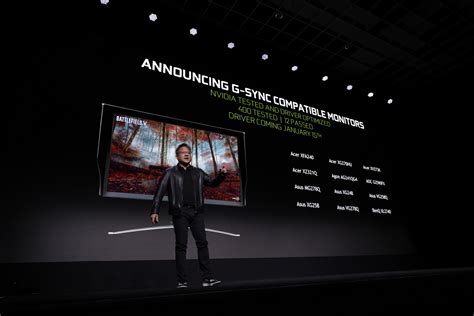
If your monitor and GPU support G-Sync or FreeSync, ensure they are properly enabled. These technologies synchronize your monitor’s refresh rate with your GPU’s frame output, eliminating screen tearing without the input lag penalty of traditional V-Sync. For competitive play, it’s often recommended to cap your in-game FPS slightly below your monitor’s max refresh rate (e.g., 141 FPS for a 144Hz monitor) when using adaptive sync to stay within the effective range and further reduce latency.
Monitor-Specific Settings and Windows Optimizations
Don’t overlook your monitor’s own OSD (On-Screen Display) settings. Experiment with ‘Overdrive’ or ‘Response Time’ settings to find the sweet spot that minimizes ghosting without introducing inverse ghosting. Ensure your Windows display settings are set to your monitor’s highest refresh rate.
Additional Windows-level optimizations include:
- Game Mode: Ensure Windows Game Mode is enabled.
- Hardware-accelerated GPU scheduling: Can be enabled in Windows 10/11 Graphics settings for some systems, but test for stability.
- Power Plan: Set to ‘High performance’ in Windows Power Options.
- Background Apps: Close unnecessary background applications and services.
- Drivers: Keep your GPU drivers updated to the latest stable version.
Conclusion: The Pursuit of Smoothness and Responsiveness
Optimizing your GPU and monitor settings for competitive FPS is an ongoing process of tweaking and testing. The goal is to maximize your frame rate stability, minimize input latency, and eliminate visual distractions like tearing, allowing you to react faster and perform consistently. By systematically applying these settings, you’ll unlock your hardware’s full potential and gain a noticeable advantage in the competitive arena.