What GPU settings optimize gaming FPS and reduce input lag effectively?
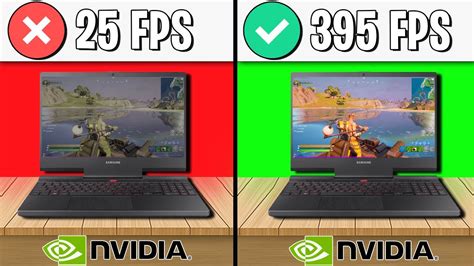
Achieving a smooth, responsive gaming experience hinges significantly on how well your Graphics Processing Unit (GPU) is configured. Optimizing GPU settings is a delicate balance between visual fidelity and raw performance, aiming to push frame rates per second (FPS) as high as possible while simultaneously minimizing the delay between your input and the on-screen action – known as input lag.
Essential GPU Settings for Maximizing FPS
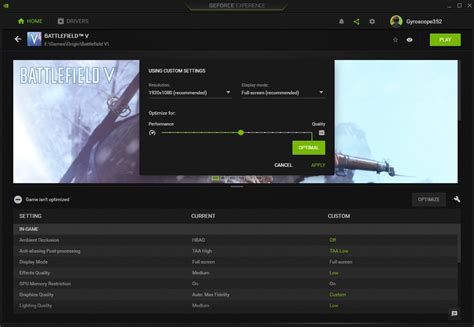
The first step in boosting your FPS is often found within the game’s graphics settings menu. Lowering the overall graphics preset (e.g., from “Ultra” to “High” or “Medium”) is a quick win, but more granular adjustments yield better results without sacrificing too much visual quality. Key settings to focus on include:
- Resolution: The most significant impact. Playing at native monitor resolution is ideal, but dropping it slightly (e.g., from 4K to 1440p, or 1080p to 900p) can dramatically increase FPS.
- Anti-aliasing (AA): Techniques like MSAA, TAA, FXAA smooth jagged edges. While effective, they are performance intensive. Experiment with lower settings or alternatives like DLSS/FSR if available.
- Shadow Quality: Shadows are computationally expensive. Reducing their quality or even disabling them entirely in competitive games offers substantial FPS gains.
- Texture Quality: This impacts how detailed surfaces appear. While VRAM dependent, lowering it slightly if you have an older GPU can free up resources.
- Post-processing Effects: Bloom, depth of field, motion blur, and screen space reflections often add atmosphere but can heavily tax the GPU. Disabling or reducing these usually results in a noticeable FPS bump.
Targeting Input Lag: Key GPU Tweaks
Reducing input lag is crucial for competitive play and overall responsiveness. While FPS directly correlates with lower input lag (more frames mean more up-to-date information), specific GPU settings can further refine this:
- VSync (Vertical Synchronization): This setting synchronizes your game’s frame rate with your monitor’s refresh rate to prevent screen tearing. However, it introduces input lag. For competitive gaming, it’s generally recommended to turn VSync OFF if your FPS consistently exceeds your monitor’s refresh rate, especially with a FreeSync or G-Sync monitor. If you experience severe tearing, try “Adaptive VSync” or capping your FPS just below your monitor’s refresh rate.
- NVIDIA Reflex / AMD Anti-Lag: These proprietary technologies are specifically designed to reduce system latency. When available in a game or through your driver control panel, enabling them should be a priority. NVIDIA Reflex Low Latency Mode and AMD Anti-Lag work by reducing the CPU’s render queue, ensuring frames are processed and displayed as quickly as possible.
- Max Frame Rate (Frame Rate Cap): Capping your FPS slightly below your monitor’s refresh rate (e.g., 141 FPS for a 144Hz monitor) can provide a smoother experience than uncapped FPS, especially when VSync is off, and can also reduce system load and power consumption.
- Low Latency Mode / Pre-Rendered Frames (NVIDIA): In the NVIDIA Control Panel, setting “Low Latency Mode” to “Ultra” essentially sets the “Max Pre-Rendered Frames” to 1, forcing the CPU to prepare frames just in time for the GPU. This significantly reduces input lag at the cost of potentially slightly less consistent frame times if your CPU is bottlenecked.
Driver Settings and Software Optimizations
Beyond in-game menus, your GPU’s driver control panel offers powerful global and game-specific settings that can fine-tune performance.
- NVIDIA Control Panel / AMD Adrenalin: Dive into these applications. Ensure “Power Management Mode” is set to “Prefer Maximum Performance” (NVIDIA) or “Graphics Profile” is set to “Gaming” or “Esports” (AMD) for your game. You can also override in-game AA, texture filtering, and other settings here, applying more aggressive performance-focused options.
- Keep Drivers Updated: GPU manufacturers frequently release new drivers that include performance optimizations for the latest games, bug fixes, and general stability improvements. Always ensure your drivers are up-to-date.
- Windows Game Mode: Ensure Windows Game Mode is enabled. While its impact can vary, it aims to prioritize game processes and allocate system resources effectively.
Beyond GPU: System-Wide Considerations
While GPU settings are paramount, the overall performance of your system plays a crucial role in achieving optimal FPS and low input lag.
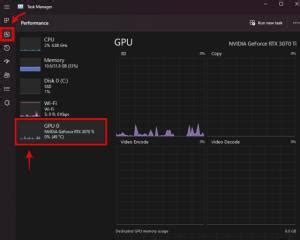
- CPU Performance: A weak CPU can bottleneck even the most powerful GPU, limiting FPS. Ensure your CPU is not running at 100% usage during gaming.
- RAM Speed and Capacity: Sufficient and fast RAM (e.g., 16GB+ at 3200MHz or higher) can improve frame times and overall system responsiveness.
- Storage: While not directly affecting in-game FPS, installing games on a Solid State Drive (SSD) significantly reduces loading times, which indirectly contributes to a smoother overall experience.
- Monitor Refresh Rate & Response Time: A high refresh rate monitor (120Hz, 144Hz, 240Hz+) allows you to see more frames, and a low response time (1ms-5ms) reduces ghosting and motion blur, contributing to a clearer and more responsive visual feedback loop.
Conclusion
Optimizing your GPU settings is a dynamic process that requires a bit of experimentation. Start with the most impactful settings like resolution and anti-aliasing, then move to more specific latency-reducing features like NVIDIA Reflex or AMD Anti-Lag. By understanding how each setting influences performance and input lag, and by keeping your drivers updated, you can fine-tune your setup to deliver the most fluid and responsive gaming experience possible.