





What guide-worthy strategies help mod users troubleshoot compatibility conflicts?
Navigating the Modding Maze: Understanding Compatibility
The world of game modding offers boundless opportunities to enhance and personalize your gaming experience. However, with the freedom to customize comes the challenge of managing multiple modifications that might not always play nicely together. Compatibility conflicts are a common hurdle, manifesting as crashes, freezes, graphical glitches, or broken mechanics. Overcoming these issues requires a systematic approach, combining preventative measures with diagnostic techniques. This guide outlines key strategies that every mod user should master to ensure a stable and enjoyable modded game.
Foundational Steps: Prevention and Preparation
Before diving into complex diagnostics, robust preventative measures can significantly reduce the likelihood of conflicts and make troubleshooting easier when they do arise.
Read Mod Descriptions Thoroughly
This cannot be stressed enough. Every reputable mod page provides crucial information, including:
- **Requirements:** Other mods, DLCs, or game versions needed.
- **Incompatibilities:** Explicit warnings about mods that are known to conflict.
- **Installation Instructions:** Specific steps that might differ from standard procedures.
- **Load Order Suggestions:** Recommendations for where the mod should be placed.
Ignoring these details is a leading cause of conflicts.
Use a Reputable Mod Manager
Tools like Mod Organizer 2 (MO2), Vortex, or similar game-specific managers are indispensable. They provide:
- **Virtual File Systems:** Allowing you to install and uninstall mods without touching the game’s core files.
- **Conflict Detection:** Highlighting files that overwrite each other.
- **Load Order Management:** Offering an interface to easily arrange your mod list.
- **Profiles:** Enabling separate mod setups for different playthroughs or testing.
Manually installing mods dramatically increases the risk of unresolvable issues.
Systematic Diagnosis: Pinpointing Conflicts
When issues appear, a structured approach is vital to isolate the problematic mod or combination of mods.
Optimizing Your Load Order
Load order is critical for many games, especially those with extensive modding communities like Bethesda titles. Mods loaded later in the sequence will overwrite files from mods loaded earlier. Understanding this principle allows you to:
- **Resolve Overwrites:** Place a mod that *must* take precedence later in the load order.
- **Use Sorting Tools:** Many mod managers include integrated or external tools (e.g., LOOT for Bethesda games) that automatically sort your mods based on recognized rules, providing a strong baseline.
- **Manual Adjustments:** After automatic sorting, manual adjustments are often necessary based on specific mod requirements or personal preference.
Employing Conflict Detection Tools
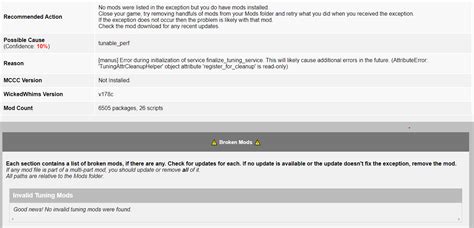
Beyond load order sorters, some mod managers and external utilities offer more granular conflict analysis, showing exactly which files or records are clashing between mods. Learning to interpret these reports can directly point you to the source of an issue.
The Binary Search Method
If you have a large mod list and can’t pinpoint the issue, the binary search is a powerful diagnostic technique:
- Disable half of your mods.
- Test the game.
- If the problem persists, the conflict is in the enabled half. Disable half of *those* mods.
- If the problem disappears, the conflict is in the disabled half. Enable half of *those* mods.
- Repeat the process, halving the problematic set each time, until you isolate the single mod or pair of mods causing the issue.
This method drastically reduces the time it takes to find a culprit compared to disabling mods one by one.
![🚨Mods CONFLICTIVOS! 👉🏻[como detectarlos y eliminarlos] BETTER ...](/images/aHR0cHM6Ly90czEubW0uYmluZy5uZXQvdGg/aWQ9T0lQLjRlOFVIbDV1NlhnTW5NMG9iMVd5R3dIYUVLJnBpZD0xNS4x.webp)
Advanced Troubleshooting & Resolution
Once a conflict is identified, the next step is to resolve it.
Checking for Patches and Prerequisites
Many common mod conflicts have existing community-made patches. Always check:
- The mod’s own page for official compatibility patches.
- Dedicated patch hubs or major modding sites.
- Ensure all required master files (other mods or DLCs) are present and enabled.
Sometimes, simply installing a small patch is all it takes.

Clean Reinstallation as a Last Resort
If all else fails, and you suspect a deeply corrupted installation or lingering files, a clean reinstallation might be necessary. This involves:
- Uninstalling the game.
- Manually deleting any leftover game folders and mod manager staging folders.
- Reinstalling the game.
- Installing mods one by one or in small batches, testing frequently.
This is time-consuming but often solves persistent, unidentifiable issues.
Leveraging Community Resources
You are rarely the first person to encounter a specific mod conflict. The modding community is a vast resource:
- **Mod Forums and Discord Servers:** Active communities often have dedicated troubleshooting channels where experienced users can offer advice.
- **YouTube Guides and Wikis:** Many common issues have video tutorials or detailed wiki entries.
- **Bug Reports:** Check if the issue has been reported on the mod’s bug tracker; a fix might already be in progress or available.
Always provide clear details of your issue, your mod list, and what you’ve already tried when seeking help.
Conclusion: The Art of Modding Resilience
Troubleshooting mod compatibility conflicts is an integral part of the modding experience. While it can be frustrating, mastering these guide-worthy strategies transforms you from a casual mod user into a confident curator of your personalized game world. By prioritizing prevention, employing systematic diagnostic methods, and engaging with the wider modding community, you’ll be well-equipped to resolve almost any conflict that comes your way, ensuring your modded adventures remain stable and endlessly enjoyable.

