What monitor settings optimize latency for competitive esports performance?
The Crucial Role of Monitor Settings in Esports Performance
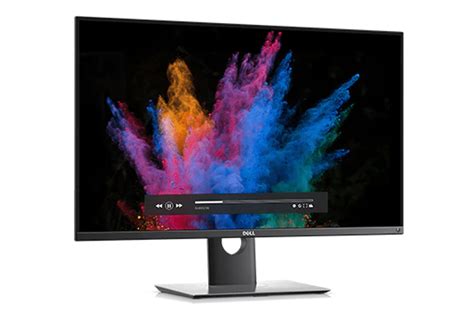
In the high-stakes world of competitive esports, every millisecond counts. While powerful PCs and excellent internet connections are foundational, your monitor settings act as the critical bridge between your system’s output and your perception, directly impacting your reaction time and overall performance. Optimizing these settings is not just about a clearer picture; it’s about minimizing latency, reducing input lag, and ensuring you see and react to game events as swiftly as possible.
Understanding Key Latency-Reducing Settings
To gain a competitive edge, focus on these primary monitor settings:
1. Refresh Rate: The Foundation of Smoothness
The refresh rate, measured in Hertz (Hz), indicates how many times your monitor updates the image on the screen per second. A higher refresh rate means more frames are displayed, leading to a smoother, more fluid visual experience. For competitive esports, 144Hz is generally considered the minimum standard, with 240Hz and even 360Hz monitors now common in professional setups. A higher refresh rate reduces perceived input lag and allows you to react to fast-moving targets and sudden events more quickly. Ensure your in-game settings also match your monitor’s highest refresh rate.
2. Response Time: Eliminating Ghosting
Response time refers to the speed at which a pixel can change from one color to another, typically measured in milliseconds (ms) from gray-to-gray (GtG). A lower response time is crucial for competitive play as it minimizes motion blur and “ghosting,” which appears as a trailing smear behind fast-moving objects. Most esports players aim for 1ms GtG response times to ensure crisp, clear visuals, even during intense action. While some manufacturers advertise MPRT (Moving Picture Response Time), GtG is the more common and generally more important metric for pixel transition speed.
3. Input Lag: The Hidden Delay
Input lag is the delay between an action performed by the user (e.g., mouse click) and that action appearing on the screen. This isn’t directly a monitor setting but rather an inherent characteristic of the display’s processing. While not usually listed in specifications, reviews often cover it. Monitors designed for gaming prioritize low input lag. To further minimize it, disable any unnecessary post-processing features on your monitor, such as dynamic contrast, noise reduction, or image enhancement modes, as these add processing time.
Adaptive Sync Technologies: G-Sync and FreeSync
Adaptive Sync technologies like NVIDIA’s G-Sync and AMD’s FreeSync synchronize your monitor’s refresh rate with your GPU’s frame rate, eliminating screen tearing and stuttering. While excellent for a smooth, tear-free experience, their benefit in purely competitive scenarios can be debated. Some professional players prefer to disable them and instead cap their in-game frame rate just below their monitor’s maximum refresh rate to ensure the lowest possible input lag, even at the cost of potential tearing. However, for most players, the visual fluidity provided by adaptive sync outweighs the minuscule potential increase in input lag, especially if frame rates fluctuate significantly.

Optimizing Other Important Monitor Features
Overdrive / Overclocking
Many gaming monitors offer an ‘Overdrive’ or ‘Response Time’ setting, which essentially overclocks the pixels to change states faster. While this can reduce ghosting, setting it too high can introduce “inverse ghosting” or “overshoot artifacts,” where pixels briefly display the wrong color before settling. Experiment with these settings to find the sweet spot that minimizes ghosting without introducing other visual anomalies.
Game Mode / Low Input Lag Mode
Most gaming monitors include a ‘Game Mode’ or ‘Low Input Lag Mode’ preset. These modes typically disable many of the post-processing features mentioned earlier, optimizing the display for speed. It’s almost always recommended to enable these modes for competitive play.
Black Equalizer / Shadow Boost
Features like ‘Black Equalizer’ or ‘Shadow Boost’ enhance visibility in dark areas of games. While beneficial for spotting hidden enemies, they don’t directly impact latency. Use them if they improve your gameplay experience without introducing visual distortion or discomfort.
Calibration and Connectivity
Ensure you are using the correct display cable. DisplayPort is generally preferred for high refresh rates and resolutions, especially with Adaptive Sync. HDMI 2.0 or higher can also support high refresh rates, but DisplayPort often offers greater bandwidth for top-tier performance. While color calibration doesn’t affect latency, a properly calibrated monitor reduces eye strain and ensures you’re seeing the game as intended, which can indirectly contribute to sustained performance.
Conclusion: Fine-Tuning for Victory
Optimizing your monitor settings is an essential, yet often overlooked, component of competitive esports performance. By prioritizing high refresh rates, low response times, and minimal input lag through careful configuration and the judicious use of features like adaptive sync and game modes, you can significantly sharpen your reaction times and gain a tangible advantage over your opponents. Regularly review your monitor’s settings and experiment to find the optimal balance that suits your personal preferences and the demands of your chosen game.