





What Windows 11 settings boost gaming FPS and reduce input lag?
Optimizing Windows 11 for Peak Gaming Performance
Windows 11, while offering a sleek interface and modern features, can sometimes hold back your gaming potential if not properly configured. Achieving higher Frame Rates Per Second (FPS) and reducing input lag is crucial for competitive play and an overall enjoyable experience. Fortunately, a few tweaks within the operating system can make a significant difference. Let’s dive into the key settings you should adjust to unleash your PC’s full gaming power.
Game Mode: Your First Stop for Gaming Optimization
Windows 11 comes with a dedicated ‘Game Mode’ designed to prioritize your gaming experience. When enabled, Game Mode aims to improve game performance by preventing Windows Updates from installing and stopping background processes from consuming resources. It’s a foundational setting for any serious gamer.
- How to enable: Go to
Settings > Gaming > Game Modeand toggle itOn.
![[11 Ways] How to Optimize Windows 11 for Gaming 2025](/images/aHR0cHM6Ly90czMubW0uYmluZy5uZXQvdGg/aWQ9T0lQLkJLZ1hYRkc3bjY4cDY5aDl4ODY4eXdIYUVmJnBpZD0xNS4x.webp)
Graphics Settings: Prioritizing Your GPU
Windows 11 offers granular control over how your graphics card is utilized, allowing you to tell the system which applications demand the most performance.
Hardware-accelerated GPU scheduling (HAGS)
HAGS allows your GPU to manage its own video memory, potentially reducing latency and improving performance in some games. While not universally beneficial, it’s worth testing.
- How to enable: Go to
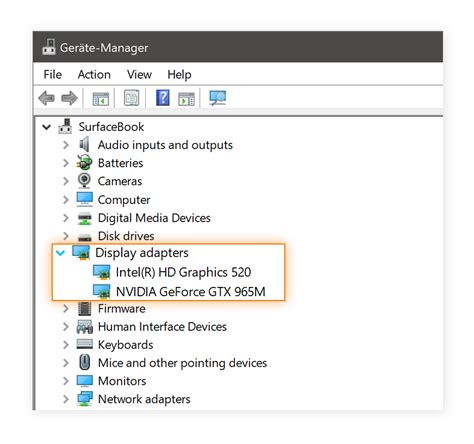
Settings > System > Display > Graphics > Change default graphics settingsand toggleHardware-accelerated GPU schedulingOn. A restart is usually required.
Specific Game Performance Preferences
You can tell Windows to specifically prioritize your games for maximum performance.
- How to configure: Go to
Settings > System > Display > Graphics. Here, you can select specific apps (Desktop app or Microsoft Store app) and then clickBrowseto add your game’s executable file. Once added, selectOptionsand chooseHigh performance.

Power Options: Unleash Full Potential
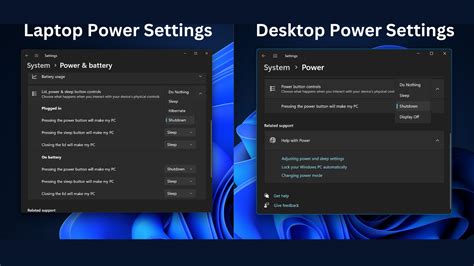
Your PC’s power plan directly impacts its performance. Default balanced plans might conserve energy at the cost of raw power. For gaming, you want every ounce of power available.
- How to change: Search for
Edit power planin the Windows search bar, then clickPower Options. SelectHigh performanceor, if available,Ultimate Performance. The Ultimate Performance plan often needs to be enabled via a Command Prompt command first:powercfg -duplicatescheme e9a42b02-d5df-448d-aa00-03f568663dc9, then refresh the Power Options window.
Minimizing Distractions and Background Processes
Anything running in the background can steal precious CPU cycles and RAM, leading to lower FPS and potential stuttering. Reducing these distractions is key.
- Focus Assist: Enable
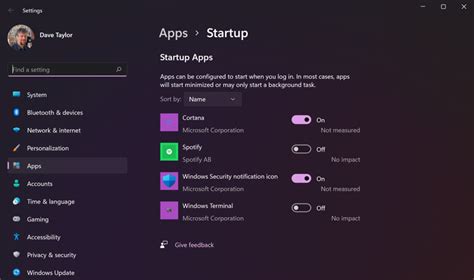
Focus Assist(formerly Quiet Hours) to silence notifications during gaming. Go toSettings > System > Focus sessions. - Startup Apps: Disable unnecessary programs from launching with Windows. Go to
Settings > Apps > Startupand toggle off anything you don’t need immediately. - Background Apps: While Windows 11 doesn’t have a direct ‘disable background apps’ toggle like Windows 10, managing startup apps and using Game Mode effectively minimizes their impact.
Display and Mouse Settings for Responsiveness
Beyond raw FPS, input lag is critical. Your monitor and mouse settings play a huge role.
- High Refresh Rate: Ensure your monitor is running at its highest refresh rate. Go to
Settings > System > Display > Advanced displayand select the highest available refresh rate. - Disable Mouse Pointer Precision: For competitive gaming, this feature (also known as mouse acceleration) should be off. Search for
Mouse settings, clickAdditional mouse settings, go to thePointer Optionstab, and uncheckEnhance pointer precision.
Driver Updates and System Maintenance
Keeping your system up-to-date and clean ensures optimal performance.
- GPU Drivers: Always keep your graphics card drivers updated to the latest version from NVIDIA, AMD, or Intel. These updates frequently include performance optimizations for new games.
- Windows Updates: While Game Mode helps, ensuring your Windows OS itself is updated (outside of gaming sessions) can bring stability and performance improvements.
- Disk Cleanup: Periodically run Disk Cleanup to remove temporary files and free up space. Search for
Disk Cleanupin Windows search.
Conclusion
By systematically going through these Windows 11 settings, you can significantly boost your gaming FPS and reduce frustrating input lag. Remember that individual results may vary depending on your hardware and the specific games you play. Experiment with these optimizations to find the sweet spot for your system, ensuring a smoother, more responsive, and ultimately more enjoyable gaming experience.


