





What’s causing my in-game FPS drops and how can I fix them for smoother gaming?

Understanding FPS Drops: What Are They and Why Do They Matter?
Frame Rate Per Second (FPS) is a critical metric for gaming, representing how many individual images your graphics card can render and display on your monitor each second. A higher, more consistent FPS translates to a smoother, more responsive, and immersive gaming experience. When your FPS drops suddenly or consistently remains low, it can lead to frustrating stuttering, input lag, and a generally unenjoyable time, especially in fast-paced or competitive games.
Common Culprits Behind Your In-Game FPS Drops
Identifying the root cause of FPS drops is the first step towards a fix. Here are the most frequent offenders:
1. Outdated or Corrupt Drivers
Graphics card drivers are essential software that allows your operating system and games to communicate effectively with your GPU. Outdated or corrupt drivers can severely hinder performance, causing bottlenecks and instability.
2. Background Applications and Processes
Even if they seem idle, background apps like web browsers with many tabs, antivirus scans, cloud syncing services, or communication apps can consume significant CPU, RAM, or even GPU resources, leaving less for your game.
3. Overheating Hardware
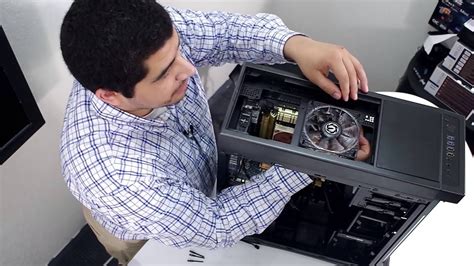
Your CPU and GPU generate a lot of heat under load. If your cooling system isn’t adequate or is clogged with dust, components can overheat. To prevent damage, they ‘throttle’ (reduce their performance) until temperatures drop, resulting in sudden and severe FPS drops.
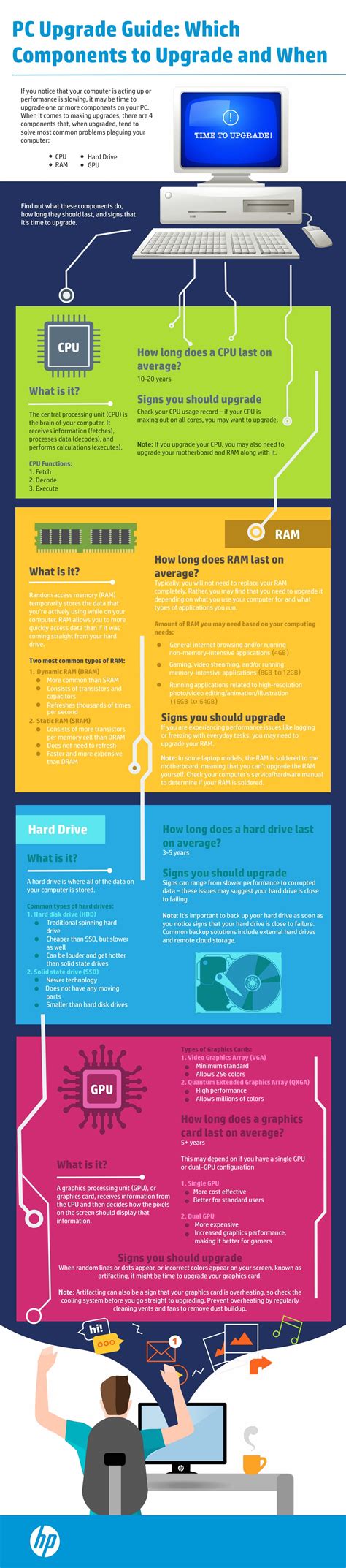
4. Inadequate Hardware Specifications
Sometimes, your system simply isn’t powerful enough to run a particular game at your desired settings. This could mean an aging CPU, an entry-level GPU, or insufficient RAM for modern titles.
5. High In-Game Graphics Settings
Pushing all graphical settings to ‘Ultra’ might look amazing, but it demands a lot from your hardware. If your GPU and CPU are struggling to keep up, FPS will suffer.
6. Storage Issues
If your game is installed on a slow Hard Disk Drive (HDD) that is fragmented or nearly full, or even a full SSD, it can lead to slow texture loading and occasional stuttering, which manifests as FPS drops.
7. Power Management Settings
Your Windows power plan might be set to ‘Balanced’ or ‘Power Saver,’ which can limit your CPU’s performance to conserve energy, even when gaming.
Actionable Fixes for Smoother Gaming
Once you have an idea of the potential causes, it’s time to implement solutions:
1. Update Your Drivers and Operating System
- Graphics Drivers: Always keep your GPU drivers updated. Download the latest versions directly from NVIDIA, AMD, or Intel’s official websites.
- Chipset Drivers: Update your motherboard’s chipset drivers from your motherboard manufacturer’s website.
- Windows Updates: Ensure your Windows OS is fully updated, as these often include performance improvements and bug fixes.
2. Close Background Applications
- Open Task Manager (Ctrl+Shift+Esc) and close any unnecessary programs running in the background before launching your game.
- Disable unnecessary startup programs via Task Manager’s ‘Startup’ tab.
3. Monitor Temperatures and Clean Your PC
- Use monitoring software (e.g., HWMonitor, MSI Afterburner) to check CPU and GPU temperatures while gaming. If they consistently exceed 85°C (185°F), you have a cooling issue.
- Clean dust from your PC’s fans, heatsinks, and vents using compressed air.
- Consider replacing thermal paste on your CPU/GPU if they are old and temperatures remain high.
4. Adjust In-Game Graphics Settings
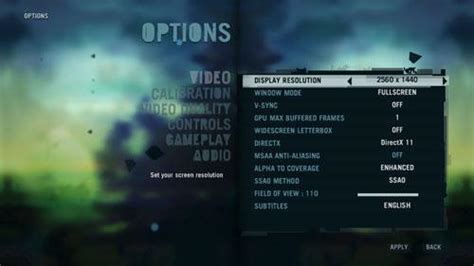
- Start by reducing resource-intensive settings like Anti-Aliasing, Shadow Quality, Volumetric Lighting, and Post-Processing effects.
- Lowering resolution can also significantly boost FPS, though it will make the image less sharp.
- Experiment to find a balance between visual fidelity and smooth performance.
5. Optimize Power Settings
- In Windows, go to ‘Power & Sleep settings’ > ‘Additional power settings’ > ‘Show additional plans’ and select ‘High performance’ or ‘Ultimate Performance’ if available.
- For NVIDIA GPUs, set ‘Power management mode’ to ‘Prefer maximum performance’ in the NVIDIA Control Panel.
6. Verify Game Files
Corrupt game files can cause all sorts of issues. Use your game launcher (Steam, Epic Games, etc.) to verify the integrity of game files, which will replace any damaged data.
7. Consider a Hardware Upgrade
If all else fails, and your hardware is several years old, an upgrade to your GPU, CPU, or adding more RAM might be necessary to meet the demands of modern games. This is often the most effective, albeit most expensive, solution.
Conclusion
FPS drops can be incredibly frustrating, but with a systematic approach, you can often diagnose and resolve the issues yourself. Start with the easiest and cheapest fixes like driver updates and settings adjustments, then move on to more involved steps like cleaning your PC or, as a last resort, considering hardware upgrades. By taking these steps, you’ll be well on your way to enjoying a much smoother and more enjoyable gaming experience.


