





Which GPU settings maximize FPS without sacrificing visual quality in competitive games?
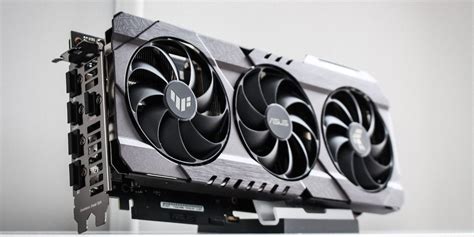
Striking the Balance: FPS and Visuals in Competitive Gaming
In the fast-paced world of competitive gaming, every millisecond and every visual cue counts. Maximizing your Frames Per Second (FPS) is paramount for a smooth, responsive experience and reduced input lag. However, achieving high FPS at the cost of essential visual fidelity—like the ability to spot distant enemies or discern environmental details—can be counterproductive. The key lies in understanding which GPU settings to tweak, balancing raw performance with critical visual information.
This guide will walk you through the most impactful in-game and driver-level settings, helping you find that sweet spot where performance soars without compromising your competitive edge.

Core In-Game Settings for Maximum Impact
The majority of your optimization efforts will happen within each game’s graphics settings. Here’s a breakdown of settings that offer the biggest bang for your buck:
Resolution and Resolution Scaling
- Native Resolution: Always aim to play at your monitor’s native resolution (e.g., 1920×1080, 2560×1440). This ensures the sharpest image.
- Resolution Scaling (DLSS/FSR): Modern upscaling technologies like NVIDIA’s DLSS or AMD’s FSR are game-changers. If your GPU supports it and the game implements it, enable these features (preferably on a ‘Quality’ or ‘Balanced’ setting). They render the game at a lower internal resolution and then intelligently upscale it, often providing a significant FPS boost with minimal perceived visual loss.
Texture Quality
- Recommendation: High to Ultra. Texture quality affects the detail of surfaces in the game world. On most modern GPUs with ample VRAM (8GB+), increasing texture quality has a surprisingly minimal impact on FPS but significantly improves visual richness. Only lower this if you’re hitting VRAM limits or have an older GPU.
Anti-Aliasing (AA)
- Recommendation: TAA (Temporal Anti-Aliasing) or Off. Anti-aliasing smooths jagged edges.
- TAA: Offers a good balance, but can sometimes introduce slight blurriness or ghosting.
- FXAA/SMAA: Less demanding than MSAA, but also less effective and can blur.
- MSAA: Provides the clearest image but is extremely performance-intensive. Avoid in competitive titles unless your FPS is consistently overkill.
- Off: If your resolution is high (1440p+) or you find AA too blurry, turning it off completely can provide a noticeable FPS boost and sharper edges, albeit with more jaggies.

Reducing Visual Clutter Without Loss of Detail
Certain settings primarily add aesthetic flair but can be massive FPS hogs and even hinder competitive play by obscuring vision.
Shadow Quality
- Recommendation: Low to Medium. Shadow rendering is one of the most GPU-intensive operations. Reducing shadow quality can yield substantial FPS gains. Crucially, competitive players often benefit from simpler, less detailed shadows as they can sometimes make it easier to spot enemies in darker areas.
Ambient Occlusion (AO)
- Recommendation: Off or Lowest. AO adds realistic soft shadows where objects meet, enhancing depth. While visually appealing, it’s very demanding. Turning it off usually has little impact on spotting enemies and can free up significant frames.
Post-Processing Effects (Bloom, Motion Blur, Depth of Field, Lens Flare)
- Recommendation: All Off. These cinematic effects are designed for immersion, not competitive clarity. Motion blur actively hinders your ability to track targets, bloom can make bright areas too glaring, and depth of field blurs distant objects. Disable them entirely for better clarity and FPS.
Reflections and Refractions
- Recommendation: Low or Off. Realistic reflections (e.g., on water, shiny surfaces) and refractions are visually impressive but extremely taxing on your GPU. In competitive games, these details are rarely important and can be a prime target for reduction.

Driver-Level Optimizations (NVIDIA & AMD)
Beyond in-game settings, your GPU’s control panel offers powerful global and game-specific optimizations.
NVIDIA Control Panel
- Low Latency Mode: Set to ‘Ultra’ or ‘On’ for competitive games. This reduces render queueing, minimizing input lag at a slight FPS cost, which is often worth it.
- Max Frame Rate: Consider capping your FPS just below your monitor’s refresh rate (e.g., 141 FPS for a 144Hz monitor) if you’re consistently hitting your monitor’s refresh rate. This can smooth out frame delivery and reduce tearing without G-Sync.
- Power Management Mode: Set to ‘Prefer Maximum Performance’ for consistent clock speeds.
- Texture Filtering – Quality: Set to ‘High Performance’ or ‘Performance’.
AMD Adrenalin Software
- Radeon Anti-Lag: Enable for reduced input lag, similar to NVIDIA’s Low Latency Mode.
- Radeon Boost: Can dynamically reduce resolution during fast camera movements for an FPS boost. Experiment with this, as some find the visual changes jarring.
- Radeon Image Sharpening: Enable at a moderate level (e.g., 60-80%) to counteract any blurriness from TAA or resolution scaling.
- Texture Filtering Quality: Set to ‘Performance’.

Testing and Fine-Tuning Your Setup
Optimizing your settings is not a one-time task; it requires iteration. After adjusting settings:
- Use Benchmarks: Many games have built-in benchmarks. Run them to get a quantifiable measure of FPS changes.
- Monitor In-Game: Use tools like MSI Afterburner, CapFrameX, or even your GPU driver’s overlay to monitor FPS, frame times, and GPU utilization in real-time during actual gameplay. Pay attention to minimum FPS and frame consistency.
- Focus on Consistency: A stable 120 FPS is often preferable to fluctuating between 90 and 180 FPS. Smooth frame delivery (low frame times) is crucial.
- Personal Preference: Ultimately, what feels ‘right’ is subjective. Some players prioritize absolute sharpness, others prioritize every last frame. Experiment to find your personal sweet spot.

Conclusion
Achieving peak performance in competitive games without sacrificing vital visual clarity is a nuanced process. By strategically adjusting in-game graphics settings—prioritizing resolution, judiciously managing anti-aliasing, and eliminating unnecessary post-processing—alongside fine-tuning your GPU drivers, you can significantly enhance your FPS. Remember to test thoroughly and adapt your settings to each game and your specific hardware. A smoother, clearer visual experience will undoubtedly give you the competitive edge you seek.


