





Why are my game FPS low despite good specs? Common causes & fixes!

Understanding Low FPS on High-Spec Gaming PCs
You’ve invested in a powerful gaming rig – a high-end CPU, a top-tier GPU, ample RAM, and fast storage. Yet, when you launch your favorite games, the framerates are inexplicably low, far from what your hardware promises. This can be one of the most frustrating experiences for any PC gamer. While it’s easy to blame the game or your hardware, the reality is often more nuanced. Low FPS despite good specs typically stems from a combination of software misconfigurations, overlooked hardware issues, or even simple settings oversights. Let’s dive into the common causes and, more importantly, how to fix them.

Common Software-Related Causes and Fixes
Outdated or Corrupted Drivers
Graphics drivers are the critical link between your operating system, games, and GPU. Outdated, incorrectly installed, or corrupted drivers are a prime suspect for poor performance. Always ensure you have the latest drivers for your graphics card (NVIDIA, AMD, Intel) directly from the manufacturer’s website. Don’t rely solely on Windows Update. It’s also worth updating chipset drivers from your motherboard manufacturer.
- Fix: Download the latest GPU drivers. Perform a clean installation (most installers offer this option).
Background Applications and Processes
Modern PCs run numerous applications in the background, many of which can consume CPU, RAM, or even GPU resources without you realizing it. Discord overlays, web browsers with multiple tabs, streaming software, antivirus scans, or even widgets can collectively hog resources, leaving less for your game.
- Fix: Open Task Manager (Ctrl+Shift+Esc), go to the “Processes” tab, and close any unnecessary applications before gaming. Disable game overlays you don’t use.
Incorrect Game Settings
Sometimes, the problem is as simple as misconfigured in-game settings. Ray tracing, ultra-high texture packs, anti-aliasing (especially DSR/supersampling), or an uncapped framerate in certain scenarios can push even the best hardware beyond its limits, leading to inconsistent performance.
- Fix: Start by using the game’s recommended settings. Experiment with lowering graphically intensive options like shadow quality, anti-aliasing, and post-processing effects. Ensure your display resolution is native.
Operating System and Game Updates
While updates usually bring improvements, sometimes a specific Windows update or game patch can introduce performance regressions or compatibility issues. Conversely, skipping important updates can leave your system with unpatched performance optimizations.
- Fix: Keep Windows and your games updated. If a recent update caused issues, check community forums for similar reports or consider rolling back (Windows) or verifying game files.
Malware or Viruses
Malware, especially cryptominers or adware, can silently consume significant system resources, leading to a noticeable drop in gaming performance. These malicious programs often run hidden in the background.
- Fix: Run a full system scan with reputable antivirus software.
Common Hardware-Related Causes and Fixes
Thermal Throttling
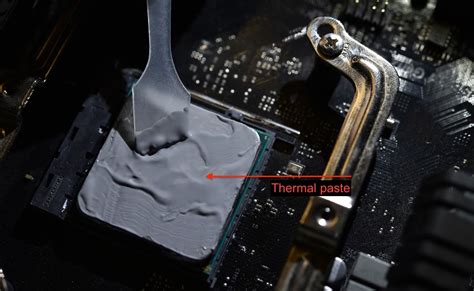
Your CPU and GPU generate a lot of heat under load. If your cooling system (fans, heatsinks, thermal paste) isn’t adequate or is clogged with dust, components will overheat. To prevent damage, they automatically reduce their clock speed (throttle), severely impacting performance.
- Fix: Monitor CPU/GPU temperatures with tools like MSI Afterburner or HWMonitor. Clean your PC’s fans and heatsinks. Reapply thermal paste if necessary. Ensure good airflow within your case.
CPU or GPU Bottleneck (Even with Good Specs)
Even if you have “good” specs, a significant imbalance between your CPU and GPU can lead to a bottleneck. For example, a super-powerful GPU paired with an older or weaker CPU might mean the CPU can’t feed frames fast enough to the GPU, leaving the GPU underutilized. The reverse can also happen with a very powerful CPU and a mid-range GPU.
- Fix: Use monitoring software to check CPU and GPU utilization during gaming. If one is consistently at 99-100% while the other is much lower, you likely have a bottleneck. Adjusting game settings can sometimes mitigate this (e.g., higher resolution/settings might shift load to GPU).
Insufficient or Slow RAM
While 16GB is generally sufficient for most modern games, having only 8GB or using very slow RAM (e.g., DDR4-2400 in a system that supports DDR4-3600) can limit performance. Running out of RAM forces the system to use the slower page file on your storage drive, causing stuttering and FPS drops.
- Fix: Check RAM usage. Upgrade to faster or more RAM if frequently hitting limits. Ensure RAM is running in dual-channel mode and at its advertised speed (enable XMP/DOCP in BIOS).
Power Supply Unit (PSU) Issues
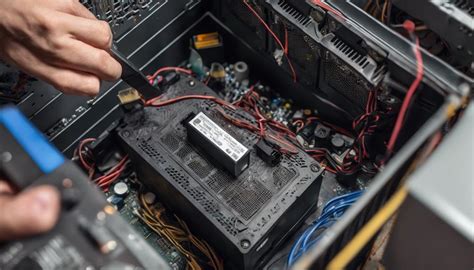
An insufficient or failing PSU might not deliver stable or adequate power to your components under heavy load. This can lead to instability, crashes, or components underperforming their potential.
- Fix: Ensure your PSU wattage meets or exceeds the recommended requirements for your CPU and GPU. If it’s an older unit, consider upgrading.
Advanced Troubleshooting and Optimization
BIOS/UEFI Settings
Incorrect BIOS settings can sometimes impact performance. Ensure your XMP/DOCP profile for RAM is enabled, virtualization features (if not needed) are off, and any CPU power-saving features aren’t overly aggressive.
- Fix: Consult your motherboard manual and review relevant BIOS settings.
Monitor Refresh Rate and Cable
While not directly causing low FPS, an incorrectly set monitor refresh rate can make it seem like your FPS is lower. Also, using an old or damaged display cable (HDMI 1.4 for 144Hz 1440p, for example) can limit the maximum refresh rate or resolution output.
- Fix: Ensure your monitor’s refresh rate is set correctly in Windows display settings. Use appropriate DisplayPort or HDMI cables (e.g., DisplayPort 1.4, HDMI 2.1 for high refresh rates/resolutions).
Corrupted Windows Installation or Storage Drive Issues
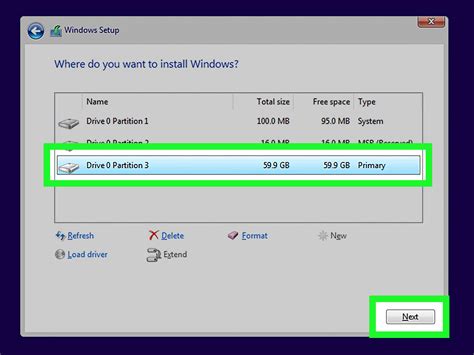
A severely fragmented or corrupted Windows installation can slow down your entire system, including gaming. Similarly, an aging or nearly full SSD/HDD can impact game loading times and asset streaming, leading to stutters.
- Fix: Consider a fresh Windows installation as a last resort. Keep your primary game drive with at least 15-20% free space. Run disk health checks.
Conclusion
Experiencing low FPS on a high-spec gaming PC is frustrating, but rarely an unsolvable mystery. The key is systematic troubleshooting. Start with the simplest and most common software issues, then move on to hardware checks and advanced optimizations. By meticulously checking drivers, background processes, in-game settings, temperatures, and hardware utilization, you can diagnose the root cause and unleash the full potential of your gaming rig. Happy gaming!


