





Why is my gaming PC getting low FPS on new titles despite good specs? How to optimize?

The Frustration of Underperforming Hardware
There’s nothing quite as perplexing for a PC gamer as investing in a powerful system, only to find it struggles with low Frame Rates Per Second (FPS) on the latest AAA titles. You’ve got the latest CPU, a top-tier GPU, ample RAM, and blazing-fast storage, yet new games feel choppy or unplayable. This common conundrum can stem from a variety of factors, some obvious and some surprisingly subtle. Understanding these potential culprits is the first step toward reclaiming the smooth, high-fidelity gaming experience you paid for.
Common Culprits Behind Low FPS
Even with good specifications, several issues can prevent your gaming PC from performing at its peak. Identifying the root cause is crucial for effective optimization.
Outdated or Corrupt Drivers
Graphics drivers are the critical link between your operating system, games, and your GPU. Outdated, corrupt, or improperly installed drivers are a leading cause of performance issues. Manufacturers like NVIDIA and AMD regularly release optimized drivers for new game titles and performance improvements.
![[Windows 11/10] How to update Windows version (Feature Update ...](/images/aHR0cHM6Ly90czQubW0uYmluZy5uZXQvdGg/aWQ9T0lQLnd6NnNJQmVrVTJrOGJTcTdUVHY5dEFIYUZqJnBpZD0xNS4x.webp)
Thermal Throttling
When components like your CPU or GPU get too hot, they automatically reduce their clock speed to prevent damage. This safety mechanism, known as thermal throttling, can drastically reduce your FPS. Poor airflow, dusty coolers, or inadequate cooling solutions are common causes.
Background Processes and Software Conflicts
Too many applications running in the background can consume valuable CPU, RAM, and even GPU resources, leaving less available for your game. Antivirus scans, browser tabs, streaming apps, or even specific game launchers can contribute to this overhead.
Power Settings and BIOS Configurations
Windows power plans, as well as specific settings within your GPU control panel (NVIDIA Control Panel or AMD Adrenalin), can sometimes be set to power-saving modes, inadvertently limiting performance. Incorrect BIOS settings related to RAM speed (XMP/DOCP) or CPU power limits can also be a factor.
Game-Specific Optimization and Settings
Not all games are optimized equally, and some simply require more powerful hardware than others, especially with features like ray tracing or ultra-high texture settings enabled. Sometimes, a game’s default settings might be too ambitious for even a high-end system.
How to Optimize Your Gaming PC for Max FPS
Once you’ve identified potential issues, it’s time to implement solutions. Here’s a systematic approach to optimizing your gaming rig.
1. Update All Drivers
- Graphics Drivers: Always download the latest drivers directly from NVIDIA or AMD’s official websites. Perform a clean installation (usually an option during the driver setup).
- Chipset Drivers: Update your motherboard’s chipset drivers from your motherboard manufacturer’s website.
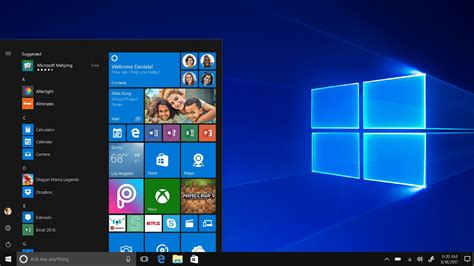
- Windows Updates: Ensure your Windows OS is fully updated, as these often include performance enhancements and bug fixes.
2. Monitor and Improve Cooling
Use monitoring software like HWMonitor, MSI Afterburner, or HWiNFO to keep an eye on your CPU and GPU temperatures while gaming. If temperatures consistently exceed 80-85°C (176-185°F), consider:
- Cleaning dust from fans and heatsinks.
- Improving case airflow with additional or better-positioned fans.
- Replacing thermal paste on your CPU or GPU (for advanced users).
- Upgrading to a more robust cooling solution (e.g., AIO liquid cooler).
3. Manage Background Processes
- Task Manager: Open Task Manager (Ctrl+Shift+Esc), go to the ‘Processes’ tab, and close any unnecessary applications consuming significant resources before launching a game.
- Startup Apps: In Task Manager’s ‘Startup’ tab, disable programs you don’t need to launch with Windows.
- Game Mode: Ensure Windows Game Mode is enabled (Settings > Gaming > Game Mode), as it prioritizes your game’s resources.
4. Adjust Power and BIOS Settings
- Windows Power Plan: Go to ‘Power Options’ in the Control Panel and select the ‘High performance’ plan.
- GPU Control Panel: In NVIDIA Control Panel (Manage 3D Settings > Power management mode) or AMD Adrenalin (Gaming > Global Graphics > Power Tuning), set power to ‘Prefer maximum performance’.
- BIOS/UEFI: Ensure your RAM is running at its advertised speed by enabling XMP (Intel) or DOCP (AMD) profiles.
5. Optimize In-Game Settings
This is often the quickest way to gain FPS. Experiment with settings, starting with the most demanding ones:
- Resolution: Lowering this can have a huge impact.
- Ray Tracing: Disable or reduce this for significant gains.
- Anti-Aliasing: Lowering or disabling can help.
- Shadow Quality: Often very demanding.
- Texture Quality: Depends on VRAM, but reducing can help.
- View Distance/Draw Distance: Can impact CPU and GPU.
- Upscaling Technologies: Utilize NVIDIA DLSS or AMD FSR if available, as they can provide near-native quality at lower internal resolutions, boosting FPS significantly.

6. Check for Bottlenecks
Use monitoring software while gaming to observe CPU and GPU utilization. If your GPU utilization is consistently low (e.g., below 90%) while your CPU is near 100%, you might have a CPU bottleneck. Conversely, a high GPU utilization with low FPS usually means your GPU is the limiting factor. This helps identify where future upgrades might be most effective.
7. Maintain Your Storage
- SSD Space: Ensure your primary drive (especially an SSD) has at least 15-20% free space for optimal performance.
- Game Location: Install games on an SSD for faster loading times and to prevent stuttering issues that can arise from slower HDDs.
8. Verify Game Files or Reinstall
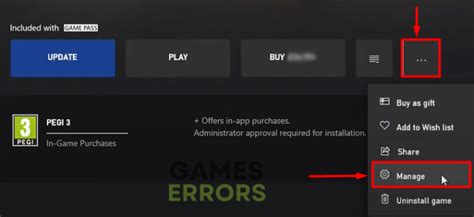
Corrupted game files can lead to crashes or poor performance. Use the ‘Verify Integrity of Game Files’ feature on platforms like Steam or Epic Games Launcher. If problems persist, a clean reinstall of the game might be necessary.
Conclusion
Experiencing low FPS on a powerful gaming PC can be incredibly frustrating, but it’s rarely a sign of inherently flawed hardware. More often, it points to optimization opportunities or overlooked software conflicts. By systematically working through driver updates, monitoring temperatures, managing background processes, and tweaking in-game settings, you can diagnose and resolve most performance issues. A well-maintained and properly configured system will not only deliver higher frame rates but also a more stable and enjoyable gaming experience for all your new titles.


