Why is my gaming PC overheating? Tips to fix CPU/GPU temps.

The Silent Killer: Understanding Gaming PC Overheating
There’s nothing more frustrating for a PC gamer than experiencing performance drops, stuttering, or even system crashes during an intense gaming session. Often, the culprit is overheating, a silent killer that can severely impact your hardware’s lifespan and your gaming experience. Your CPU (Central Processing Unit) and GPU (Graphics Processing Unit) are the workhorses of your gaming rig, and when they run too hot, they’ll throttle their performance to prevent damage, leading to the dreaded frame rate drops.
Understanding why your PC is overheating is the first step towards a cooler, more stable system. From simple dust accumulation to complex airflow problems, several factors can contribute to elevated temperatures. Fortunately, most overheating issues can be resolved with some straightforward troubleshooting and maintenance.
Common Culprits Behind High Temperatures
Before you can fix the problem, you need to identify its source. Here are the most frequent reasons why your gaming PC might be running too hot:
- Dust Accumulation: Over time, dust, pet hair, and other debris can build up on fans, heatsinks, and vents, acting as an insulating layer that traps heat and obstructs airflow.
- Poor Airflow and Case Design: An improperly configured fan setup or a case with inadequate ventilation can prevent cool air from entering and hot air from exiting, leading to heat buildup inside the chassis.
- Aging Thermal Paste: The thermal paste between your CPU/GPU and their respective heatsinks degrades over time, losing its ability to efficiently transfer heat.
- Inadequate Cooling Solutions: Stock CPU coolers, while sufficient for basic tasks, might not be enough to handle the heat generated by modern gaming CPUs, especially under load or with overclocking.
- Overclocking: Pushing your CPU or GPU beyond their factory settings generates more heat, requiring robust cooling to maintain stability.
- High Ambient Room Temperatures: If your room is hot, your PC’s cooling system has to work harder to dissipate heat, and it might struggle to keep component temperatures within safe limits.
Practical Steps to Cool Down Your Rig
Once you’ve identified potential causes, it’s time to implement solutions. Start with the simplest fixes and work your way up.
1. Clean Your PC Thoroughly
This is often the most effective and cheapest fix. Power down and unplug your PC. Use a can of compressed air (holding it upright to avoid moisture) to blast dust out of your CPU cooler, GPU heatsink and fans, case fans, and power supply. Pay close attention to any clogged vents or grilles. A small brush can help dislodge stubborn dust.
2. Improve Case Airflow and Cable Management
Good airflow is crucial. Ensure your case fans are oriented correctly: front/bottom fans typically act as intakes, bringing cool air in, while top/rear fans act as exhausts, pushing hot air out. Consider adding more fans if your case has empty slots. Additionally, poor cable management can obstruct airflow, creating pockets of stagnant hot air. Tidy up your cables, routing them behind the motherboard tray if possible, to allow for unobstructed air movement.
Advanced Cooling Solutions and Maintenance
If cleaning and airflow adjustments aren’t enough, you might need to look at more significant changes.
3. Reapply Thermal Paste
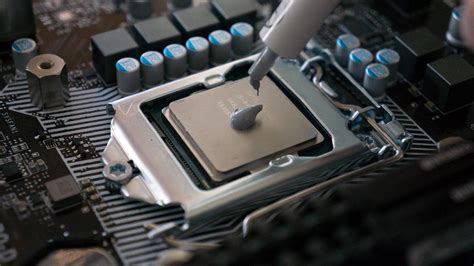
For an aging system, reapplying thermal paste to your CPU (and potentially GPU, though this is more advanced) can make a significant difference. This involves carefully removing the CPU cooler, cleaning off the old paste with isopropyl alcohol, and applying a new, thin layer of high-quality thermal paste. Always refer to a guide or video specific to your CPU and cooler model if you’re unsure.
4. Upgrade Your Cooling System
If you’re still experiencing high temps, especially with a stock cooler, it might be time for an upgrade. For CPUs, consider an aftermarket air cooler or an All-in-One (AIO) liquid cooler. Both offer significantly better heat dissipation than stock options. For GPUs, upgrading the cooler is a more complex task, often involving aftermarket solutions like AIO kits designed for GPUs or even custom water cooling loops, which are typically for advanced users.
5. Monitor Temperatures and Adjust Settings
Use software like HWMonitor, MSI Afterburner (for GPU), or NZXT CAM to continuously monitor your CPU and GPU temperatures. Learn what constitutes safe operating temperatures for your components (generally, under 80-85°C under load is good, but check manufacturer specs). If overclocking, consider dialling back your settings. You can also try undervolting your CPU or GPU – reducing the voltage supplied to them while maintaining performance – which can significantly lower temperatures with minimal performance impact.

Keep Your Cool, Game On
Maintaining optimal temperatures in your gaming PC is crucial for both performance and hardware longevity. By regularly cleaning your system, ensuring proper airflow, and considering upgrades or maintenance like thermal paste reapplication, you can keep your CPU and GPU running cool. This proactive approach will help you avoid thermal throttling, extend the life of your components, and ensure an uninterrupted, high-performance gaming experience. Don’t let heat be the reason your gaming sessions come to a premature end!