Stuttering in competitive shooters? What monitor settings reduce input lag?
Understanding Stuttering and Input Lag in Competitive Gaming
For competitive gamers, every millisecond counts. The difference between a headshot and a missed opportunity often boils down to the responsiveness of your system. Two common enemies of peak performance are ‘stuttering’ and ‘input lag,’ both of which can severely impact your gaming experience, especially in fast-paced shooters.
Stuttering refers to inconsistent frame delivery, where frames are displayed at irregular intervals, leading to a choppy visual experience even if your average frame rate is high. This can manifest as momentary freezes or hitching, making target tracking nearly impossible. Input lag, on the other hand, is the delay between your physical action (e.g., mouse click, keypress) and its corresponding reaction on screen. In competitive titles, even a few milliseconds of lag can mean the difference between winning and losing a crucial gunfight.
Key Monitor Settings to Eliminate Stutter and Reduce Input Lag
While stuttering can stem from various system components (CPU, GPU, RAM, network), your monitor plays a critical role in both visual fluidity and input responsiveness. Optimizing its settings is a vital step toward a superior competitive experience.
1. Refresh Rate (Hz)
The refresh rate dictates how many times per second your monitor can update the image. Higher refresh rates (144Hz, 240Hz, 360Hz) mean smoother motion and reduced input lag. Ensure your monitor is set to its highest available refresh rate in both your operating system display settings and your game’s video settings. Mismatching these can lead to underutilization of your monitor’s capabilities.
2. Response Time / Overdrive Setting
Response time measures how quickly pixels can change from one color to another. A faster response time (typically 1ms GtG – Grey-to-Grey) helps reduce motion blur and ‘ghosting’ – trails left by fast-moving objects. Most modern gaming monitors have an ‘overdrive’ setting, which can accelerate pixel transitions. Experiment with this setting; too little and you’ll see ghosting, too much and you might encounter ‘inverse ghosting’ or ‘overshoot,’ where pixels temporarily overcorrect, creating bright halos.
3. Adaptive Sync (G-Sync / FreeSync)
Adaptive Sync technologies like NVIDIA’s G-Sync and AMD’s FreeSync are game-changers. They synchronize your monitor’s refresh rate with your GPU’s frame rate. This eliminates screen tearing and dramatically reduces stutter by ensuring frames are displayed only when fully rendered. If your monitor and GPU support one of these technologies, activate it in your GPU control panel. It’s often the most impactful setting for a consistently smooth experience.
4. Low Input Lag Mode / Game Mode
Many gaming monitors include a dedicated ‘Game Mode’ or ‘Low Input Lag Mode.’ These modes typically bypass certain image processing features that can add latency. While they might slightly alter color accuracy, the benefit of reduced input lag in competitive scenarios often outweighs this trade-off. Consult your monitor’s OSD (On-Screen Display) menu to enable this feature.
5. Black Frame Insertion (BFI) / Motion Blur Reduction (MBR)
Some monitors offer features like NVIDIA’s ULMB (Ultra Low Motion Blur) or a generic ‘Motion Blur Reduction’ setting, often achieved through Black Frame Insertion. This technique rapidly inserts black frames between regular frames, which can significantly improve perceived motion clarity by reducing persistence blur. However, BFI usually leads to a dimmer image and may introduce flicker for some users. It also typically disables Adaptive Sync, so it’s a trade-off to consider.
Beyond Monitor Settings: Cable and GPU Drivers
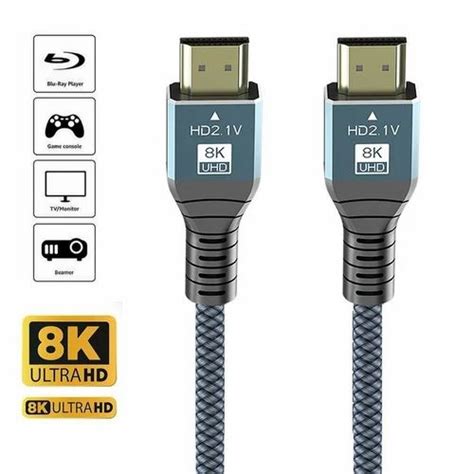
Ensure you are using the correct cable. DisplayPort is generally preferred for high refresh rates and Adaptive Sync support over HDMI, especially older HDMI versions. Always use high-quality, certified cables. Additionally, keep your graphics card drivers updated, as driver optimizations often include improvements for latency and performance.
Conclusion: Fine-Tuning for Peak Performance
Optimizing your monitor settings is a crucial step in gaining a competitive edge. By maximizing your refresh rate, fine-tuning response time, leveraging adaptive sync, and enabling low input lag modes, you can significantly reduce stuttering and input lag. Experiment with these settings to find the sweet spot for your specific setup and preferences. A smooth, responsive display isn’t just a luxury; it’s a necessity for any serious competitive player.