Optimizing game settings for max FPS on mid-range gaming PCs?
The Quest for Frames: Maximizing FPS on Your Mid-Range Rig
Owning a mid-range gaming PC offers a fantastic balance of performance and value, but squeezing out every possible frame per second (FPS) often requires a strategic approach to game settings. While high-end machines can brute-force their way through most titles, mid-range systems benefit immensely from thoughtful optimization. This guide will walk you through the most impactful in-game and system-level tweaks to help you achieve a smoother, more responsive gaming experience.
In-Game Settings: Your First Line of Defense
The graphics settings within each game are your primary tools for optimization. Understanding what each setting does and its performance cost is crucial.
Resolution: The Biggest Impact
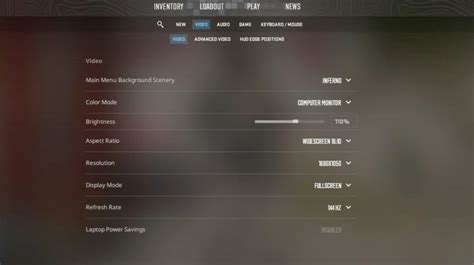
Your screen’s resolution is often the single most demanding setting. Running games at your monitor’s native resolution (e.g., 1080p for a full HD monitor) is ideal, but if FPS is struggling, dropping it slightly can yield significant gains. Some games also offer ‘resolution scaling’ options, allowing you to render the game at a lower resolution internally and then upscale it, providing a middle ground.
Texture Quality: Balancing VRAM and Detail
Texture quality determines the sharpness and detail of surfaces in the game. Higher settings demand more VRAM (Video RAM) from your graphics card. If your GPU has 4GB or less VRAM, lowering texture quality from ‘Ultra’ or ‘High’ to ‘Medium’ or ‘Low’ can prevent stuttering, especially in open-world games. This often has a less noticeable visual impact than other settings.
Shadows and Reflections: FPS Killers
Dynamic shadows and realistic reflections are notoriously demanding on both your CPU and GPU. High-quality shadows require complex calculations for lighting and object interactions, while reflections render parts of the scene multiple times. Reducing shadow quality, turning off ray-traced reflections (if available), or even disabling less critical reflections can dramatically improve performance. Many games offer options for shadow resolution, draw distance, and even ambient occlusion (which enhances shadows). Experiment with these.

Anti-Aliasing (AA): Smooth Edges vs. Performance
Anti-aliasing smooths out jagged edges (aliasing) that appear on diagonal lines and object boundaries. While it makes visuals much cleaner, some AA methods are very resource-intensive. Options like MSAA (Multi-Sample Anti-Aliasing) are precise but heavy. Lighter alternatives include FXAA (Fast Approximate Anti-Aliasing) and TAA (Temporal Anti-Aliasing), which offer a good balance of visual improvement and performance. SMAA (Subpixel Morphological Anti-Aliasing) is another popular choice. If FPS is critical, try the lightest AA option or disable it altogether.
Post-Processing Effects: The Cinematic Cost
Many modern games include a variety of post-processing effects like Bloom (light glow), Depth of Field (blurring distant objects), Motion Blur (blurring during fast movement), Lens Flare, and Volumetric Lighting. While these add cinematic flair, they can consume precious frames. Often, turning these off or reducing their intensity has a minimal impact on core gameplay visuals but can free up significant GPU resources.
View Distance and Draw Distance: Seeing Far, Paying Hard
These settings determine how far into the game world objects, terrain, and details are rendered. Higher settings mean your system has to process and display more information at once, heavily taxing both your CPU and GPU. Reducing view distance, especially for environmental details like foliage or small objects, can significantly boost FPS in open-world games. Find a balance where pop-in isn’t too distracting.
V-Sync and Frame Rate Caps: Tearing vs. Input Lag
V-Sync synchronizes your game’s frame rate with your monitor’s refresh rate to prevent screen tearing. While useful, it can introduce input lag and cap your FPS below what your system can achieve. If you have a FreeSync or G-Sync compatible monitor, enable those technologies instead. Otherwise, consider turning V-Sync off and using an in-game or driver-level frame rate cap (e.g., 60 FPS or 120 FPS) slightly below your average maximum to maintain consistency without the V-Sync penalty.
Beyond the Game: System-Level Optimizations
Optimizing your system outside of game settings can also provide a valuable FPS boost.
Keep Your Drivers Updated
Always ensure your graphics drivers (NVIDIA, AMD, Intel), chipset drivers, and Windows operating system are up to date. Driver updates frequently include game-specific optimizations and performance improvements. Check your GPU manufacturer’s website regularly for the latest versions.
Manage Background Processes
Before launching a game, close any unnecessary background applications. Web browsers with many tabs, streaming services, communication apps (Discord, Teams), or productivity suites can consume CPU, RAM, and even GPU resources. Use Task Manager (Ctrl+Shift+Esc) to identify and close resource-hungry processes.

Power Plan Settings
Ensure your Windows power plan is set to ‘High Performance’ or ‘Ultimate Performance’ (if available). This prevents your CPU and GPU from throttling down to save power, ensuring they deliver their full potential during gaming sessions. You can find this in the Control Panel under ‘Power Options’.
Disk Maintenance (for HDDs)
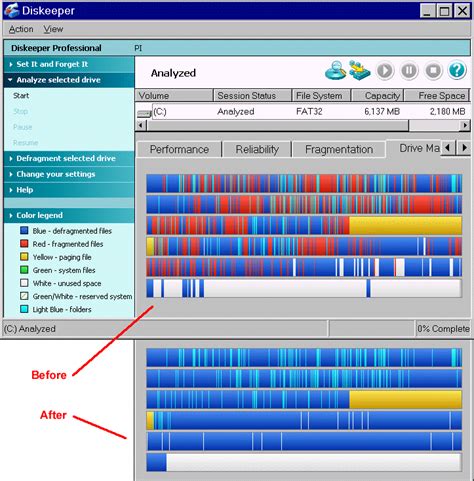
If your games are installed on a traditional Hard Disk Drive (HDD) rather than an SSD, regular defragmentation can improve load times and reduce stuttering. For SSDs, defragmentation is unnecessary and can reduce their lifespan, but ensure you have enough free space (at least 15-20%) for optimal performance.
The Sweet Spot: Finding Your Balance
Optimizing is a process of trial and error. Start by lowering the most demanding settings (resolution, shadows, reflections, AA) and then gradually increase them until you find the perfect balance between visual quality and your desired FPS target. Utilize in-game benchmark tools if available, or use an FPS counter (like MSI Afterburner, FRAPS, or Steam’s built-in overlay) to monitor your performance in real-time. Pay attention to how different settings impact the minimum FPS, not just the average, as consistent frames are key to a smooth experience.
Unleash Your Mid-Range Power
With a little patience and experimentation, your mid-range gaming PC can deliver a surprisingly smooth and enjoyable gaming experience. By strategically adjusting in-game graphics settings and maintaining your system, you can unlock its full potential, ensuring you get the most frames for your buck.