





How to diagnose and fix FPS drops or stuttering in PC games effectively?
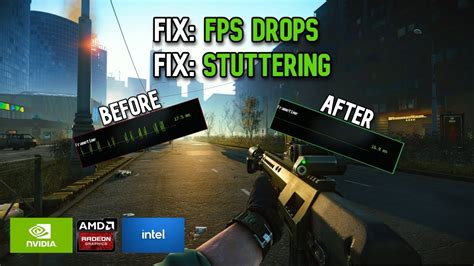
There’s nothing more frustrating for a PC gamer than experiencing sudden FPS drops or persistent stuttering. What starts as an immersive adventure can quickly turn into a jarring slideshow, hindering your performance and enjoyment. Identifying the root cause can feel like finding a needle in a haystack, as numerous factors from software conflicts to hardware limitations can contribute to these issues. This guide will walk you through a systematic approach to diagnose and effectively fix common FPS drops and stuttering, helping you reclaim your smooth gaming experience.
Understanding the Enemy: What Causes Performance Drops?
FPS (Frames Per Second) drops and stuttering are indicators that your system is struggling to render game frames consistently. This can stem from a variety of sources, including:
- Hardware Bottlenecks: Your CPU, GPU, RAM, or even storage might not be powerful enough or fast enough for the game or its current settings.
- Software Conflicts: Outdated drivers, background applications consuming resources, or even malware can severely impact performance.
- Thermal Throttling: Overheating components (CPU or GPU) will automatically reduce their clock speed to prevent damage, leading to massive performance drops.
- Power Management Issues: Incorrect Windows power settings can limit your hardware’s potential.
- Game-Specific Problems: Poor optimization, bugs, or corrupted game files.
Step 1: Initial Diagnostics and Monitoring
Before you can fix the problem, you need to understand what’s happening. Monitoring your system while gaming is crucial.
Utilize Monitoring Tools
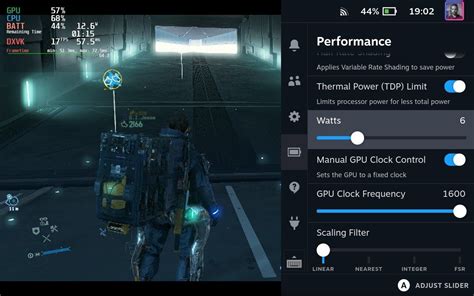
- MSI Afterburner (with RivaTuner Statistics Server): This is the go-to tool for monitoring GPU usage, temperature, clock speeds, CPU usage, RAM usage, and FPS in real-time. It can also log data for later analysis.
- Task Manager (Windows): A quick way to see CPU, RAM, Disk, and GPU usage (Windows 10/11) in the ‘Performance’ tab. Check the ‘Processes’ tab for resource-hungry background applications.
- In-game FPS Counters: Many games have built-in FPS counters (Steam Overlay, NVIDIA GeForce Experience, AMD Radeon Software).
Check System Requirements
Ensure your PC meets, or ideally exceeds, the game’s recommended system requirements. If you’re at the minimum, expect performance struggles.
Step 2: Software-Related Fixes
Many performance issues are software-based and can often be resolved without opening your PC case.
Update Your Drivers
This is arguably the most critical step. Outdated or corrupted graphics card drivers (NVIDIA, AMD, Intel) are frequent culprits. Visit your GPU manufacturer’s website directly for the latest stable drivers. Also, consider updating your chipset drivers from your motherboard manufacturer’s website.
Adjust In-Game Graphics Settings
This is your first line of defense against poor performance. Start by lowering demanding settings:
- Resolution: Lowering from 4K to 1440p or 1080p will significantly boost FPS.
- Anti-aliasing: MSAA, TAA, FXAA can be very taxing. Experiment with lower settings or turning it off.
- Shadow Quality: Shadows are often a major performance hog.
- Texture Quality: High-resolution textures consume a lot of VRAM.
- Volumetric Fog/God Rays: These effects are visually striking but very demanding.
- Draw Distance/LOD: Reducing these can free up CPU resources.
Manage Background Applications
Close any unnecessary programs running in the background – web browsers, streaming apps, other games, or even chat clients. Use Task Manager to identify and close resource hogs.
Optimize Power Settings
In Windows, go to Control Panel > Hardware and Sound > Power Options. Select “High performance” or “Ultimate Performance” (if available) plan. Ensure your GPU’s power management mode is set to “Prefer maximum performance” in its control panel (NVIDIA Control Panel or AMD Radeon Software).
Enable Game Mode (Windows 10/11)
Windows Game Mode aims to prioritize game performance by managing system resources. Search for “Game Mode settings” in Windows and ensure it’s turned on.
Step 3: Hardware-Related Troubleshooting
If software adjustments don’t solve the problem, it might be time to look at your physical components.
Check for Overheating
High temperatures are a major cause of throttling. Use monitoring tools to check your CPU and GPU temperatures. If they regularly exceed 85-90°C under load:
- Clean Dust: Use compressed air to clean dust from CPU cooler, GPU heatsink, and case fans.
- Improve Airflow: Ensure your case has good airflow with intake and exhaust fans.
- Reapply Thermal Paste: If temperatures are still high, consider reapplying thermal paste to your CPU or GPU (advanced step).
Verify RAM Configuration and Health
Ensure your RAM sticks are properly seated. If you have multiple sticks, make sure they are in the correct slots for dual-channel (or quad-channel) operation, as specified by your motherboard manual. Run a memory diagnostic tool (like Windows Memory Diagnostic or MemTest86) to check for errors.
Storage Drive Considerations
If your game is installed on an old HDD, loading times and asset streaming can cause stuttering. Upgrading to an SSD (SATA or NVMe) can significantly improve performance in these areas. Also, ensure your drives aren’t excessively full.

Step 4: Advanced Troubleshooting and Last Resorts
Rollback Drivers
Sometimes, the latest drivers can introduce new issues. If an update coincided with your performance problems, try rolling back to an older, stable driver version via Device Manager or the GPU control panel.
Verify Game Files
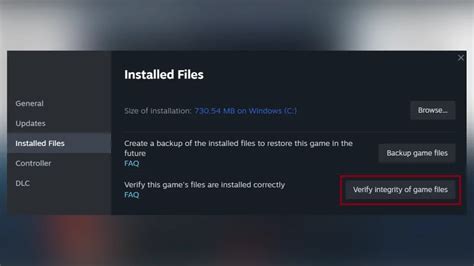
Game launchers (Steam, Epic Games Store, etc.) have an option to “verify integrity of game files.” This checks for corrupted or missing files and replaces them, often fixing game-specific stutters.
Reinstall the Game or Windows
As a last resort for persistent game-specific issues, a clean reinstall of the game can sometimes work wonders. For system-wide problems that defy all other fixes, a clean installation of Windows might be necessary, though this is a drastic step.
Consider Hardware Upgrades
If your hardware consistently struggles even on the lowest settings for games you want to play, it might simply be too old or not powerful enough. Use your monitoring data to identify the bottleneck (CPU at 100% while GPU is low, or vice versa).
Conclusion
Diagnosing and fixing FPS drops and stuttering requires patience and a systematic approach. Start with monitoring tools to pinpoint the bottleneck, then move through software optimizations, checking for overheating, and finally, consider more advanced troubleshooting or hardware upgrades. By methodically addressing each potential cause, you can significantly improve your PC gaming experience and get back to enjoying your favorite titles without frustrating interruptions.


