





Why is my gaming PC overheating? Tips to lower CPU/GPU temps.
Understanding PC Overheating: Why it Happens
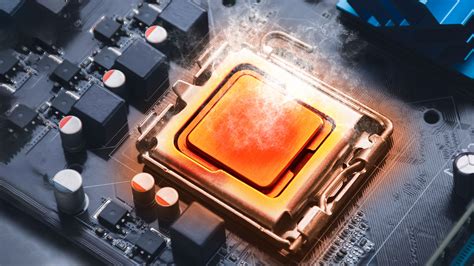
An overheating gaming PC can be a frustrating experience, often leading to performance throttling, system instability, and even potential damage to components over time. Your CPU (Central Processing Unit) and GPU (Graphics Processing Unit) are the primary heat generators in your system, especially under heavy loads like gaming. When these components get too hot, they automatically reduce their clock speeds (a process known as thermal throttling) to prevent damage, resulting in noticeable dips in frame rates and overall system sluggishness.
Common Causes of PC Overheating
- Dust Buildup: Over time, dust accumulates on fans, heatsinks, and vents, acting as an insulating layer that traps heat and restricts airflow.
- Poor Case Airflow: Inadequate fan placement, insufficient number of fans, or obstructed air pathways can prevent cool air from entering and hot air from exiting the case efficiently.
- Degraded Thermal Paste: The thermal paste between your CPU/GPU and their respective heatsinks can dry out or lose effectiveness, reducing heat transfer efficiency.
- Overclocking: While it boosts performance, aggressively overclocking your CPU or GPU significantly increases their heat output, often beyond the capacity of stock cooling solutions.
- High Ambient Temperatures: If your room temperature is already high, your PC’s cooling system has to work harder and may struggle to keep components cool.
- Malfunctioning Fans: Fans that are not spinning at optimal speeds or have stopped working entirely will severely impact cooling performance.

Effective Tips to Lower Your PC’s CPU/GPU Temperatures
Taking proactive steps to manage your PC’s thermals is crucial for maintaining performance and extending the lifespan of your hardware. Here are several actionable tips:
1. Clean Your PC Regularly
This is arguably the simplest yet most effective step. Use compressed air to blow dust out of your case, paying particular attention to CPU heatsinks, GPU fans, case fans, and power supply vents. Hold fans in place while cleaning to prevent them from spinning too fast and potentially damaging their bearings. Aim for a thorough cleaning every 3-6 months, or more frequently if your environment is dusty.
2. Improve Case Airflow and Cable Management
- Fan Configuration: Ensure you have an optimal fan setup. Typically, front and bottom fans act as intake, bringing cool air in, while rear and top fans act as exhaust, pushing hot air out.
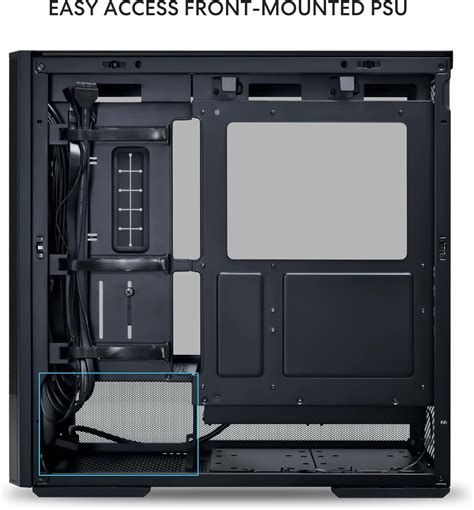
- Cable Management: Route cables neatly behind the motherboard tray or out of the direct airflow path. Cluttered cables create obstructions that hinder proper air circulation.
- Clear Obstructions: Make sure your PC case isn’t pressed against a wall or other objects that block its vents. Give it room to breathe.
3. Reapply Thermal Paste
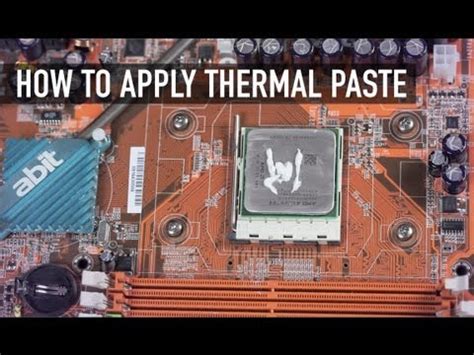
If your PC is a few years old or you suspect degraded thermal paste, reapplying it can significantly improve temperatures. This involves carefully removing the CPU/GPU cooler, cleaning off the old paste with isopropyl alcohol, and applying a new, high-quality thermal compound. If you’re not comfortable doing this, seek professional help, especially for GPUs.
4. Monitor Temperatures and Adjust Fan Curves
Use software like HWMonitor, MSI Afterburner (for GPU), or your motherboard’s BIOS/UEFI to monitor your CPU and GPU temperatures. Many motherboards and GPU utilities allow you to customize fan curves, letting you set specific fan speeds based on component temperatures. A more aggressive fan curve will spin fans faster at lower temperatures, leading to better cooling at the cost of increased noise.
5. Consider Upgraded Cooling Solutions
If stock coolers aren’t cutting it, consider investing in aftermarket cooling:
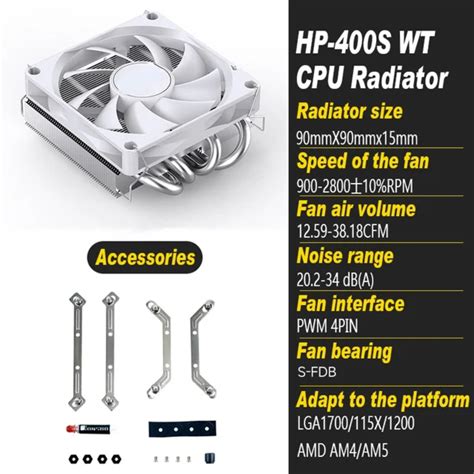
- CPU Air Coolers: Larger heatsinks with more heat pipes and bigger fans can drastically improve CPU cooling over stock solutions.
- All-in-One (AIO) Liquid Coolers: These closed-loop liquid coolers offer excellent thermal performance and can be quieter than high-end air coolers, especially in smaller cases.
- Case Fans: Upgrading to higher quality or larger case fans can improve overall airflow and static pressure.
6. Optimize Game Settings and System Performance
- Lower Graphics Settings: Reducing demanding graphics settings like resolution, anti-aliasing, or shadow quality can lower the load on your GPU, thus reducing heat.
- Close Background Programs: Ensure no unnecessary applications are running in the background, consuming CPU/GPU cycles and generating heat.
- Scan for Malware: Malicious software can secretly use your system’s resources, causing components to run hotter.
Conclusion
Overheating is a common issue for gaming PCs, but with consistent maintenance and strategic adjustments, you can effectively manage and lower your CPU and GPU temperatures. By addressing dust buildup, improving airflow, maintaining thermal paste, and optimizing your cooling hardware, you’ll ensure your gaming rig runs cool, stable, and delivers peak performance for years to come. Don’t let high temperatures throttle your gaming experience – take action and enjoy cooler, faster gameplay.


