





How to improve gaming PC airflow to reduce CPU/GPU temps?
The Importance of Optimal PC Airflow
Maintaining proper airflow within your gaming PC is paramount for its longevity and performance. High CPU and GPU temperatures can lead to thermal throttling, where components reduce their clock speeds to prevent overheating, resulting in a noticeable drop in gaming performance. Over time, sustained high temperatures can even shorten the lifespan of your valuable hardware. Fortunately, improving airflow is often a straightforward process that can yield significant benefits.
Understanding Airflow Dynamics
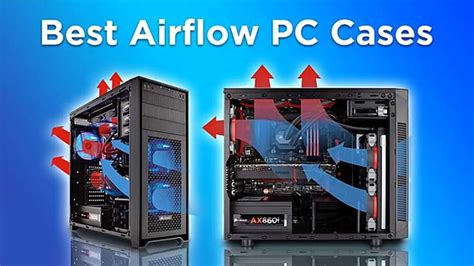
Effective cooling relies on creating a consistent flow of air through your PC case. This involves drawing cool air in and expelling hot air out. There are generally two types of pressure setups:
- Positive Pressure: More air is pushed into the case than exhausted. This creates a slight internal pressure that helps keep dust out through unfiltered openings, as air is constantly pushing outwards.
- Negative Pressure: More air is exhausted from the case than pulled in. While it efficiently removes hot air, it can draw dust in through any unfiltered gaps due to the vacuum effect.
- Balanced Pressure: An equal amount of intake and exhaust, aiming for optimal heat dissipation without excessive dust buildup.
Most gaming PCs benefit from a slightly positive or balanced pressure setup to balance cooling efficiency with dust control.
Essential Steps for Airflow Improvement
1. Optimize Case Fan Configuration
Case fans are the primary drivers of airflow. Proper placement and direction are critical:
- Intake Fans: Typically placed at the front and bottom of the case to draw cool air in.
- Exhaust Fans: Usually located at the rear and top of the case to push hot air out.
- Fan Size and RPM: Larger fans move more air at lower RPMs, resulting in less noise. Higher RPM fans move more air but can be louder. Balance noise levels with cooling needs.
- Fan Quality: Invest in good quality fans with high static pressure for restricted areas (like behind radiators) and high airflow for open areas.
A common and effective configuration involves 2-3 intake fans at the front, one exhaust fan at the rear, and potentially 1-2 exhaust fans at the top.
2. Master Cable Management
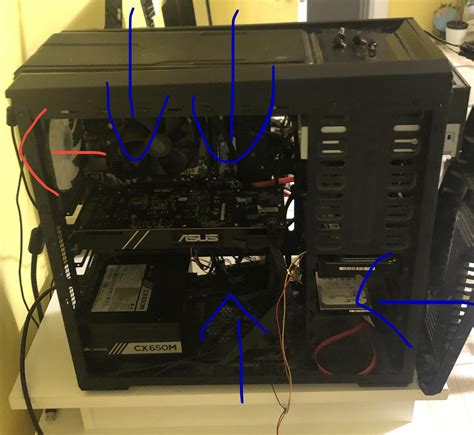
Cluttered cables are silent killers of airflow. Loose cables obstruct the path of air, creating pockets of stagnant hot air and making your fans work harder. Utilize:
- Cable Ties/Velcro Straps: Bundle cables neatly.
- Case Back Panel: Route as many cables as possible behind the motherboard tray.
- Modular PSUs: Use only the necessary cables, reducing clutter.
Tidy cable management not only improves airflow but also makes future upgrades and maintenance much easier.
3. Maintain a Clean PC Environment
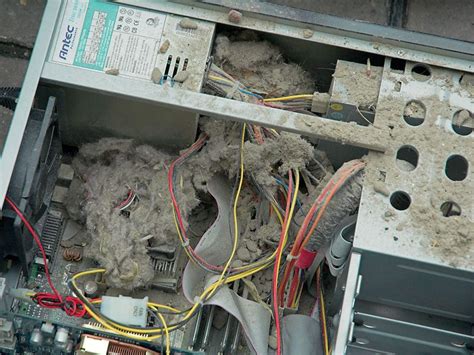
Dust is the enemy of efficient cooling. It acts as an insulator, trapping heat and coating heatsinks, reducing their ability to dissipate heat. Regular cleaning is vital:
- Dust Filters: Ensure your case has filters on intake fan positions and clean them regularly (monthly is a good habit).
- Compressed Air: Use short bursts of compressed air (from a distance) to clear dust from heatsinks (CPU cooler, GPU radiator), fans, and PSU. Hold fan blades gently when cleaning to prevent over-spinning them.
- Vacuum Cleaner (Carefully): While not recommended for inside the case due to static, a vacuum can be used to clean external dust filters.
4. Optimize CPU Cooler and GPU Placement
While often dictated by the motherboard and GPU design, ensure your CPU cooler is oriented correctly to facilitate airflow. Tower coolers often work best with air flowing from front-to-back or bottom-to-top. For GPUs, ensure there’s adequate clearance for its fans to draw in air, especially if it’s a large, multi-fan card. Consider a vertical GPU mount if your case supports it and if it helps move the GPU away from the side panel, allowing it to breathe better.
5. Consider Aftermarket Cooling Solutions
If stock coolers aren’t cutting it, consider upgrading:
- CPU Air Coolers: Large tower coolers with multiple heat pipes and fans offer significantly better performance than stock coolers.
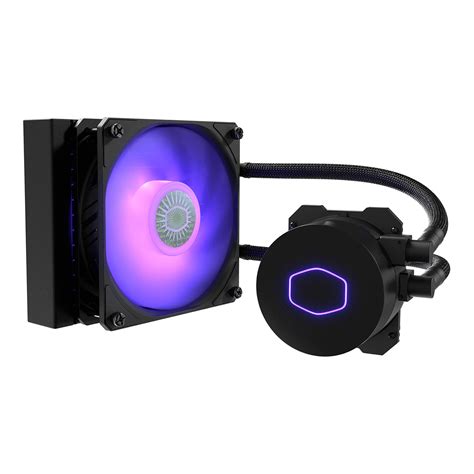
- All-in-One (AIO) Liquid Coolers: These closed-loop liquid coolers are excellent for CPUs, especially in smaller cases where large air coolers might not fit. Mount radiators with fans configured for exhaust (typically top-mounted) to move heat directly out of the case.
Monitoring Your Temperatures
After implementing these changes, it’s crucial to monitor your CPU and GPU temperatures. Use software like HWMonitor, MSI Afterburner, or NZXT CAM to track temperatures during gaming sessions. Aim for CPU temps generally below 80°C and GPU temps below 75°C under heavy load, though ideal temperatures can vary by component.
Conclusion
Improving your gaming PC’s airflow is an investment in its performance and longevity. By strategically placing fans, managing cables, keeping dust at bay, and considering upgraded cooling solutions, you can significantly reduce CPU and GPU temperatures, ensuring your system runs cool, quiet, and at its peak potential for years to come.


