





How to improve PC airflow & lower CPU/GPU temps for gaming?

Maintaining optimal temperatures for your CPU and GPU is paramount for a smooth, high-performance gaming experience and the longevity of your hardware. Overheating can lead to throttling, reduced frame rates, and even permanent damage. Fortunately, improving your PC’s airflow is often achievable with a few strategic adjustments. This guide will walk you through the key steps to keep your components cool under pressure.
Understanding Airflow Fundamentals
Effective cooling starts with understanding how air moves through your PC case. The goal is to create a consistent, directed flow of cool air in and hot air out. Generally, cool air should be drawn in from the front and/or bottom of the case, and hot air should be exhausted from the back and/or top.
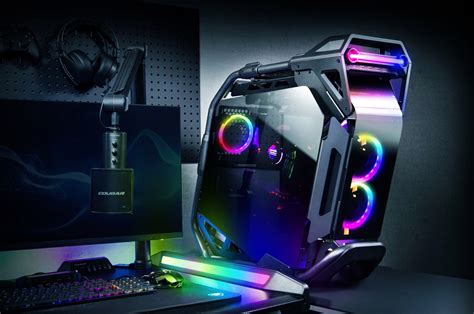
Think of it as a wind tunnel: you want a clear path for air to travel across heat-generating components. Positive pressure (more intake than exhaust) can help keep dust out, while negative pressure (more exhaust than intake) can draw dust in through unfiltered gaps. A balanced or slightly positive pressure setup is often ideal.
Optimizing Case Fans
Your case fans are the primary drivers of airflow. Their number, size, and placement significantly impact cooling efficiency.
Fan Quantity & Placement
- Intake Fans: Typically located at the front and sometimes the bottom of the case, drawing cool air in.
- Exhaust Fans: Usually at the rear and top, expelling hot air.
Aim for at least two intake and one exhaust fan. Many modern cases support more, allowing for greater airflow. Experiment with different configurations if your temperatures aren’t ideal, but a standard front-to-back/bottom-to-top flow is a great starting point.
Fan Type & Quality
Fans are generally categorized by their primary purpose:
- Airflow Fans: Designed to move a large volume of air, ideal for unobstructed areas.
- Static Pressure Fans: Optimized to push air through restrictive spaces like radiators or dense fins, often used for CPU coolers or liquid cooling radiators.
Invest in good quality fans with decent static pressure if they’re pushing air through dust filters or radiators. Look for fans with good CFM (Cubic Feet per Minute) ratings for airflow and low noise levels.

CPU Cooling Solutions
Your CPU cooler is crucial. There are two main types:
Air Coolers
These use a heatsink with fins and one or more fans to dissipate heat. High-end air coolers can rival liquid coolers in performance and are generally more affordable and less prone to failure. Ensure your chosen cooler fits your case and doesn’t obstruct RAM slots or GPU.
All-In-One (AIO) Liquid Coolers
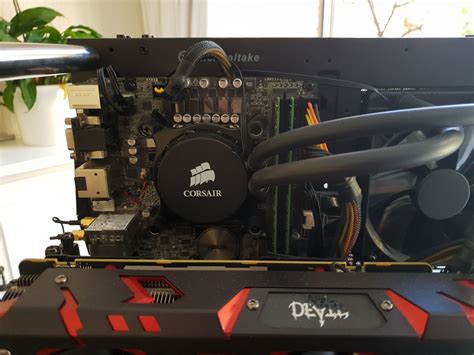
AIOs circulate liquid through a block on the CPU to a radiator, where fans cool the liquid. They often offer excellent cooling performance, especially for overclocked CPUs, and can look tidier. Proper radiator placement (usually top or front of the case) is key for optimal performance.
GPU Cooling & Optimization
Your graphics card often generates the most heat during gaming. While most GPUs come with effective factory coolers, there are ways to help:
- Case Airflow: Ensure plenty of cool air reaches your GPU. This is where good intake fans shine.
- Undervolting: Reducing your GPU’s voltage slightly can significantly lower temperatures and power consumption without a noticeable performance hit (sometimes even improving stability). This is an advanced technique, so proceed with caution.
- Vertical GPU Mounts: In some cases, mounting your GPU vertically can improve its access to fresh air, but it can also restrict airflow to other components depending on case design.
Cable Management & Dust Control
Streamline Your Cables
A messy tangle of cables can act as an unwelcome barrier, impeding crucial airflow. Take the time to neatly route cables behind the motherboard tray or along case edges. Use zip ties or Velcro straps to bundle them together. This simple step can dramatically improve air pathways.

Combat Dust Accumulation
Dust is the enemy of cooling. It insulates components, clogs heatsinks and fans, and reduces their efficiency.
- Regular Cleaning: Use compressed air to blow out dust from fans, heatsinks, and dust filters every 3-6 months. Hold fan blades gently when cleaning to prevent over-spinning.
- Dust Filters: Ensure your intake fans have filters and clean them regularly.
Thermal Paste & Environmental Factors
Replacing Thermal Paste
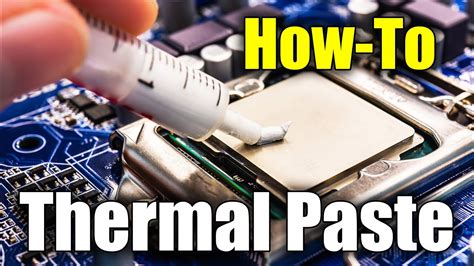
The thermal paste between your CPU (or GPU) and its cooler helps conduct heat efficiently. Over time, it can dry out and become less effective. Reapplying fresh thermal paste every few years (or when installing a new cooler) can lead to noticeable temperature drops. Use a high-quality non-conductive paste for best results.
Room Temperature
It’s an obvious point, but often overlooked: your PC can only cool itself relative to the ambient air temperature. A cooler room will naturally lead to cooler component temperatures inside your case.
Monitoring Your Temperatures
Use software like HWMonitor, MSI Afterburner (for GPU), or your motherboard’s monitoring tools to keep an eye on your CPU and GPU temperatures. Monitor them while gaming to get a real-world understanding of your system’s thermal performance. Typical safe operating temperatures during gaming range from 60-80°C for both CPU and GPU, though specifics vary by component.
Conclusion
Improving your PC’s airflow and lowering component temperatures is an ongoing process of optimization. By strategically managing case fans, maintaining clean components, optimizing cable routes, and ensuring effective thermal contact, you can unlock better gaming performance, extend hardware lifespan, and enjoy a quieter, more reliable system. Dive in, make some adjustments, and watch those temperatures drop!


