





Game update broke mods? Quick guide to fixing compatibility issues.
The Frustration of Post-Update Mod Breakage
There’s nothing quite like booting up your favorite game after a fresh update, only to find that your carefully curated collection of mods has decided to stage a digital rebellion. Textures are missing, scripts are failing, and the game might not even launch. This common scenario can be incredibly frustrating, but thankfully, most mod compatibility issues after a game update are fixable with a bit of patience and the right approach.
Understanding Why Updates Break Mods
Game developers constantly release updates to fix bugs, add new content, or optimize performance. However, these changes often alter core game files, data structures, or scripting APIs. Since mods typically hook into or replace these very elements, even a minor game patch can inadvertently render a mod incompatible. Mods that modify UI, scripting, or core game mechanics are particularly vulnerable.
Initial Troubleshooting Steps: Your First Line of Defense
Before diving into complex solutions, start with these fundamental checks:
- Verify Mod Manager Status: If you use a mod manager (like Vortex, Mod Organizer 2, or Nexus Mod Manager), check its notifications. It might already tell you which mods are out of date or have conflicts. Ensure the manager itself is updated.
- Check Mod Update Status: Head to the mod’s download page (e.g., Nexus Mods, ModDB) and see if the mod author has released an update for the new game version. Many dedicated modders are quick to adapt.
- Read Mod Comments/Forums: The mod’s community page is a goldmine of information. Other players are likely experiencing the same issues and might have already found workarounds or solutions.
- Re-enable Mods One by One: If you have many mods, try disabling them all and re-enabling them in small batches to identify the culprit. This is tedious but effective.
Common Fixes for Mod Compatibility Issues
1. Update or Reinstall Incompatible Mods
The most straightforward solution is to update the problematic mod. If an update isn’t available, sometimes a clean reinstallation can work. Completely uninstall the mod (delete its files manually if necessary, but use your mod manager if possible), then download and install the latest version, or even the previous version if the new game update makes the latest mod version unstable.
2. Revert to an Earlier Game Version (Caution Advised)
Some platforms (like Steam) allow you to revert your game to an earlier version. This is a drastic step and often not officially supported, but it can be a temporary fix if a critical mod has no update in sight. Be aware that this might prevent you from playing online or accessing new game features.
3. Verify Game Files
Sometimes, mods or even the update process itself can corrupt core game files. Using your game launcher’s ‘Verify Integrity of Game Files’ (Steam) or similar function can fix these issues by replacing any corrupted files with fresh ones. Be warned: this might overwrite mod files, requiring you to reinstall your mods afterward.

4. Address Mod Load Order and Conflicts
Many games, especially RPGs like Skyrim or Fallout, are highly sensitive to mod load order. Use your mod manager’s built-in conflict resolution tools or a dedicated utility (like LOOT for Bethesda games) to optimize your load order and resolve any reported conflicts. Updates can sometimes shift internal game IDs or assets, causing previously stable load orders to break.
5. Consult Community Resources and Forums
If you’re still stuck, don’t underestimate the power of the modding community. Websites like Nexus Mods, Reddit (r/modding, game-specific subreddits), and official game forums are full of experienced modders. Provide clear details of your issue, including the game version, mod list, and any error messages, for the best chance of getting help.

Preventative Measures for Future Updates
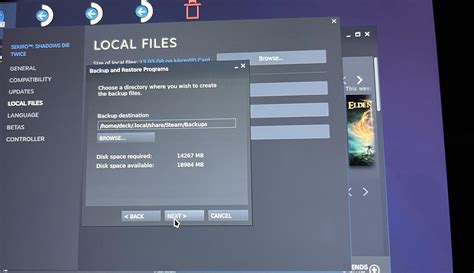
- Back up your Saves and Mod Folder: Before any major game update, create a backup of your save games and, if possible, your entire game installation or mod folder.
- Disable Automatic Updates: Many game launchers allow you to disable automatic updates. This gives you control over when an update happens, allowing you to wait for mod compatibility patches.
- Stay Informed: Follow your favorite mod authors and game developers on social media or their forums to get early warnings about upcoming updates and mod compatibility news.
Conclusion
While game updates breaking mods can be a significant annoyance, it’s a nearly inevitable part of the modding experience. By systematically troubleshooting, utilizing modding tools, and leaning on the vast resources of the modding community, you can almost always bring your beloved modifications back to life. Patience and persistence are your greatest allies in the quest for a perfectly modded game.

