





Why does my gaming PC stutter, and how can I fix it with hardware tweaks?
Understanding Gaming PC Stutter
There’s nothing more frustrating for a gamer than a perfectly smooth experience suddenly interrupted by a jarring stutter. These momentary freezes or significant frame rate drops can ruin immersion, impact competitive performance, and generally make gaming an unpleasant experience. While software issues, drivers, or game optimizations can sometimes be the culprits, often the root cause lies within your PC’s hardware. Identifying and addressing these hardware bottlenecks is key to restoring smooth gameplay.
Identifying Hardware Bottlenecks and Causes
Before you can fix the problem, you need to understand what’s causing it. Stuttering is typically a symptom of one or more hardware components struggling to keep up with the demands of the game.
CPU Bottleneck
If your Central Processing Unit (CPU) is too slow or becomes overwhelmed, it can’t feed data to your Graphics Processing Unit (GPU) fast enough, leading to intermittent stutters as the GPU waits for instructions. This is more common in CPU-intensive games or when running many background applications.
GPU Overload or Overheating
Your graphics card is responsible for rendering frames. If it’s consistently running at 100% usage or overheating, it may throttle its performance to prevent damage, causing noticeable stutters and frame drops. Insufficient VRAM can also cause the GPU to offload data, leading to hitches.
Insufficient or Slow RAM
Random Access Memory (RAM) is crucial for holding game assets and temporary data. If you have too little RAM (e.g., 8GB for modern titles) or slow RAM (e.g., low MHz, incorrect configuration), your system might struggle to load data quickly, resulting in stutters as it tries to swap data to slower storage.
Slow Storage Drive
Games constantly load new textures, models, and audio. If your game is installed on a slow Hard Disk Drive (HDD) or a nearly full Solid State Drive (SSD), the system can stutter as it waits for assets to load into RAM or VRAM.
Power Supply Unit (PSU) Issues
An underpowered or failing Power Supply Unit can lead to unstable power delivery to components, especially during peak loads. This can manifest as performance instability, including stuttering, or even system crashes.
General Overheating
Beyond individual component overheating, poor overall case airflow or excessive dust buildup can lead to multiple components running too hot. When temperatures become critical, components like the CPU and GPU will automatically reduce their clock speeds (thermal throttling) to cool down, causing significant performance dips.
Hardware Tweaks to Eliminate Stutter
Once you’ve identified potential culprits, it’s time to implement solutions.
Optimize Your CPU Performance
- Monitor Usage: Use Task Manager (Ctrl+Shift+Esc) to see if your CPU is consistently at 90-100% while gaming.
- Check Cooling: Ensure your CPU cooler is properly seated and functioning. Clean dust from its fan and heatsink.
- Consider Upgrade: If your CPU is an older model and consistently bottlenecking, an upgrade might be necessary for modern demanding games.
- BIOS Settings: Ensure your RAM’s XMP/DOCP profile is enabled in the BIOS to run it at its advertised speeds, which significantly impacts CPU performance.
Boost Your GPU Performance
- Monitor Temperatures: Use tools like MSI Afterburner to keep an eye on GPU temperatures. If it consistently hits 80°C+ under load, you have a cooling issue.
- Clean GPU: Dust buildup on the GPU heatsink and fans is a major cause of overheating. Clean it thoroughly.
- Reapply Thermal Paste: For advanced users, replacing old, dried-out thermal paste on the GPU die can dramatically improve cooling.
- Check VRAM: While monitoring, see if VRAM usage is maxed out. Reducing texture quality in games can help if you have low VRAM.
- Ensure Power: Verify that all PCIe power cables are securely connected to your GPU.
- Upgrade: If your GPU is simply not powerful enough for the games you play at your desired settings, an upgrade is the ultimate solution.
Upgrade and Optimize RAM
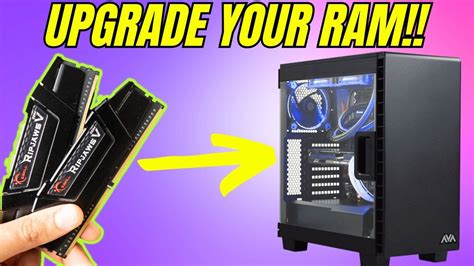
- Capacity Check: Aim for at least 16GB of RAM for modern gaming. 32GB is becoming standard for high-end setups.
- Enable XMP/DOCP: This is critical! Your RAM often runs at slower JEDEC speeds by default. Enable the eXtreme Memory Profile (Intel) or DOCP (AMD) in your motherboard’s BIOS to achieve its advertised speeds.
- Correct Slots: Ensure your RAM sticks are installed in the correct dual-channel slots as specified by your motherboard manual (typically slots 2 and 4).
Improve Storage Speed
- Move to SSD/NVMe: If your games are on an HDD, move them to an SSD. For the best performance, an NVMe SSD is highly recommended for your operating system and frequently played games.
- Free Up Space: Ensure your main game drive has at least 15-20% free space for optimal performance.
- Check Drive Health: Use a tool like CrystalDiskInfo to check the health status of your storage drives.

Enhance Cooling Solutions
- Thorough Cleaning: Regularly clean all case fans, CPU cooler, and GPU of dust using compressed air.
- Optimize Airflow: Ensure you have a good balance of intake and exhaust fans in your PC case. Warm air needs to be expelled efficiently.
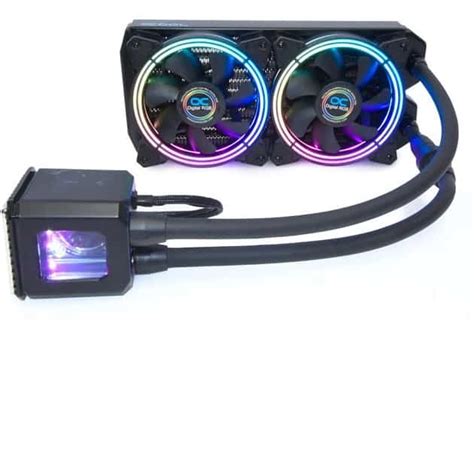
- Upgrade CPU Cooler: If your CPU runs hot, invest in a more powerful air cooler or an All-in-One (AIO) liquid cooler.
- Case Upgrade: Consider a PC case with better airflow design if your current one is restrictive.
Assess Your Power Supply Unit (PSU)
- Wattage Check: Use an online PSU calculator (e.g., from PCPartPicker or component manufacturers) to ensure your PSU provides sufficient wattage for all your components, with some headroom (20-30% extra is ideal).
- Age/Quality: Older or lower-quality PSUs can degrade over time, leading to instability. If your PSU is old or struggling, replacement might be necessary.
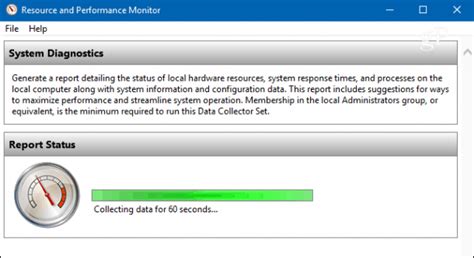
Diagnostic Tools for Pinpointing Issues
Effective troubleshooting relies on good data. Here are essential tools:
- Task Manager (Windows): Quick overview of CPU, RAM, Disk, and Network usage.
- MSI Afterburner (with RivaTuner Statistics Server): Essential for monitoring GPU usage, temperature, VRAM usage, clock speeds, and real-time frame rates in-game.
- HWMonitor / HWiNFO: Provides detailed sensor readings for almost all components, including temperatures, voltages, and fan speeds.
- Resource Monitor (Windows): More detailed breakdown of CPU, Disk, Network, and Memory usage than Task Manager.
Conclusion
Gaming PC stutter can be a multifaceted problem, but with a systematic approach to hardware diagnosis and tweaking, you can often pinpoint and resolve the underlying causes. Start by monitoring your system’s performance metrics, identify any components that are consistently under strain or overheating, and then apply the appropriate hardware fixes or upgrades. A well-optimized and cooled PC is a smooth PC, ensuring your gaming sessions are nothing short of immersive and enjoyable.


