





How to pinpoint & fix gaming PC bottlenecks for max FPS?

Understanding the Gaming PC Bottleneck
In the world of PC gaming, a ‘bottleneck’ occurs when one component in your system limits the performance potential of another, more powerful component. This often results in lower Frames Per Second (FPS) than your hardware is theoretically capable of, leading to stuttering, inconsistent performance, or simply not getting the most out of your expensive components. Identifying and addressing these bottlenecks is crucial for a smooth and enjoyable gaming experience.
Imagine a highway with many lanes suddenly narrowing to just one; that’s essentially what a bottleneck does to your data flow. While a perfectly balanced system is rare, understanding where your system’s weakest link lies allows you to make informed upgrade decisions and optimize your current setup.

Identifying the Usual Suspects
Several components commonly cause bottlenecks in a gaming PC. Understanding the role of each can help you narrow down the potential culprit.
The CPU: The Brain of Your Rig
The Central Processing Unit (CPU) is responsible for processing game logic, AI, physics, and drawing calls for the GPU. If your CPU isn’t fast enough, it can’t feed the GPU data quickly enough, leaving your powerful graphics card underutilized. This is often seen in CPU-intensive games or at lower resolutions where the GPU has less work to do.
The GPU: The Visual Powerhouse
The Graphics Processing Unit (GPU) renders all the visuals you see on your screen. If your GPU is too weak for the game’s demands or your chosen settings (resolution, graphical fidelity), it will struggle to render frames quickly, causing low FPS. This is the most common bottleneck in graphics-intensive games, especially at higher resolutions like 1440p or 4K.
RAM: The Short-Term Memory
Random Access Memory (RAM) acts as fast, temporary storage for data your CPU needs to access quickly. Insufficient RAM (e.g., 8GB for modern games) or slow RAM speeds (e.g., low MHz, high CAS latency) can cause micro-stutters, slower loading times, and overall system sluggishness as the system constantly has to swap data to slower storage.
Storage: Loading Times and Stutter
While less directly impactful on in-game FPS, slow storage (like traditional HDDs) can significantly increase game loading times and, in some cases, cause texture pop-in or stuttering if game assets can’t be loaded fast enough from disk.

Tools to Pinpoint Bottlenecks
To accurately identify your system’s bottleneck, you need to monitor its performance while gaming.
Real-time Monitoring Software
Tools like MSI Afterburner (with RivaTuner Statistics Server), HWMonitor, or NZXT CAM allow you to display real-time usage statistics for your CPU, GPU, RAM, and even individual core temperatures. While gaming, observe:
- GPU Usage: If it’s consistently at 95-100% (and FPS is lower than desired), your GPU is likely the bottleneck.
- CPU Usage: If one or more CPU cores are at or near 100% (and GPU usage is low), your CPU is the bottleneck.
- RAM Usage: If RAM usage is near max capacity, especially combined with high disk activity during gaming, you might be RAM bottlenecked.
Benchmarking Tools
Synthetic benchmarks like 3DMark (for GPU and CPU) or Cinebench (for CPU) can give you a baseline performance score and help you compare your system against similar setups. While not always reflective of real-world gaming, they can highlight a component that’s severely underperforming.
In-Game Performance Overlays
Many modern games include built-in performance monitors that show FPS, CPU, and GPU usage, making it easy to check on the fly.
Fixing Common Bottlenecks
Once you’ve identified the bottleneck, you can take steps to alleviate it.
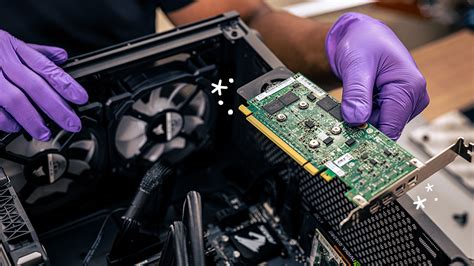
GPU Bottlenecks: Upgrade Your Graphics Card
If your GPU is constantly hitting 95-100% usage and your FPS is low, a more powerful graphics card is the most direct solution. Also, consider lowering graphical settings like resolution, anti-aliasing, or shadow quality to reduce the load on your existing GPU.
CPU Bottlenecks: Processor Upgrade or Overclocking
If your CPU is maxing out, an upgrade to a newer, more powerful processor with more cores or higher clock speeds is ideal. Ensure your motherboard is compatible. Alternatively, if your CPU and motherboard support it, overclocking your CPU can provide a modest performance boost. Ensure adequate cooling if you pursue overclocking.
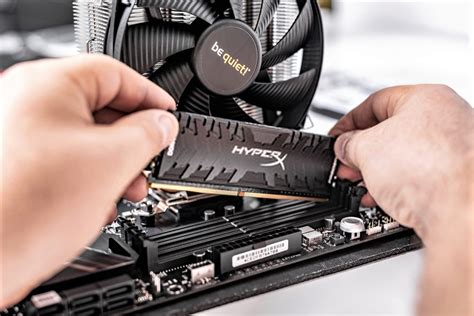
RAM Bottlenecks: More & Faster Memory
For RAM bottlenecks, increasing the total amount of RAM (e.g., from 8GB to 16GB or 32GB) is often necessary. Also, ensuring you have dual-channel RAM (two sticks of RAM instead of one) and enabling XMP/DOCP in your BIOS for optimal speeds can significantly improve performance.
Storage Bottlenecks: SSDs are Your Friend
Replace old Hard Disk Drives (HDDs) with Solid State Drives (SSDs). An NVMe SSD offers the fastest speeds, drastically reducing loading times and improving overall system responsiveness. Even a SATA SSD will be a massive upgrade over an HDD.
Software Optimization: Drivers & Game Settings
Sometimes, the solution isn’t hardware. Ensure your GPU drivers are up-to-date. Optimize in-game settings: lower demanding settings like shadows, anti-aliasing, and view distance first, as they often have a high performance cost for minimal visual gain. Closing unnecessary background applications can also free up CPU and RAM resources.
Conclusion: Balance is Key
Fixing PC bottlenecks isn’t about having the absolute strongest component, but rather ensuring a harmonious balance between all your hardware. By systematically identifying your system’s weakest link and upgrading or optimizing accordingly, you can unlock maximum FPS and enjoy your games exactly as they were meant to be played. Regular monitoring and informed decisions will keep your gaming rig performing at its peak.


