





How to optimize Windows 11 for gaming performance and lower input lag?
Elevate Your Gaming Experience on Windows 11
Windows 11 brings a fresh interface and new features, but for serious gamers, optimizing the operating system is key to maximizing performance and minimizing input lag. A finely tuned system can mean the difference between victory and defeat, offering smoother gameplay and more responsive controls. This guide will walk you through essential adjustments to transform your Windows 11 PC into a gaming powerhouse.

Core Windows Settings for Peak Gaming Performance
Activate Game Mode
Windows 11’s Game Mode is designed to prioritize your game, dedicating system resources for better frame rates and a smoother experience. To enable it:
- Go to Settings > Gaming > Game Mode.
- Toggle Game Mode to On.
Enable Hardware-Accelerated GPU Scheduling
This feature allows your GPU to manage its own video memory, potentially reducing latency and improving performance. It requires a compatible GPU (NVIDIA GTX 10-series or newer, AMD Radeon 5000-series or newer) and the latest drivers.
- Go to Settings > System > Display > Graphics.
- Click on Change default graphics settings.
- Toggle Hardware-accelerated GPU scheduling to On.
- Restart your PC for changes to take effect.
Adjust Power Plan for Ultimate Performance
By default, Windows might be on a balanced power plan. For gaming, you want maximum power delivery.
- Search for Edit power plan in the Start Menu and open it.
- Click on Power Options in the address bar.
- Select High performance or Ultimate Performance (if available). If not, you can often create a custom high-performance plan.
Disable Notifications and Background Apps
Distractions and background processes consume precious CPU and RAM resources. Minimize them to ensure your game gets priority.
- Notifications: Go to Settings > System > Notifications and toggle them Off while gaming, or set up Focus Assist (Settings > System > Focus) to automatically suppress notifications during gameplay.
- Background Apps: While Windows 11 has tighter control over background apps than previous versions, you can still limit certain apps. Review apps that launch at startup via Task Manager (Ctrl+Shift+Esc) > Startup tab and disable unnecessary ones.
Graphics, Drivers, and Display Optimization
Keep Graphics Drivers Updated
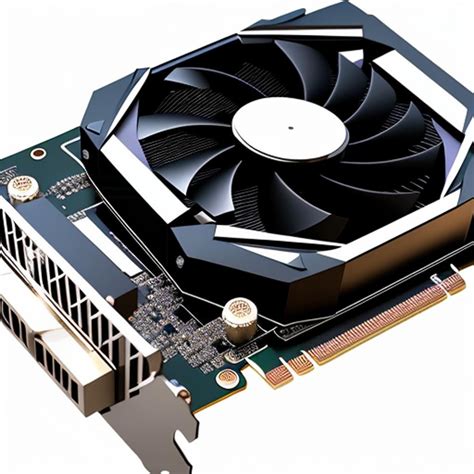
This is paramount. GPU manufacturers constantly release driver updates that include performance optimizations and bug fixes for new game titles. Always download the latest drivers directly from NVIDIA, AMD, or Intel’s official websites.
Optimize Individual Game Graphics Settings
For specific games, you can instruct Windows to use your high-performance GPU, especially on laptops with integrated and dedicated graphics.
- Go to Settings > System > Display > Graphics.
- Click Browse to add your game’s executable if it’s not listed.
- Select the game, click Options, and choose High performance, then Save.
Enable Variable Refresh Rate (VRR)
If your monitor supports FreeSync, G-Sync, or HDMI VRR, enabling it in Windows can significantly reduce screen tearing and input lag.
- Go to Settings > System > Display > Graphics.
- Click on Change default graphics settings.
- Toggle Variable refresh rate to On.
System Tidying and Resource Management
Optimize Storage Drives
Ensure your games are installed on an SSD for faster loading times. For SSDs, Windows 11 automatically handles TRIM, which maintains performance. For HDDs, regular defragmentation can help.
- Search for Defragment and Optimize Drives in the Start Menu.
- Select your drives and click Optimize.
Disable Unnecessary Visual Effects
Windows 11’s aesthetic effects can consume minor resources. Reducing them can free up a tiny bit of performance.
- Search for Adjust the appearance and performance of Windows.
- Under the Visual Effects tab, select Adjust for best performance or choose custom options like disabling animations.

Network and Input Lag Reduction Strategies
Prioritize Network Bandwidth for Games
While less common for local input lag, network latency can impact online gaming significantly. Ensure other devices or applications aren’t hogging bandwidth.
- Consider using a wired Ethernet connection instead of Wi-Fi for stability and lower ping.
- Close bandwidth-intensive applications like streaming services or large downloads while gaming.
Adjust Mouse and Keyboard Polling Rate
Gaming mice and keyboards often have adjustable polling rates (how often they report their position to the PC). Higher polling rates (e.g., 1000Hz) mean lower input lag.
- Access your peripheral’s software (e.g., Logitech G HUB, Razer Synapse, SteelSeries GG) to adjust the polling rate to its highest setting.
Conclusion: Maintain Your Edge
Optimizing Windows 11 for gaming is an ongoing process. Regularly update your drivers, keep your system clean, and periodically review these settings to ensure you’re always getting the best possible performance. With these tweaks, your Windows 11 PC will be ready to deliver a responsive, immersive, and high-performance gaming experience, giving you the competitive edge you need.


