





How to optimize Windows settings for maximum gaming FPS and minimize stutter?
Unlock Your PC’s Gaming Potential: A Windows Optimization Guide
Even with powerful hardware, your Windows operating system can sometimes hold back your gaming performance. Default settings are often optimized for general use, not for the demanding requirements of modern video games. By making a few targeted adjustments to your Windows settings, you can significantly boost your Frame Per Second (FPS), reduce frustrating stuttering, and ensure a smoother, more immersive gaming experience. This guide will walk you through the most impactful tweaks.
1. Keep Your Drivers Up-to-Date
The foundation of good gaming performance starts with your drivers. Outdated or corrupt drivers, especially for your graphics card, can lead to poor FPS, crashes, and stutters. Always ensure you have the latest drivers for your GPU (NVIDIA, AMD, or Intel), chipset, and audio.
- Graphics Card Drivers: Visit the official website of your GPU manufacturer (NVIDIA, AMD, Intel) to download and install the latest stable drivers. Use their respective control panels (GeForce Experience or AMD Adrenalin Software) for easy updates.
- Chipset Drivers: Check your motherboard manufacturer’s website for the latest chipset drivers, which are crucial for system stability and performance.
2. Optimize Power Settings for Performance
Windows’ default power plans often prioritize energy saving over raw performance. For gaming, you want your CPU and GPU to operate at their full potential.
- High Performance or Ultimate Performance:
- Go to ‘Control Panel’ > ‘Hardware and Sound’ > ‘Power Options’.
- Select ‘High Performance’ or, if available, ‘Ultimate Performance’. If ‘Ultimate Performance’ isn’t visible, you might need to enable it via a Command Prompt command (
powercfg -duplicatescheme e9a42b02-d5df-448d-aa00-03f502df6463).
- Individual Power Plan Settings: Click ‘Change plan settings’ next to your chosen plan, then ‘Change advanced power settings’. Ensure ‘Processor power management’ > ‘Minimum processor state’ is set to 100%.
3. Utilize Windows Game Mode and Graphics Settings
Windows 10 and 11 offer built-in features designed to improve gaming performance.
- Game Mode:
- Go to ‘Settings’ > ‘Gaming’ > ‘Game Mode’.
- Ensure ‘Game Mode’ is turned ‘On’. This helps prioritize your game’s processes and resources.
- Graphics Settings:
- In ‘Settings’ > ‘Gaming’ > ‘Game Mode’, click on ‘Graphics settings’.
- Hardware-accelerated GPU scheduling: Turn this ‘On’. It can reduce latency and improve performance on supported hardware.
- Variable Refresh Rate (VRR): If you have a FreeSync or G-Sync compatible monitor, turn this ‘On’ to enable smoother gameplay by syncing your monitor’s refresh rate with your GPU’s frame output.
- Specify preferred GPU: Add your game executable and set its graphics preference to ‘High performance’ to ensure it uses your dedicated GPU.
4. Disable Background Apps and Notifications
Unnecessary background processes and constant notifications can consume valuable CPU, RAM, and network resources, leading to performance drops and stuttering.
- Background Apps:
- For Windows 10: Go to ‘Settings’ > ‘Privacy’ > ‘Background apps’. Toggle ‘Let apps run in the background’ to ‘Off’, or selectively disable individual apps.
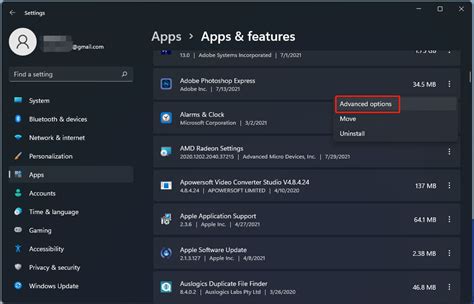
- For Windows 11: Go to ‘Settings’ > ‘Apps’ > ‘Installed apps’. For each app, click the three dots, select ‘Advanced options’, and set ‘Let this app run in background’ to ‘Never’.
- Focus Assist (or Notifications & Actions):
- Go to ‘Settings’ > ‘System’ > ‘Focus assist’ (Windows 10) or ‘Notifications’ (Windows 11).
- Set ‘Focus assist’ to ‘Alarms only’ or enable rules to automatically turn it on when playing games.
- Startup Programs:
- Open Task Manager (Ctrl+Shift+Esc).
- Go to the ‘Startup’ tab.
- Disable any unnecessary programs that launch with Windows. Only keep essential utilities.
5. Adjust Visual Effects for Performance
While Windows’ visual flair looks nice, some effects can consume resources that could be better spent on your game.
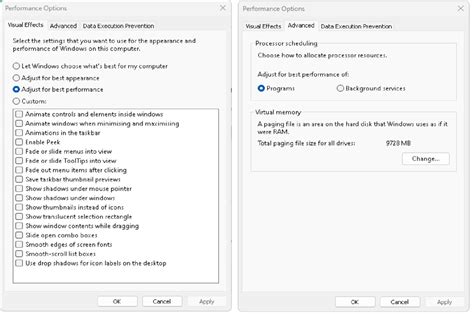
- Performance Options:
- Search for ‘Adjust the appearance and performance of Windows’ in the Start Menu.
- In the ‘Performance Options’ window, under the ‘Visual Effects’ tab, select ‘Adjust for best performance’. This will disable most animations and visual effects.
- Alternatively, choose ‘Custom’ and uncheck only the most resource-intensive options like ‘Animate windows when minimizing and maximizing’ and ‘Fade or slide menus into view’.
6. Optimize Storage and Disk Management
How your storage is managed can impact game load times and, in some cases, stuttering.
- SSD vs. HDD: Always install your games on an SSD (Solid State Drive) if possible. SSDs offer significantly faster load times and smoother asset streaming compared to HDDs (Hard Disk Drives).
- Disk Cleanup: Regularly run Disk Cleanup to remove temporary files, old Windows update files, and other junk data that can take up space and potentially slow down your system.
- Defragment and Optimize Drives (for HDDs only): Search for ‘Defragment and Optimize Drives’. While unnecessary for SSDs (and potentially harmful to their lifespan), HDDs can benefit from occasional defragmentation to improve file access speeds.
7. Clean Up Temporary Files
Over time, Windows accumulates various temporary files that can clutter your system and potentially impact performance.
- Temp Folder Cleanup:
- Press Win + R, type
%temp%and press Enter. This opens your user-specific temporary files folder. Select all (Ctrl+A) and delete them. Skip any files that are currently in use. - Repeat the process with
temp(without the percent signs) to access the system-wide temporary folder. You might need administrator permissions.
- Press Win + R, type
Conclusion
By systematically going through these Windows optimization steps, you can significantly enhance your gaming experience. These adjustments help your PC dedicate more resources directly to your games, resulting in higher FPS, less stutter, and overall smoother gameplay. Remember to test your settings after each major change to see the impact and find the perfect balance for your system.


