





How to optimize your gaming PC setup for peak FPS and smooth gameplay?
A high-performance gaming PC is more than just powerful components; it’s about optimizing every aspect of your setup to squeeze out every possible frame per second (FPS) and ensure a butter-smooth gaming experience. Whether you’re struggling with stuttering, low frame rates, or simply want to maximize your system’s potential, this comprehensive guide will walk you through the essential hardware and software tweaks.
Hardware Foundations for Performance
Your PC’s physical components form the bedrock of its gaming capability. Ensuring they are correctly configured and maintained is paramount for peak performance.
GPU Drivers: Always Up-to-Date
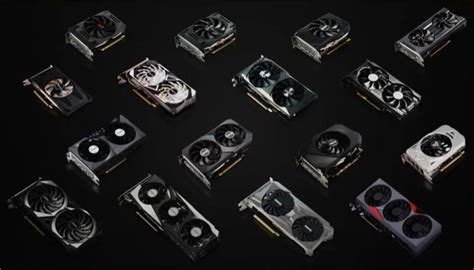
This is arguably the most critical step. Graphics card manufacturers (NVIDIA, AMD, Intel) frequently release new drivers that include performance optimizations for the latest games and bug fixes. Regularly check for and install the newest drivers directly from their official websites.
CPU Optimization and RAM Management
Ensure your CPU is running at its best by checking BIOS/UEFI settings. Features like XMP (for Intel) or DOCP (for AMD) for RAM speed, and PBO (Precision Boost Overdrive) for AMD CPUs, can significantly impact performance. Also, close any unnecessary background applications that consume CPU cycles or RAM before launching a game.
Storage Solutions: SSDs are King
While an SSD won’t directly increase your FPS, it drastically reduces game loading times and can prevent stuttering caused by texture streaming. Install your operating system and primary games on a Solid State Drive (SSD), preferably an NVMe SSD for the fastest speeds.
Efficient Cooling Systems
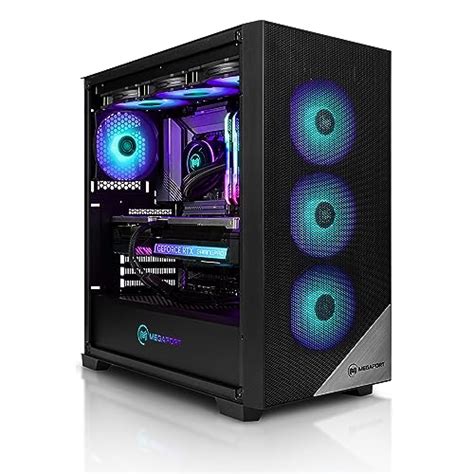
Overheating can lead to thermal throttling, where your CPU and GPU automatically reduce their clock speeds to prevent damage, resulting in lower FPS. Ensure your PC has adequate cooling – clean your fans, replace thermal paste if needed, and consider upgrading to better air or liquid coolers if temperatures remain high under load.
Software Tweaks and In-Game Settings
Once your hardware is sorted, delve into the software side to fine-tune your gaming environment.
Mastering In-Game Graphics Settings
Every game offers a plethora of graphics options. Understanding what each setting does is key to balancing visual fidelity and performance:
- Resolution: The most impactful setting. Lowering it provides significant FPS boosts, but aim for your monitor’s native resolution if possible.
- Anti-Aliasing: Reduces jagged edges. TAA (Temporal Anti-Aliasing) is often a good balance, but FXAA or disabling it offers more performance.
- Shadows and Reflections: Very demanding. Reducing their quality or disabling complex shadows/reflections can free up significant resources.
- Texture Quality: Primarily affects VRAM usage. If you have a GPU with ample VRAM (8GB+), you can usually set this high without much FPS impact.
- Volumetric Clouds/Fog: Often resource-intensive. Experiment with lower settings.

Operating System Optimization (Windows)
- Game Mode: Enable Windows Game Mode (Settings > Gaming > Game Mode) to prioritize gaming performance.
- Power Plan: Set your power plan to ‘High performance’ or ‘Ultimate Performance’ (if available) through Control Panel > Power Options.
- Background Apps: Disable unnecessary background apps (Settings > Privacy > Background apps).
- Notifications: Turn off notifications during gameplay to avoid interruptions and potential CPU spikes.
GPU Control Panel Settings
Both NVIDIA Control Panel and AMD Adrenalin Software offer extensive customization for your graphics card. Explore settings like:
- Low Latency Mode/Anti-Lag: Reduces input lag.
- Image Sharpening/NIS: Can improve perceived image quality with minimal performance hit.
- V-Sync: Use only if you experience screen tearing and don’t have adaptive sync. Otherwise, leave it off or managed by adaptive sync.
- G-Sync/FreeSync: Ensure these are enabled in your GPU control panel and monitor settings for tear-free, smooth gameplay.
Disable Overlays and Unnecessary Software
Game overlays from Discord, Steam, Xbox Game Bar, or GeForce Experience can sometimes impact performance or cause instability. Try disabling them one by one to see if your FPS improves.
Monitor and Peripheral Setup
Your monitor is the window to your game; ensure it’s configured correctly.
Set Your Monitor’s Refresh Rate
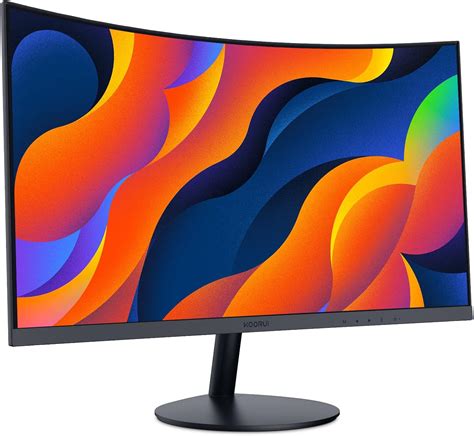
It’s a common oversight! Many high-refresh-rate monitors default to 60Hz. Go to Windows Display Settings > Advanced display settings and select your monitor’s maximum refresh rate (e.g., 144Hz, 240Hz). This is crucial for experiencing smooth gameplay.
Adaptive Sync (G-Sync/FreeSync)
If your monitor and GPU support it, enable G-Sync or FreeSync. This synchronizes your monitor’s refresh rate with your GPU’s frame rate, eliminating screen tearing and reducing stutter, leading to a significantly smoother experience even if your FPS fluctuates.
Regular Maintenance and Monitoring
Optimization isn’t a one-time task; it’s an ongoing process.
- Clean Your PC: Dust accumulation is a major enemy of performance. Regularly clean your case fans, CPU cooler, and GPU heatsink.
- Monitor Performance: Use tools like MSI Afterburner, HWMonitor, or the built-in Windows Task Manager to monitor CPU/GPU temperatures, usage, and FPS while gaming. This helps identify bottlenecks.
- Keep Drivers Updated: Make driver updates a routine.
Conclusion
Optimizing your gaming PC setup for peak FPS and smooth gameplay involves a holistic approach, touching upon both hardware configuration and software fine-tuning. By diligently applying these tips, you’ll unlock your system’s true potential, ensuring you get the most immersive and responsive gaming experience possible. Remember, experimentation is key – every system and game combination is unique, so find the settings that work best for you!


