GPU overheating during intense gaming? Quick fixes for better airflow & temps.
A high-performing Graphics Processing Unit (GPU) is the heart of any gaming PC, but when it starts to run too hot, your gaming experience can quickly turn into a frustrating cycle of stuttering, frame drops, and even system crashes. GPU overheating isn’t just an annoyance; it can lead to long-term damage to your valuable hardware. Fortunately, many common causes are easily fixable with a few tweaks to your setup and some routine maintenance.
Understanding GPU Overheating
Before diving into solutions, it’s helpful to understand why your GPU might be running hot. Common culprits include:
- Insufficient Airflow: Your PC case might not be moving enough cool air in and hot air out.
- Dust Buildup: Dust acts as an insulator, trapping heat within your GPU’s heatsink and fans.
- Poor Thermal Paste: Over time, the thermal paste between your GPU chip and its heatsink can dry out and become less effective.
- High Ambient Temperatures: If your room is hot, your PC will naturally struggle more to cool itself.
- Overclocking: Pushing your GPU beyond its factory settings generates more heat.
- Aging Hardware: Older GPUs or components may simply struggle to keep up with modern, demanding games.
Immediate & Simple Fixes
Start with the easiest and most impactful solutions first. These often require minimal effort but can yield significant temperature drops.
1. Clean Your PC and GPU Fans
Dust is the enemy of cool. Turn off your PC, unplug it, and open the side panel. Use a can of compressed air to carefully blow out dust from your GPU’s heatsink fins and fan blades. Also, clean any other case fans and vents. Hold the fans in place gently while blowing air to prevent them from spinning too fast and potentially damaging their bearings.
2. Improve Cable Management
Messy cables inside your PC case can obstruct airflow, creating dead zones where hot air gets trapped. Neatly tie back cables using zip ties or Velcro straps, routing them behind the motherboard tray if possible. The goal is to create clear pathways for air to move freely.
3. Optimize PC Placement
Ensure your PC isn’t crammed into a tight space, like a desk cabinet, where hot air can recirculate. Give it plenty of room on all sides (especially the back and top) for proper ventilation. Elevating it off a carpeted floor can also help, as carpets can block bottom-mounted power supply intakes.

Advanced Airflow Improvements
If simple fixes aren’t enough, consider these steps to enhance your case’s overall cooling efficiency.
1. Check and Adjust Fan Configuration
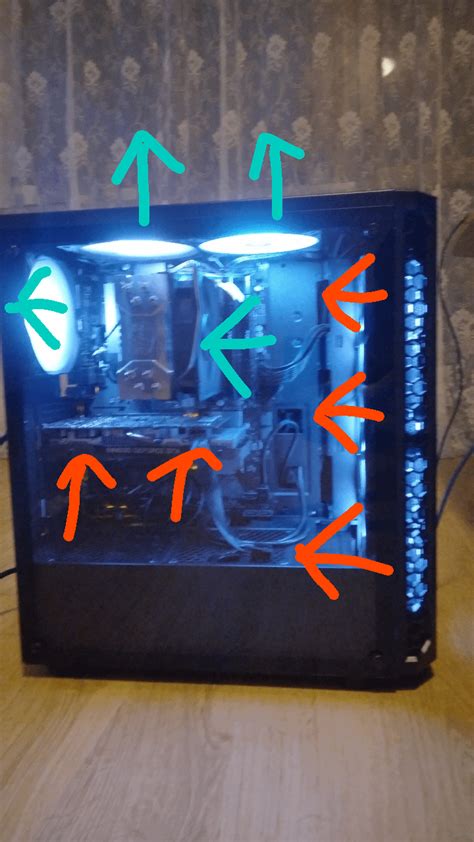
Most gaming PCs benefit from a balanced airflow system: intake fans bringing cool air in (typically front and bottom) and exhaust fans expelling hot air out (typically rear and top). Make sure your fans are oriented correctly. A common setup is two intake fans at the front and one exhaust fan at the rear. You can often adjust fan speeds via your motherboard’s BIOS/UEFI settings or dedicated software.
2. Add More Case Fans
If your case has empty fan mounts, adding more fans can drastically improve airflow. A good rule of thumb is to aim for a slight positive pressure setup (more intake than exhaust) to help keep dust out, or a neutral pressure (balanced intake/exhaust) if dust isn’t a major concern.
3. Consider an Aftermarket CPU Cooler
While this article focuses on GPU temps, a powerful CPU cooler (especially an AIO liquid cooler) can also indirectly help by reducing the amount of heat the CPU dumps into the case, making it easier for the GPU to stay cool.
Deeper Dive: GPU-Specific Solutions
These methods are more involved and might require some technical comfort, but they can be very effective.
1. Replace Thermal Paste on Your GPU
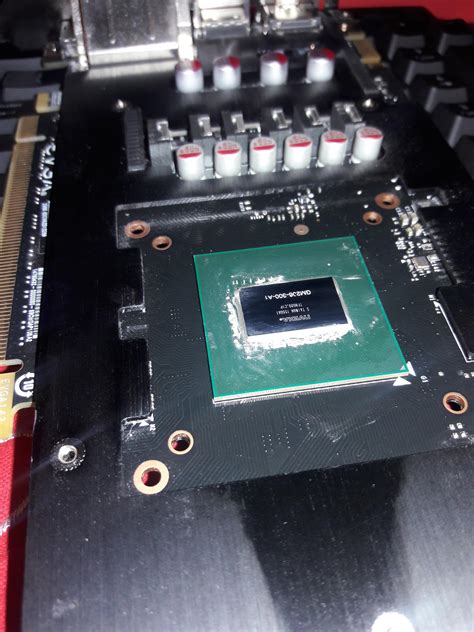
If your GPU is a few years old, its factory thermal paste might have degraded. Replacing it with fresh, high-quality thermal paste can significantly improve heat transfer from the GPU chip to its heatsink. This process requires disassembling your GPU’s cooler, so proceed with caution and consult a guide specific to your GPU model.
2. Undervolting Your GPU
Undervolting involves reducing the voltage supplied to your GPU while maintaining or slightly reducing its clock speed. This can lead to lower power consumption and significantly less heat generation without a noticeable performance drop in many cases. Tools like MSI Afterburner can help with this, but it requires careful testing and monitoring.
Software Solutions & Monitoring
Keeping an eye on your GPU’s vitals is crucial for diagnosing and preventing overheating.
1. Use Monitoring Software
Tools like MSI Afterburner, HWMonitor, or GPU-Z provide real-time data on your GPU’s temperature, clock speeds, fan speeds, and usage. Monitor these metrics while gaming to identify when and how your GPU heats up.
2. Adjust Fan Curves
Many GPUs and motherboards allow you to create custom fan curves. This means you can set your GPU or case fans to spin faster at higher temperatures, providing more aggressive cooling when needed. MSI Afterburner is excellent for customizing GPU fan curves, while BIOS/UEFI settings often control case fan curves.
When to Seek Professional Help or Consider an Upgrade
If you’ve tried all the above steps and your GPU still runs unacceptably hot, it might be time for more drastic measures.
- Professional Assessment: A PC repair shop can diagnose underlying hardware issues you might have missed.
- Case Upgrade: Some older or budget cases simply don’t offer adequate airflow. A modern case designed for good thermal performance might be necessary.
- GPU Upgrade: If your GPU is significantly old and struggling to run modern games, it might be pushing its limits, generating excessive heat as a result. A newer, more efficient GPU could solve the problem.
By systematically addressing these potential causes and implementing the suggested fixes, you can significantly improve your GPU’s thermal performance, ensuring your intense gaming sessions remain smooth, stable, and enjoyable for years to come. Happy gaming!