





Best PC cooling setup to prevent thermal throttling during long gaming sessions?
For avid gamers, few things are as frustrating as your high-performance PC suddenly slowing down mid-session. This common issue, known as thermal throttling, occurs when your CPU or GPU automatically reduces its clock speed to prevent overheating, leading to a significant drop in frames per second (FPS) and overall system responsiveness. Ensuring an optimal cooling setup is crucial for maintaining peak performance during those marathon gaming sessions.
Understanding Thermal Throttling and Its Impact
Thermal throttling is a built-in safety mechanism designed to protect your hardware from damage due to excessive heat. When components like your processor (CPU) or graphics card (GPU) reach a predefined temperature threshold, they will intentionally slow down their operations. While this prevents permanent damage, it directly translates to a noticeable performance hit in games, turning smooth gameplay into a stuttering mess.
Choosing the Right CPU Cooler
The CPU is often the first component to throttle under heavy load. Selecting an effective CPU cooler is paramount. You essentially have two main options:
Air Coolers
Traditional air coolers use heat pipes to transfer heat from the CPU to a large heatsink, which is then cooled by one or more fans. High-end air coolers can be incredibly effective, often quieter than some liquid solutions, and generally more affordable. They are also less prone to failure compared to pumps in liquid coolers.
All-in-One (AIO) Liquid Coolers
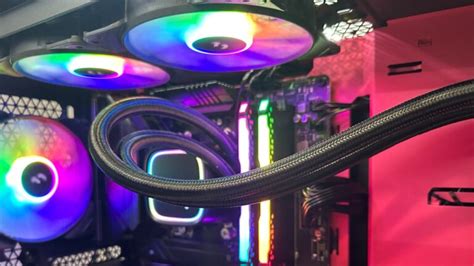
AIO liquid coolers, also known as closed-loop liquid coolers, use a pump to circulate coolant through a block on the CPU, then to a radiator where fans dissipate the heat. AIOs often offer superior cooling performance, especially in smaller cases where bulky air coolers might not fit, and can provide a cleaner aesthetic. However, they come with a higher price tag and the slight risk of pump failure.

Optimizing GPU Cooling
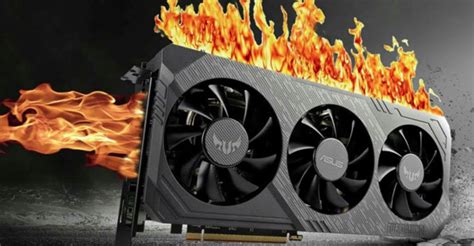
While CPUs get a lot of attention, your GPU is often the biggest heat generator during gaming. Most graphics cards come with adequate stock cooling, but intense usage or overclocking might push them beyond their limits.
For stock GPUs, ensure the fans are clean and unobstructed. If you’re experiencing throttling with a high-end card, consider improving case airflow. For extreme cases or custom builds, some enthusiasts opt for aftermarket GPU coolers or even custom water loops that cool both the CPU and GPU, though this is a more advanced and costly solution.
Mastering Case Airflow and Fan Configuration
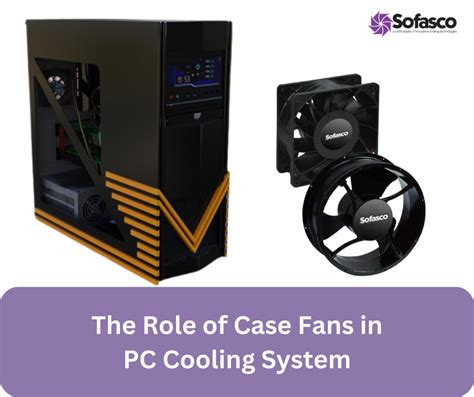
No matter how good your individual component coolers are, poor case airflow will undermine everything. The goal is to create a clear path for cool air to enter your case and hot air to exit efficiently.
Positive vs. Negative Pressure
A balanced airflow setup is ideal. Positive pressure (more intake than exhaust fans) helps prevent dust buildup, while negative pressure (more exhaust than intake) can draw in more dust but might remove hot air slightly faster. A slight positive pressure is generally recommended.
Fan Placement
- Intake: Typically at the front and bottom of the case, drawing cool air in.
- Exhaust: Usually at the rear and top of the case, expelling hot air. Hot air rises, so top exhaust fans are very effective.
Consider the types of fans too: static pressure fans are better for radiators or obstructed areas, while airflow fans are ideal for unrestricted case ventilation.
The Role of Thermal Paste and Regular Maintenance
Even the best coolers are ineffective without proper thermal contact. Quality thermal paste ensures efficient heat transfer from the CPU/GPU die to the cooler’s base. Reapplying thermal paste every few years, or when installing a new cooler, can make a noticeable difference.
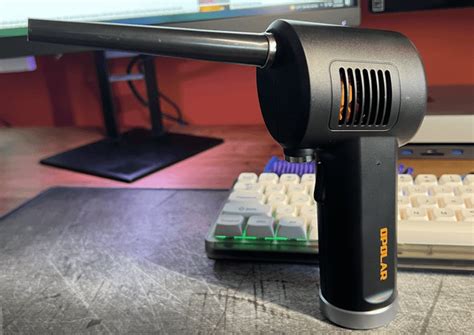
Regular maintenance is also key. Dust buildup acts as an insulator, trapping heat. Periodically clean your PC’s fans, heatsinks, and vents with compressed air to maintain optimal airflow and cooling efficiency.
Monitoring and Software Adjustments
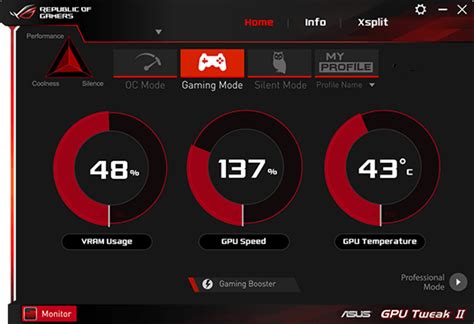
To truly optimize your cooling, you need to know your temperatures. Use monitoring software like HWMonitor, MSI Afterburner, or NZXT CAM to keep an eye on your CPU and GPU temperatures during gaming. Most modern motherboards and GPU utilities also allow you to customize fan curves, letting you set fan speeds to ramp up more aggressively as temperatures rise, providing better cooling when it’s needed most.
Conclusion
Preventing thermal throttling during long gaming sessions is a multi-faceted approach. It involves making informed choices about your CPU and GPU cooling solutions, meticulously planning your case’s airflow, and committing to regular maintenance. By addressing these key areas, you can ensure your gaming rig operates at its peak performance, delivering stable frame rates and an immersive experience without the frustration of overheating slowdowns. Invest in good cooling, and your PC will reward you with sustained power and longevity.


