My gaming PC gets low FPS. What are common bottlenecks and how to fix them?

A smooth gaming experience hinges on your PC’s ability to render frames quickly. When your frames per second (FPS) drop, games become choppy and less enjoyable. Identifying the root cause can be tricky, as multiple components work together to power your games. This guide will walk you through the most common bottlenecks in gaming PCs and provide actionable steps to get your FPS back on track.
Understanding PC Bottlenecks
A bottleneck occurs when one component in your PC limits the performance of others. Imagine a highway with multiple lanes suddenly merging into one; traffic slows down significantly. Similarly, if your graphics card is incredibly powerful but your CPU can’t keep up, the CPU becomes the bottleneck, preventing the GPU from working at its full potential, resulting in lower FPS.
Common Bottlenecks and How to Fix Them
1. Graphics Card (GPU) Bottleneck
The GPU is the most crucial component for gaming performance, responsible for rendering all the visuals. If your GPU is struggling, especially in graphically intensive games or at higher resolutions, it’s often the primary culprit for low FPS.
Identification:
- Monitor GPU usage during gaming (e.g., with MSI Afterburner or task manager). If it’s consistently at 95-100%, your GPU is likely the bottleneck.
- Compare your GPU’s specifications with the game’s recommended requirements.
Fixes:
- Lower in-game graphics settings: Start with resolution, texture quality, shadows, and anti-aliasing.
- Update GPU drivers: Always ensure you have the latest drivers from NVIDIA or AMD.
- Overclock your GPU (with caution): If you have adequate cooling, a modest overclock can yield a small performance boost.
- Upgrade your GPU: If your card is old or entry-level, an upgrade might be necessary for modern games.

2. Processor (CPU) Bottleneck
While the GPU handles graphics, the CPU manages game logic, AI, physics, and sends instructions to the GPU. If your CPU can’t process these tasks fast enough, it starves the GPU of data, leading to a CPU bottleneck.
Identification:
- Monitor CPU usage during gaming. If it’s consistently at 90-100% while GPU usage is lower (e.g., 60-70%), your CPU is likely the bottleneck.
- Games with many NPCs, complex physics, or large open worlds are often CPU-intensive.
Fixes:
- Close background applications: Free up CPU resources.
- Overclock your CPU (if possible): If your CPU and motherboard support it, and you have adequate cooling, this can help.
- Upgrade your CPU: If your processor is several generations old, a newer, more powerful CPU will provide a significant boost.
3. Insufficient RAM
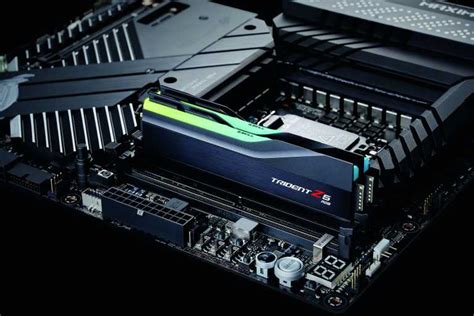
Random Access Memory (RAM) stores temporary data that your CPU needs to access quickly. If you don’t have enough RAM, or if it’s too slow, your system might resort to using your slower storage drive (virtual memory), causing significant slowdowns and stuttering.
Identification:
- Monitor RAM usage in Task Manager. If it’s consistently near 100% or your system feels sluggish even outside of games.
- Check the game’s recommended RAM requirements. 8GB is often the minimum, but 16GB is ideal for most modern titles.
Fixes:
- Close unnecessary applications: Browser tabs, streaming services, and other apps consume RAM.
- Upgrade your RAM: Adding more RAM (e.g., going from 8GB to 16GB) or upgrading to faster RAM (e.g., higher MHz, lower CL latency) can dramatically improve performance. Ensure your motherboard supports the new RAM speed.
4. Slow Storage Drive (HDD vs. SSD)
While a slow storage drive doesn’t directly impact in-game FPS, it can cause stuttering, long loading times, and slower texture streaming, especially in open-world games. If your operating system or games are installed on a traditional Hard Disk Drive (HDD) rather than a Solid State Drive (SSD), this can be a noticeable bottleneck.
Identification:
- Very long game loading times.
- Stuttering or texture pop-in during gameplay, especially when moving quickly through new areas.
Fixes:
- Upgrade to an SSD: Installing games and your operating system on an NVMe M.2 SSD or a SATA SSD will drastically improve loading times and reduce stuttering.
- Defragment your HDD (if applicable): If you must use an HDD, regularly defragmenting it can help, though it’s not a substitute for an SSD.
5. Overheating Components
When components like your CPU or GPU get too hot, they automatically reduce their clock speeds (a process called thermal throttling) to prevent damage. This directly leads to a drop in performance and FPS.
Identification:
- Monitor CPU and GPU temperatures during gaming (e.g., with HWMonitor, HWiNFO64). Critical temperatures are generally above 85-90°C for GPUs and CPUs.
- System crashes, blue screens, or sudden shutdowns.
Fixes:
- Clean your PC: Dust accumulation is a major cause of overheating. Use compressed air to clean fans and heatsinks.
- Improve case airflow: Ensure your PC case has adequate intake and exhaust fans, and that cables aren’t obstructing airflow.
- Replace thermal paste: Over time, the thermal paste on your CPU or GPU can dry out, reducing heat transfer. Replacing it can significantly lower temperatures.
- Upgrade CPU cooler: The stock CPU cooler might not be sufficient for gaming, especially if you have a high-performance CPU.
- Consider liquid cooling: For extreme cooling needs, an All-in-One (AIO) liquid cooler or custom loop can be highly effective.
6. Outdated Drivers and Software Issues
Sometimes, the bottleneck isn’t hardware but software. Outdated drivers or background processes can eat up resources and lead to suboptimal performance.
Identification:
- FPS drops after a system update or new software installation.
- General system sluggishness despite seemingly good hardware.
Fixes:
- Update drivers: Keep your GPU drivers (NVIDIA GeForce Experience, AMD Adrenalin), motherboard chipset drivers, and Windows OS updated.
- Disable background apps: Use Task Manager to close unnecessary programs running in the background.
- Scan for malware: Malicious software can consume significant system resources.
- Adjust power plan: Ensure your Windows power plan is set to ‘High Performance’ during gaming.
7. Inadequate Power Supply (PSU)
If your Power Supply Unit (PSU) doesn’t provide enough stable power to your components, especially during peak load, it can lead to instability, crashes, or even performance degradation as components struggle to draw the necessary power.
Identification:
- Sudden shutdowns during intense gaming sessions.
- Random reboots or system instability.
- New hardware installations causing problems where old ones didn’t.
Fixes:
- Check PSU wattage: Ensure your PSU’s wattage is sufficient for all your components, especially your GPU and CPU. Online PSU calculators can help.
- Upgrade PSU: If your PSU is too old, low-wattage, or of poor quality, upgrading to a higher wattage, reputable brand can resolve power-related issues.
General Troubleshooting Tips
- Monitor Performance: Tools like MSI Afterburner, HWiNFO64, or the built-in Windows Task Manager can display real-time usage of your CPU, GPU, RAM, and temperatures, helping you pinpoint the bottleneck.
- Clean Your PC Regularly: Dust is the enemy of performance, trapping heat and reducing cooling efficiency.
- Optimize In-Game Settings: Experiment with different graphical settings. Not all settings have the same performance impact.
- Check Game Specific Issues: Some games are poorly optimized or have known performance issues. Check community forums.
Diagnosing low FPS can be a process of elimination. By systematically checking each potential bottleneck and applying the appropriate fixes, you can significantly improve your gaming PC’s performance and enjoy a smoother, more immersive experience. Start with the easiest and most common fixes, and gradually work your way up to more involved solutions like hardware upgrades.