





How to optimize PC settings for maximum FPS in competitive games?
In the high-stakes world of competitive gaming, every frame counts. Higher Frames Per Second (FPS) translates directly into a smoother, more responsive gameplay experience, allowing for quicker reactions and a clearer visual understanding of fast-paced action. This comprehensive guide will walk you through the essential PC settings optimizations to help you achieve maximum FPS and secure that crucial competitive edge.
The Importance of High FPS in Competitive Gaming
Beyond just looking good, a high and stable FPS minimizes input lag, makes player movements appear more fluid, and allows you to react faster to in-game events. A 144Hz monitor paired with 144+ FPS, for instance, provides a significant advantage over a 60Hz monitor running at 60 FPS, especially in titles where split-second decisions dictate victory or defeat.
Optimize In-Game Graphics Settings
This is often the first and most impactful step. Most competitive games offer a wide array of graphics options. The goal here is to prioritize performance over visual fidelity.
Key Settings to Adjust:
- Resolution: Lowering resolution significantly boosts FPS. While not ideal for visual clarity, dropping from 4K to 1440p or even 1080p can yield massive gains.
- V-Sync (Vertical Sync): Disable this. V-Sync synchronizes your frame rate with your monitor’s refresh rate to prevent screen tearing but introduces input lag.
- Texture Quality: Set to Medium or Low. High textures use more VRAM, which can bottleneck older GPUs.
- Shadows: One of the most demanding settings. Set to Low or Off.
- Anti-Aliasing: Turn Off or use a less demanding option like FXAA or SMAA if available. TAA and MSAA are very performance-heavy.
- Post-Processing: Set to Low or Off. This includes effects like bloom, depth of field, and motion blur.
- Draw Distance/View Distance: While important in some games (e.g., battle royales), consider lowering it slightly if performance is an issue.
- Effects & Particles: Lowering these reduces clutter during intense combat, which helps both visibility and FPS.
- Render Scale: Keep at 100%. Lowering this renders the game at a sub-native resolution and then upscales it, making the game look blurry. Only use as a last resort.
Tune Your Operating System (Windows)
Windows has several built-in features that, when optimized, can free up resources for your games.
Windows Settings for Gaming:
- Game Mode: Ensure Windows Game Mode is enabled (Settings > Gaming > Game Mode). It prioritizes system resources for games.
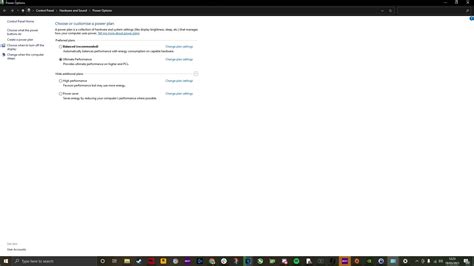
- Power Options: Set your power plan to ‘High Performance’ or ‘Ultimate Performance’ (Control Panel > Hardware and Sound > Power Options). This ensures your CPU and GPU run at their maximum clock speeds.
- Startup Applications: Disable unnecessary programs from launching with Windows (Task Manager > Startup tab).
- Notifications: Turn off notifications and Focus Assist during gaming sessions to prevent interruptions and background resource usage.
- Background Apps: Restrict background app activity (Settings > Privacy > Background apps).
- Graphics Settings (Windows 10/11): Add your game executables to ‘Graphics Settings’ (Settings > System > Display > Graphics settings) and set them to ‘High performance’.
GPU Driver Settings (NVIDIA & AMD Control Panels)
Your graphics card’s control panel offers fine-tuning options that can override or complement in-game settings.
For NVIDIA Users (NVIDIA Control Panel):
- Right-click on your desktop and select ‘NVIDIA Control Panel’.
- Navigate to ‘Manage 3D settings’.
- Under ‘Global Settings’ (or ‘Program Settings’ for specific games):
- Power management mode: Set to ‘Prefer maximum performance’.
- Texture filtering – Quality: Set to ‘High performance’.
- Low Latency Mode: Set to ‘On’ or ‘Ultra’ (experiment to see what works best for you, Ultra can introduce stuttering for some).
- Shader Cache: Enable.
- Vertical sync: Off.
For AMD Users (AMD Radeon Software):
- Right-click on your desktop and select ‘AMD Radeon Software’.
- Go to the ‘Gaming’ tab and select the game you want to optimize.
- Adjust the following:
- Radeon Anti-Lag: Enabled.
- Radeon Chill: Disabled (unless you want to limit FPS to save power/heat).
- Radeon Boost: Enabled (can dynamically lower resolution during fast motion).
- Image Sharpening: Off or set to a low percentage.
- Wait for Vertical Refresh: Always Off.

BIOS/UEFI Settings and Hardware Checks
Don’t overlook your system’s fundamental settings.
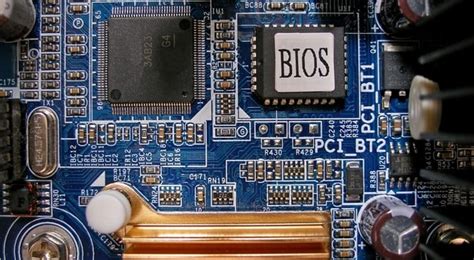
- Enable XMP/DOCP: Enter your BIOS/UEFI settings and ensure your RAM is running at its advertised speed by enabling its Extreme Memory Profile (XMP for Intel) or DOCP (for AMD). Incorrect RAM speeds significantly impact CPU performance.
- Driver Updates: Always keep your GPU drivers updated to the latest stable version. Also, ensure your chipset drivers are up-to-date.
- Clean Up Storage: Ensure your games are installed on an SSD for faster loading times. Regularly delete temporary files and defragment HDDs (not SSDs).
- Monitor Temperatures: Overheating CPU or GPU will cause throttling, leading to FPS drops. Use monitoring software (e.g., MSI Afterburner) to keep an eye on temps.
Maintain Your System for Consistent Performance
- Regular Driver Updates: Continuously check for new GPU drivers and Windows updates.
- Close Background Applications: Before launching a game, close any unnecessary apps, browser tabs, or streaming services that consume CPU, RAM, or network bandwidth.
- Disk Cleanup: Use Windows’ built-in Disk Cleanup tool or third-party software to remove temporary and junk files.
- Keep Your PC Cool: Clean your PC’s internal components (fans, heatsinks) regularly to ensure optimal airflow and prevent thermal throttling.
Conclusion
Optimizing your PC for maximum FPS in competitive games is a continuous process that involves tweaking in-game settings, fine-tuning your operating system, and managing your hardware. By systematically going through these steps, you can unlock your system’s full potential, ensuring a smoother, more responsive gaming experience that gives you a distinct advantage over the competition. Consistent high FPS isn’t just a luxury; it’s a vital tool in your arsenal for victory.


