





What’s the optimal monitor setup for a dual-PC streaming rig?

The Power of Dual-PC Streaming: Why Monitor Setup Matters
A dual-PC streaming setup is the gold standard for many content creators, offering unparalleled performance, stability, and quality. By dedicating one PC to gaming and another to encoding and streaming, you offload resource-intensive tasks, ensuring smooth gameplay and a consistent stream. However, maximizing this advantage heavily depends on an optimized monitor setup that serves both your gaming experience and your streaming workflow efficiently.
Core Considerations for Your Monitor Layout
Balancing Gaming Immersion and Stream Management
The primary challenge in a dual-PC setup is to provide the best possible gaming experience on your main display while also giving you clear visibility of your streaming software, chat, and other essential tools on secondary monitors. This often means different types of monitors for different roles.
- Gaming Monitor: This is connected to your gaming PC. It should prioritize high refresh rates (144Hz, 240Hz, or more), low response times, and adaptive sync technology (G-Sync/FreeSync) for the smoothest gameplay. Resolution (1080p, 1440p, 4K) is also a key decision based on your gaming PC’s power.
- Streaming/Utility Monitors: These are typically connected to your streaming PC. Their primary role is to display OBS/Streamlabs, chat, alerts, browser windows, and other production tools. While refresh rate is less critical here, good color accuracy, sufficient screen real estate, and comfortable viewing angles are beneficial.
Common Monitor Configurations
Most dual-PC streamers opt for one of two main configurations:
1. The Two-Monitor Setup:
This is the simplest and often most cost-effective approach. One high-performance monitor for gaming (connected to gaming PC) and one secondary monitor for streaming software (connected to streaming PC). The gaming monitor’s output is split or duplicated to a capture card on the streaming PC.
2. The Three-Monitor Setup:
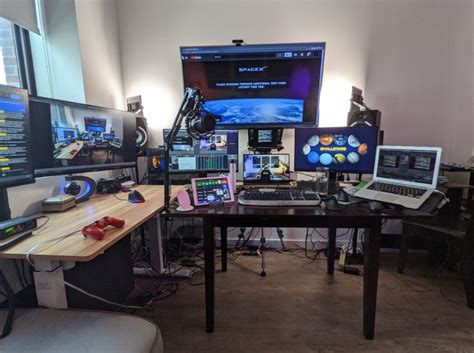
This provides maximum screen real estate. Typically, one central high-performance gaming monitor (gaming PC), and two side monitors. One side monitor is connected to the streaming PC for chat/alerts, and the other could be connected to either PC for supplementary information, web browsing, or a dedicated stream preview. This offers superior multitasking capabilities.

Key Monitor Specifications for a Dual-PC Rig
Resolution and Refresh Rate
- Gaming Monitor: Aim for 1440p at 144Hz+ for an excellent balance of visual fidelity and fluidity. 4K at 144Hz is an option if your gaming PC can handle it, but remember it’s more demanding. 1080p at 240Hz+ is great for competitive FPS players.
- Streaming Monitors: 1080p or 1440p at 60Hz is perfectly adequate. Higher refresh rates offer no practical benefit for displaying chat or OBS.
Panel Type
- Gaming Monitor: IPS panels offer great color accuracy and viewing angles, but TN panels still lead in raw response times for competitive gaming. VA panels offer deep blacks but can suffer from ghosting. IPS is generally the recommended all-rounder.
- Streaming Monitors: IPS panels are generally preferred for their wide viewing angles, making it easier to see content from the sides without color shift.

Connectivity and Capture Card Essentials
Connecting your monitors correctly is crucial. Your gaming monitor plugs directly into your gaming PC’s GPU. The output from your gaming PC (or a duplicate signal) then goes into your capture card, which is installed in your streaming PC. This allows the streaming PC to receive the game feed.
- Gaming PC to Gaming Monitor: DisplayPort (recommended for high refresh rates/resolutions) or HDMI 2.0/2.1.
- Gaming PC to Capture Card: HDMI 2.0 or 2.1 is most common for capture cards. Ensure your capture card supports the resolution and refresh rate you’re gaming at.
- Streaming PC to Streaming Monitors: DisplayPort, HDMI, or DVI depending on monitor inputs.
Always verify your capture card’s input and pass-through capabilities match your gaming monitor’s output. If your capture card only supports 4K60 input, but you game at 4K144, you’ll need a work-around or a more capable capture card.
Ergonomics and Software Optimization
Beyond the hardware, how you arrange and configure your monitors impacts your daily comfort and workflow:
- Monitor Arms: Investing in VESA-compatible monitor arms can free up desk space and allow for flexible positioning, crucial for achieving an ergonomic setup.
- Display Scaling: Be mindful of different monitor resolutions and scaling. Windows can sometimes struggle to maintain consistent scaling across mixed-resolution setups. Ensure your streaming software and overlays are configured correctly for the resolution your capture card sends.
- Input Switching: Consider KVM switches or software solutions like Mouse Without Borders/Synergy if you want to use a single keyboard/mouse across both PCs.
Crafting Your Optimal Setup
The “optimal” setup is highly personal, but a robust recommendation for many dual-PC streamers includes:
- Main Gaming Monitor: 27-inch 1440p 144Hz+ IPS with G-Sync/FreeSync.
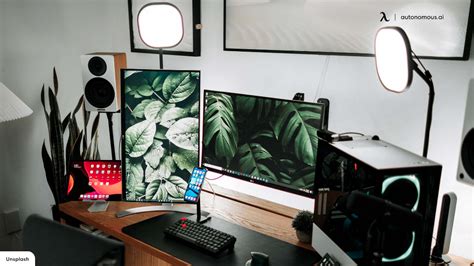
- Primary Streaming Monitor: 24-27 inch 1080p/1440p 60Hz IPS, typically placed vertically next to the gaming monitor for chat.
- Secondary Streaming/Utility Monitor (Optional): Another 24-27 inch 1080p/1440p 60Hz IPS for OBS, browser, or other tools.
This configuration offers a sublime gaming experience, ample space for stream management, and a clean aesthetic. Experiment with positioning to find what feels most natural for your workflow.
By carefully selecting your monitors, understanding their connectivity, and optimizing your physical and software arrangements, you can unlock the full potential of your dual-PC streaming rig, delivering a professional-grade broadcast without compromising your gaming performance.


