Boost gaming FPS & reduce input lag: Best GPU driver settings & in-game tweaks?

Unleashing Peak Gaming Performance: The Battle Against Lag
For competitive gamers and casual players alike, achieving high Frames Per Second (FPS) and minimizing input lag are paramount to an immersive and responsive gaming experience. Stuttering visuals and delayed reactions can be the difference between victory and defeat, or simply enjoying your favorite titles. While powerful hardware certainly helps, optimizing your system often boils down to tweaking software settings you might be overlooking. This comprehensive guide will walk you through the essential GPU driver configurations and in-game adjustments to elevate your gaming performance significantly.
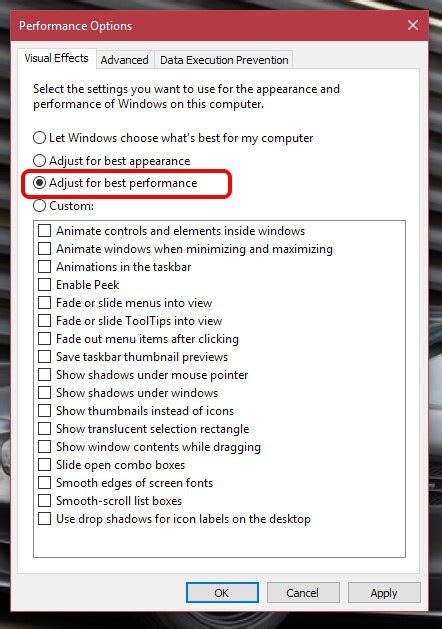
Mastering Your GPU Driver Settings (NVIDIA & AMD)
Your graphics card’s control panel is a goldmine of performance-enhancing options. Diving into these settings can yield substantial improvements.
NVIDIA Control Panel Settings:
- Power Management Mode: Prefer Maximum Performance: This setting ensures your GPU is always running at its highest clock speeds, preventing it from downclocking to save power during intense gaming sessions.
- Low Latency Mode (Ultra/On): NVIDIA’s Low Latency Mode (LLM) aims to reduce input lag by limiting the number of frames queued by the CPU. ‘Ultra’ mode provides the most aggressive reduction, best for CPU-bound scenarios.
- Texture Filtering – Quality: High Performance: While “High Quality” offers slightly better visuals, “High Performance” prioritizes frame rates by slightly reducing texture filtering fidelity – often unnoticeable during fast-paced gameplay.
- Vertical Sync (V-Sync): Off (or G-Sync/FreeSync On): V-Sync synchronizes your frame rate with your monitor’s refresh rate to prevent screen tearing. However, it introduces input lag. If you have a G-Sync or FreeSync monitor, enable that instead for tear-free, low-latency gaming. Otherwise, turn V-Sync off and tolerate some tearing for the lowest input lag.
- Shader Cache Size: Driver Default (or Larger): The shader cache stores compiled shaders on your drive, reducing loading times and stuttering. Ensure it’s enabled and has sufficient space.
AMD Radeon Software Settings:
- Radeon Anti-Lag: Enabled: Similar to NVIDIA’s LLM, Anti-Lag helps reduce input lag by decreasing the amount of CPU backlog, allowing your GPU to receive frames faster.
- Radeon Boost: Enabled (for supported games): Radeon Boost dynamically lowers resolution in fast-motion scenes, boosting FPS and responsiveness.
- Texture Filtering Quality: Performance: Prioritize frame rate over minor visual fidelity enhancements.
- Vertical Sync: Off (or FreeSync On): As with NVIDIA, disable V-Sync unless you’re using FreeSync.
- Shader Cache: Enabled: Ensure this is enabled to prevent stuttering and improve load times.
Optimizing In-Game Graphics Settings
Many games offer extensive graphics options, and knowing which ones to tweak can be the key to unlocking higher FPS without sacrificing too much visual appeal.
- Resolution: The single biggest factor affecting FPS. Playing at your monitor’s native resolution is ideal, but if performance is struggling, consider lowering it or using resolution scaling features if available (e.g., DLSS, FSR, or simply rendering at a lower percentage).
- Shadow Quality: Shadows are notoriously performance-intensive. Reducing shadow quality or disabling them entirely can provide significant FPS gains.
- Anti-Aliasing: Techniques like MSAA, TAA, and FXAA smooth jagged edges. While effective, they can be demanding. Experiment with lower settings or simpler methods (like FXAA) for a better balance.
- Texture Quality: This mainly impacts VRAM usage. If you have a GPU with sufficient VRAM (e.g., 8GB+ for 1080p/1440p), you can often set this to High or Ultra without much FPS loss. If not, lower it.
- Post-Processing Effects (Motion Blur, Depth of Field, Bloom): These cinematic effects can often be turned off without significantly impacting the core visual experience, and they frequently come with an FPS cost.
- Volumetric Lighting/God Rays: Visually impressive but very demanding. Lowering or disabling these can free up considerable resources.
- Field of View (FOV): A higher FOV renders more on screen, which can reduce FPS. Find a comfortable balance.

Operating System & Other Essential Tweaks
Beyond your GPU drivers and in-game menus, your operating system and system configuration can also play a role in optimizing performance.
- Windows Game Mode: Ensure Game Mode is enabled in Windows settings. It prioritizes your game’s resources and suppresses background activities.
- Background Applications: Close unnecessary applications running in the background (web browsers, streaming software, launchers, etc.) while gaming to free up CPU and RAM resources.
- Power Plan: Set your Windows power plan to “High Performance” or “Ultimate Performance” (if available). This ensures your CPU and other components aren’t throttled.
- Monitor Refresh Rate: Verify your monitor is set to its highest refresh rate in Windows Display Settings. A 144Hz monitor running at 60Hz is a missed opportunity.
- Driver Updates: Always keep your GPU drivers updated to the latest stable version. Manufacturers frequently release Game Ready drivers with performance optimizations for new titles.
Conclusion: The Pursuit of Smooth Gameplay
Optimizing your gaming rig for maximum FPS and minimum input lag is a continuous process of fine-tuning. By systematically adjusting your GPU driver settings, making smart choices within your game’s graphics options, and ensuring your operating system is properly configured, you can significantly enhance your gaming experience. Don’t be afraid to experiment with different settings combinations to find the sweet spot for your specific hardware and games. A little effort in optimization goes a long way towards smoother, more responsive, and ultimately more enjoyable gameplay.