





How can I boost my gaming PC’s FPS without upgrading my GPU?

Introduction: Maximize Your Current Rig’s Potential
It’s a common misconception that significantly boosting your gaming PC’s Frames Per Second (FPS) always requires a costly graphics card upgrade. While a new GPU certainly offers the most direct path to higher performance, there are numerous effective strategies you can employ to squeeze more frames out of your existing hardware. By optimizing software settings, fine-tuning your operating system, and performing some essential hardware maintenance, you can experience noticeably smoother gameplay without spending a dime on new components.
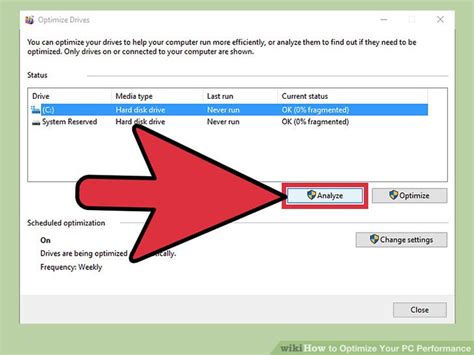
Software Tweaks for Instant FPS Gains
Update Your Drivers Regularly
One of the easiest and most impactful steps is to ensure all your drivers are up to date. This includes your GPU drivers (NVIDIA GeForce Experience, AMD Adrenalin Software), chipset drivers, and even sound drivers. Graphics card manufacturers frequently release new drivers that include performance optimizations for recent games, bug fixes, and general stability improvements. Staying current can provide surprising FPS bumps.
Optimize In-Game Settings
This is where you have direct control over performance versus visual fidelity. Every game offers a plethora of graphics options:
- Resolution: Lowering your screen resolution from, say, 1440p to 1080p will drastically increase FPS.
- Texture Quality: High-resolution textures consume a lot of VRAM. Reducing this can free up resources.
- Shadows: Shadows are notoriously demanding. Lowering shadow quality or disabling them entirely can yield significant gains.
- Anti-Aliasing: Technologies like MSAA are very taxing. Try less demanding options like FXAA or TAA, or disable it if you prioritize frames.
- Post-Processing Effects: Bloom, depth of field, motion blur, and other effects can be turned down or off.
- View Distance/Draw Distance: Reducing how far the game renders objects can help, especially in open-world titles.
Experiment with settings. Start by turning demanding options down, then gradually increase them until you find a balance between visual quality and your desired FPS.

Harness Your Operating System Settings
Your operating system can either help or hinder your gaming performance.
- Windows Game Mode: Ensure Windows Game Mode is enabled. It prioritizes game processes and minimizes background activity.
- Power Plan: Set your Windows Power Plan to ‘High Performance’. This ensures your CPU and other components aren’t throttled by power-saving measures.
- Disable Background Apps: Close any unnecessary programs running in the background, such as web browsers with multiple tabs, streaming apps, or download clients.
- Startup Programs: Reduce the number of programs that launch with Windows. Many applications consume resources even when idle.
Hardware & System Maintenance for Enhanced Performance
Ensure Sufficient and Fast RAM
While not a GPU upgrade, your RAM plays a crucial role. Ensure you have at least 16GB for modern gaming. More importantly, check that your RAM is running in dual-channel mode (typically by installing sticks in specific slots as per your motherboard manual) and that its XMP/DOCP profile is enabled in the BIOS to run at its advertised speed. Slow or insufficient RAM can bottleneck even a capable CPU and GPU.
![Memory Optimizer PC 버전: 무료 다운로드 - Windows 10,8,7 [한국어 앱]](/images/aHR0cHM6Ly90czIuZXhwbGljaXQuYmluZy5uZXQvdGg/aWQ9T0lQLl82TmhReFVQeGlsZUJGSUM5NFBvNVFIYUVvJnBpZD0xNS4x.webp)
Storage Solutions: SSD for Games
If your games are still installed on a traditional Hard Disk Drive (HDD), consider moving them to a Solid State Drive (SSD). While an SSD won’t directly boost FPS, it will drastically reduce load times, stuttering caused by texture streaming, and overall system responsiveness, making the gaming experience feel much smoother and faster. Ensure your OS is also on an SSD.
Keep Your PC Cool and Clean
Overheating components will automatically throttle their performance to prevent damage, leading to significant FPS drops. Regular maintenance can prevent this:
- Dust Cleaning: Use compressed air to regularly clean dust from your CPU cooler, GPU heatsink, case fans, and power supply. Dust acts as an insulator, trapping heat.
- Thermal Paste: If your CPU temperatures are consistently high (especially after cleaning), consider reapplying fresh thermal paste to your CPU.
- Case Airflow: Ensure your case fans are configured for optimal airflow (intake and exhaust) to move hot air out of the system efficiently.

Check for CPU Bottlenecks and Overclocking
While this article focuses on not upgrading your GPU, sometimes your CPU can be the limiting factor. If your CPU usage is consistently at 100% while gaming and your GPU usage is low, your CPU might be bottlenecking your system. Ensuring its cooling is excellent helps it run at its boost clocks more consistently.
For advanced users, mild CPU or RAM overclocking (if supported by your motherboard and CPU) can provide a small but noticeable FPS boost. Always research and understand the risks before attempting any overclock.

Conclusion: Every Frame Counts
Boosting your gaming PC’s FPS without buying a new GPU is an achievable goal through a combination of diligent software management, smart in-game settings adjustments, and crucial hardware maintenance. By implementing these strategies, you can often unlock a significant performance uplift from your existing rig, making your games feel more responsive and enjoyable. Remember, consistency in maintenance and thoughtful optimization are key to keeping your system performing at its peak.


