





How to troubleshoot conflicting PC game mods safely & efficiently?
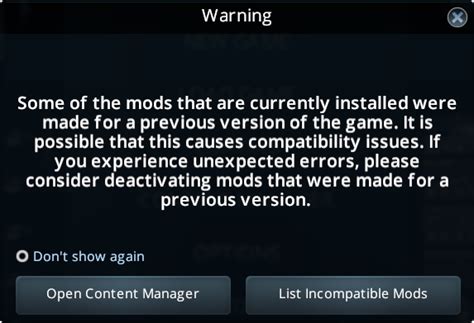
Modding PC games opens up a world of endless possibilities, transforming beloved titles into fresh, personalized experiences. From graphical overhauls to new quests and gameplay mechanics, mods can significantly enhance your gaming sessions. However, the joy of modding can quickly turn into frustration when conflicts arise, leading to crashes, bugs, or unexpected game behavior. Learning how to troubleshoot these conflicts safely and efficiently is a crucial skill for any PC gamer delving into the modding scene.
Understanding Mod Conflicts
Mod conflicts typically occur when two or more mods try to modify the same game file, script, or resource in incompatible ways. This can manifest as one mod overwriting another, causing unexpected behavior, or even complex script interactions leading to game instability. Recognizing the signs of a conflict is the first step towards resolution.

Common symptoms include:
- Game Crashes: The most obvious sign, often at startup or when entering specific areas.
- Visual Glitches: Textures not loading correctly, character models T-posing, or bizarre graphical artifacts.
- Gameplay Bugs: Quests not progressing, NPCs behaving erratically, or abilities not working as intended.
- Performance Issues: Significant frame rate drops or stuttering not present before installing new mods.
Essential Preparations Before You Start
Before you dive into the troubleshooting process, a little preparation can save you a lot of headaches:
- Backup Your Game Files: Always create a backup of your vanilla game installation and any existing mod profiles before making significant changes. This provides a clean slate to revert to if things go wrong.
- Use a Reliable Mod Manager: Tools like Vortex, Mod Organizer 2 (MO2), or other game-specific managers are invaluable. They help manage installations, track dependencies, and, critically, allow for easy enabling/disabling of mods without directly altering game files.
- Understand Load Order: Many games, especially RPGs like Skyrim or Fallout, rely heavily on a specific mod load order. Mods loaded later will often overwrite assets from mods loaded earlier. Mod managers usually assist with this, but understanding the principles is key.
Step-by-Step Troubleshooting Process
1. Isolate the Problematic Mods
This is often the most time-consuming but effective step. The goal is to pinpoint which specific mod or combination of mods is causing the conflict.
- The 50/50 Method: If you have a large number of mods, disable half of them. If the problem persists, the conflict is in the remaining half; if it disappears, the conflict is in the disabled half. Repeat this process, halving the problematic group each time until you isolate the culprit.
- Gradual Disabling/Enabling: If your mod list is smaller, try disabling recently installed mods one by one until the problem resolves. Conversely, if you’re starting from scratch, install mods in small batches, testing after each batch until a conflict appears.

2. Consult Mod Descriptions and Documentation
Once you’ve narrowed down potential culprits, revisit their mod pages. Authors often list known conflicts, required patches, and specific installation instructions or load order recommendations. Pay close attention to:
- Compatibility Sections: Many authors explicitly state which mods their creation is incompatible with or requires specific patches for.
- Bug Reports & Comments: Check the mod’s forum or comment section. Other users might have encountered and solved the same conflict.
3. Utilize Compatibility Patches & Tools
Many popular games have dedicated modding tools that can help resolve conflicts:
- Specific Patches: Often, mod authors or the community create compatibility patches for common mod combinations. Ensure you download and install these.
- Merge Patches / Conflict Resolution Patches: Tools like xEdit (TES5Edit, FO4Edit, SSEEdit for Bethesda games) allow users to manually create ‘merge patches’ that combine conflicting records from multiple mods, resolving the conflict. While advanced, this is often the ultimate solution for complex setups.

4. Adjust Load Order
If two mods modify the same asset but aren’t strictly incompatible, adjusting their load order might resolve the issue. The general rule is that the mod you want to ‘win’ (i.e., whose changes you want to see in-game) should be loaded later in your load order. Your mod manager will have tools to adjust this, sometimes even suggesting optimal orders based on community rules (e.g., LOOT for Bethesda games).
5. Clean Your Save Files (If Applicable)
For games with complex save systems (like Bethesda titles), lingering script data from previously uninstalled or conflicting mods can corrupt save files. If you’ve uninstalled a mod that adds complex scripts and are still experiencing issues, you might need to use a save cleaner tool (e.g., FallrimTools for Skyrim/Fallout) to remove orphaned scripts from your save. Always back up your save files before cleaning!
Advanced Troubleshooting & Prevention
Leverage Community Resources
Don’t be afraid to ask for help! Modding communities on Nexus Mods, Reddit, Discord, and game-specific forums are invaluable resources. When asking for help, provide as much detail as possible:
- The game you’re playing.
- Your full mod list and load order (if applicable).
- A clear description of the problem.
- Any error messages or crash logs.
Adopt Good Modding Practices
Prevention is always better than cure. Cultivate good habits:
- Read Everything: Always read the mod description, installation instructions, and any compatibility notes carefully before installing.
- Install One Mod at a Time: Especially for larger or more complex mods, install and test them individually to immediately identify potential conflicts.
- Understand Mod Limits: Some games have hard limits on the number of active mods (plugins). Be aware of these and use tools that help merge or compact plugins if necessary.
Conclusion
Troubleshooting conflicting PC game mods requires patience, a systematic approach, and a willingness to learn. While it can seem daunting at first, mastering these techniques will empower you to enjoy a far richer and more personalized gaming experience without constant frustration. By backing up your files, using mod managers, isolating issues effectively, and leveraging community knowledge, you can transform mod conflict resolution from a chore into another rewarding aspect of PC gaming.

