





How to improve gaming PC airflow & reduce temps for stable FPS?

Understanding the Importance of Airflow for Gaming Performance
For any serious PC gamer, a smooth and consistent frame rate (FPS) is paramount. However, high-performance components like CPUs and GPUs generate significant heat, especially under heavy gaming loads. If this heat isn’t effectively dissipated, your system can experience thermal throttling – a mechanism where components reduce their clock speeds to prevent overheating. This throttling directly leads to stuttering, frame drops, and an overall degraded gaming experience. Improving your PC’s airflow is the most effective way to combat this, keeping your hardware cool and ensuring stable, high FPS.
Choose the Right Case for Optimal Ventilation
Your PC case is the foundation of your cooling strategy. Modern cases designed for airflow often feature mesh front panels, ample fan mounts, and spacious interiors. Avoid cases with solid front panels or restrictive designs, as these choke off crucial intake air. Look for cases that support large fans (e.g., 140mm or even 200mm) at the front and top, as larger fans can move more air at lower, quieter RPMs.
Strategic Fan Placement and Configuration
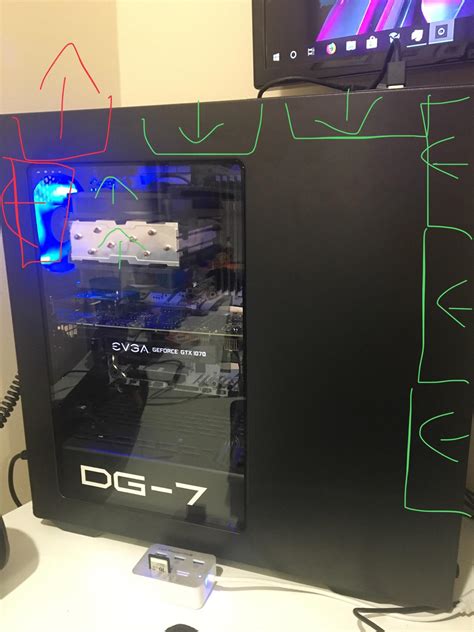
Effective airflow relies on creating a clear path for cool air to enter and hot air to exit. The general principle is to have more intake fans than exhaust fans to create positive pressure, which helps keep dust out. A common and effective setup involves:
- Front Intake: Two or three fans pulling cool air into the case.
- Rear Exhaust: One fan pushing hot air out the back.
- Top Exhaust: One or two fans pushing hot air out the top (hot air rises).
Ensure your fans are oriented correctly; there’s usually an arrow on the side indicating airflow direction. Experiment with fan speeds; sometimes a slight increase can yield significant temperature drops without too much noise.

Mastering Cable Management
It might seem minor, but poorly managed cables can significantly obstruct airflow within your case. A tangled mess of power and data cables can act like a dam, preventing air from flowing freely around your components. Utilize the cable routing channels and tie-down points often found behind the motherboard tray of most modern cases. Use zip ties or Velcro straps to bundle cables neatly and keep them out of the direct path of airflow.
Upgrade Your CPU Cooler
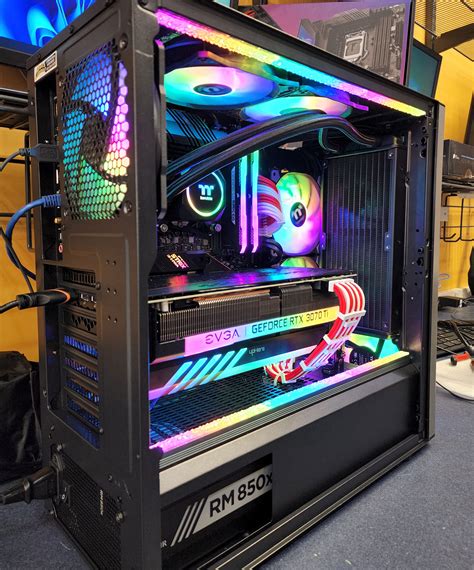
While case airflow addresses ambient temperatures, your CPU cooler directly tackles the heat generated by your processor. If you’re still using a stock cooler, upgrading to a larger air cooler or an All-in-One (AIO) liquid cooler can dramatically reduce CPU temperatures. Air coolers with large heatsinks and multiple heat pipes are excellent, while AIOs offer superior cooling potential, especially for high-end CPUs, by moving heat to a radiator that’s then cooled by fans.

Optimizing GPU Cooling and System Maintenance
Your graphics card is often the hottest component during gaming. Ensure your GPU has adequate space around it, especially if it’s an air-cooled model with multiple fans. Consider creating a custom fan curve for your GPU using software like MSI Afterburner to make its fans spin up more aggressively at certain temperatures. Undervolting your GPU can also reduce temperatures and power consumption with minimal impact on performance.
Finally, dust is the enemy of efficient cooling. Over time, dust accumulates on fans, heatsinks, and vents, acting as an insulating layer and impeding airflow. Regularly clean your PC, ideally every 3-6 months, using compressed air to clear out dust from fans, radiators, and filters. Pay close attention to your PSU fan and GPU heatsink fins.

Environmental Factors and Monitoring
Remember that your PC draws air from its surroundings. A cooler room will naturally lead to cooler internal PC temperatures. Avoid placing your PC in enclosed spaces like cramped desk cubbies, which trap hot air. Utilize software like HWMonitor, Core Temp, or MSI Afterburner to keep an eye on your CPU and GPU temperatures. Knowing your baseline temperatures and how they react under load is crucial for identifying cooling issues and confirming the effectiveness of your airflow improvements.
Conclusion
Improving your gaming PC’s airflow is a multi-faceted endeavor that involves strategic case selection, intelligent fan configuration, meticulous cable management, and regular maintenance. By taking these steps, you’ll ensure your components run cooler, prevent thermal throttling, and unlock the consistent, stable FPS necessary for the best possible gaming experience. A well-cooled system not only performs better but also prolongs the lifespan of your valuable hardware.


