





Why is my gaming PC overheating? Tips to lower temps for stable FPS.
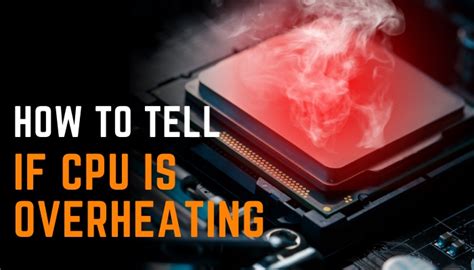
A high-performance gaming PC is a powerful machine, but with great power comes great heat. When your system starts to overheat, it’s not just an inconvenience; it can lead to significant performance drops, system instability, and even permanent damage to expensive components. If you’ve noticed your frames per second (FPS) dipping mid-game, or your PC fans sounding like a jet engine, overheating is likely the culprit. Understanding why this happens and how to fix it is crucial for a smooth and stable gaming experience.
Understanding the Heat: Why Your PC Gets Hot
Modern CPUs and GPUs generate substantial heat, especially under load during gaming. Your PC’s cooling system is designed to dissipate this heat, but several factors can hinder its effectiveness.
Dust: The Silent Killer
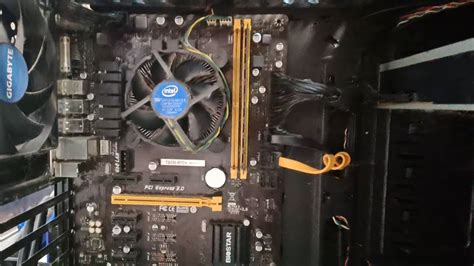
Over time, dust, pet hair, and other debris accumulate inside your PC case. This dust acts as an insulating blanket on heatsinks and obstructs airflow through fans and vents, trapping heat inside your system.
Inadequate Airflow & Case Design
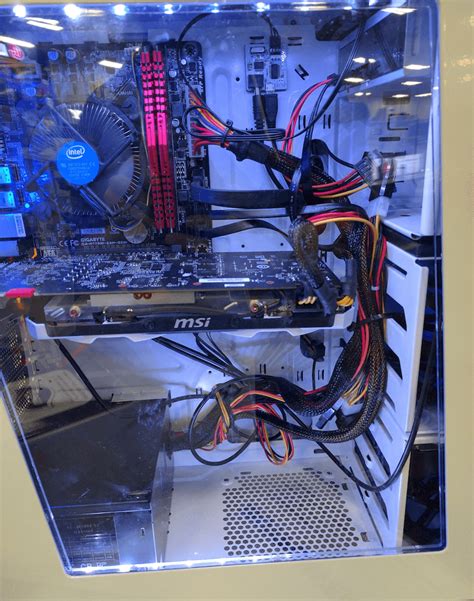
Poor airflow within your PC case is a major contributor to high temperatures. This can stem from a lack of sufficient intake/exhaust fans, incorrect fan placement, or a case design that restricts air movement. Cluttered cables can also block crucial pathways for air.
Ineffective CPU & GPU Cooling
Stock coolers that come with CPUs are often adequate for basic use but may struggle under heavy gaming loads. Similarly, dried-out or poorly applied thermal paste between your CPU/GPU and their respective heatsinks can severely reduce heat transfer efficiency.
Overclocking & High Power Draw
Pushing your CPU or GPU beyond its factory settings through overclocking significantly increases power consumption and, consequently, heat output. While it offers performance gains, it demands superior cooling.
High Ambient Temperatures
Your room’s temperature directly impacts your PC’s ability to cool itself. If your gaming space is warm, your PC’s internal temperatures will naturally be higher, making heat dissipation more challenging.
Actionable Steps to Cool Down Your Gaming PC
Fortunately, most overheating issues can be resolved with some routine maintenance and strategic upgrades.
1. Clean Your PC Regularly
- Compressed Air: Use a can of compressed air (or an electric duster) to blow out dust from all fans, heatsinks (CPU, GPU, PSU), and vents. Hold fans in place while cleaning to prevent damage.
- Frequency: Aim for a thorough cleaning every 3-6 months, or more often if you have pets or live in a dusty environment.
2. Optimize Case Airflow
- Fan Configuration: Ensure you have a balanced setup with intake fans bringing cool air in (usually front and bottom) and exhaust fans pushing hot air out (usually rear and top).
- Cable Management: Route cables neatly behind the motherboard tray or in less critical areas to prevent them from obstructing airflow.
- Upgrade Fans: If your case fans are old, loud, or inefficient, consider upgrading to high-static pressure fans for intake/exhaust or higher-airflow fans for less restrictive areas.
3. Upgrade CPU & GPU Cooling Solutions
- CPU Cooler: Replace your stock CPU cooler with a more robust aftermarket air cooler or an All-in-One (AIO) liquid cooler, especially for high-end CPUs.
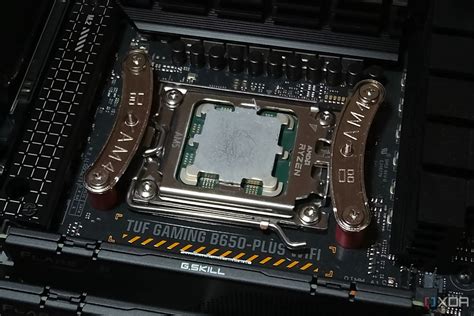
- Thermal Paste: Reapply high-quality thermal paste to your CPU and GPU. This ensures optimal heat transfer from the component to its heatsink. Be sure to clean off the old paste thoroughly first.
- GPU Cooling: Ensure your GPU’s fans are functioning correctly. Consider using software like MSI Afterburner to set a custom, more aggressive fan curve that spins up fans earlier at lower temperatures.
4. Manage Overclocking & Power Settings
- Dial Back Overclocks: If you’ve overclocked your CPU or GPU and are experiencing overheating, try reducing the overclock or reverting to stock settings.
- Undervolting: Consider undervolting your GPU or CPU. This reduces the voltage supplied to the component, decreasing heat output and power consumption with minimal impact on performance, often resulting in lower temperatures.
5. Monitor Temperatures & Fan Speeds
- Monitoring Software: Use tools like HWMonitor, Core Temp (for CPU), or MSI Afterburner (for GPU) to keep an eye on your component temperatures. Ideal gaming temperatures are typically below 80°C for both CPU and GPU.
- Custom Fan Curves: Configure custom fan curves in your motherboard’s BIOS or using software to ensure your fans ramp up appropriately as temperatures rise, preventing thermal throttling.
6. Address Room Temperature
- Ventilation: Ensure your gaming area is well-ventilated. Open windows or use a fan to circulate air.
- Air Conditioning: If possible, use air conditioning to keep your room cool, especially during hot weather.
- Placement: Keep your PC away from direct sunlight, heat vents, or other heat-generating appliances.
7. Elevate Your Laptop (if applicable)
If you’re gaming on a laptop, using a cooling pad or simply elevating the back of the laptop can significantly improve airflow to the underside vents, helping to dissipate heat more effectively.
The Benefits of a Cooler PC
By taking proactive steps to manage your PC’s temperatures, you’ll reap several rewards:
- Stable FPS: No more sudden drops in frame rates due to thermal throttling.
- Extended Component Lifespan: Cooler components are less stressed and tend to last longer.
- Quieter Operation: Your fans won’t have to spin at maximum RPM constantly, leading to a quieter gaming experience.
- Overall System Stability: Reduced risk of crashes, freezes, and unexpected shutdowns.

Keeping your gaming PC cool is an investment in its performance and longevity. Regular maintenance, strategic upgrades, and smart monitoring can prevent overheating, ensuring your system runs optimally and delivers the stable, high-FPS gaming experience you expect for years to come.


