





Should I use G-Sync/FreeSync & how to set it up correctly?
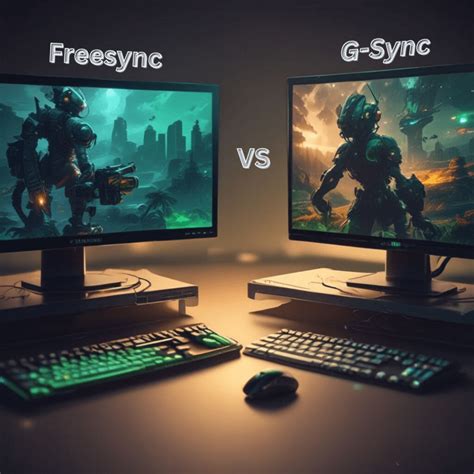
Understanding Adaptive Sync: G-Sync and FreeSync
For PC gamers, achieving the smoothest, most immersive experience often comes down to eliminating visual distractions. Screen tearing and stuttering are two common culprits that can pull you right out of the action. This is where adaptive sync technologies, primarily NVIDIA’s G-Sync and AMD’s FreeSync, come into play. But what exactly are they, do you really need them, and how do you ensure they’re set up correctly?
What is Screen Tearing and Stuttering?
Before diving into the solutions, it’s essential to understand the problems. Screen tearing occurs when your graphics card (GPU) renders frames faster or slower than your monitor’s refresh rate. The monitor displays parts of multiple frames simultaneously, creating a ‘tear’ across the screen. Stuttering, on the other hand, happens when frame delivery is inconsistent, leading to noticeable hitches or pauses in motion.
Traditional V-Sync (Vertical Synchronization) was an early attempt to solve this by forcing the GPU to wait for the monitor, but it often introduced input lag and, if frame rates dipped below the refresh rate, significant stuttering. Adaptive sync technologies offer a much more elegant solution.
G-Sync vs. FreeSync: The Key Differences
While both G-Sync and FreeSync aim to synchronize your monitor’s refresh rate with your GPU’s frame rate, they achieve this through different means:
- G-Sync (NVIDIA): This is NVIDIA’s proprietary technology, which requires a dedicated hardware module inside the monitor. This module communicates directly with NVIDIA GPUs, ensuring precise synchronization. G-Sync monitors typically command a higher price due to this specialized hardware and NVIDIA’s strict certification process.
- FreeSync (AMD): Based on the VESA Adaptive Sync standard, FreeSync is an open, royalty-free technology. It relies on software and firmware implementation within the monitor, making FreeSync monitors generally more affordable. FreeSync is primarily supported by AMD GPUs, though NVIDIA has begun supporting ‘G-Sync Compatible’ FreeSync monitors (more on that below).
In essence, G-Sync is a more controlled, premium experience with guaranteed performance, while FreeSync offers broader accessibility and affordability.
Who Should Use Adaptive Sync?
If you’re a gamer, the answer is almost unequivocally yes. Adaptive sync technologies provide a noticeably smoother and more fluid gaming experience by eliminating screen tearing and reducing stuttering without the input lag penalty of V-Sync. This is especially beneficial in fast-paced games where visual clarity and responsiveness are crucial.
However, whether you should invest in a G-Sync or FreeSync setup depends on your existing hardware and budget:
- NVIDIA GPU User: If you have an NVIDIA RTX or GTX 10-series or newer GPU, you have options. You can opt for a dedicated G-Sync monitor for the best, most guaranteed experience. Alternatively, you can use a ‘G-Sync Compatible’ FreeSync monitor, which NVIDIA has validated to work well with their GPUs.
- AMD GPU User: If you have an AMD Radeon GPU (RX 400 series or newer), a FreeSync monitor is your go-to. AMD’s ecosystem is built around FreeSync, offering a wide range of compatible monitors at various price points.
Pre-Requisites for G-Sync/FreeSync
Before attempting to set up adaptive sync, ensure you meet these fundamental requirements:
- Compatible Monitor: A monitor explicitly labeled G-Sync, G-Sync Compatible, or FreeSync.
- Compatible GPU: An NVIDIA GPU (GTX 10-series or newer for G-Sync/G-Sync Compatible) or an AMD GPU (RX 400 series or newer for FreeSync).
- Proper Cable: DisplayPort 1.2a or newer is generally recommended and often required for G-Sync. For FreeSync, DisplayPort is also preferred, but HDMI 2.0 or newer can support it on some monitors. Always use the cable that came with your monitor or a certified alternative.
- Up-to-Date Drivers: Ensure your graphics drivers are the latest version.
Setting Up G-Sync (or G-Sync Compatible) Correctly
For NVIDIA users, the setup process is straightforward:
- Connect Monitor: Use a DisplayPort cable (required for G-Sync, recommended for G-Sync Compatible).
- Enable on Monitor: Access your monitor’s OSD (On-Screen Display) menu and ensure ‘G-Sync’ or ‘FreeSync’ (if it’s a G-Sync Compatible monitor) is enabled.
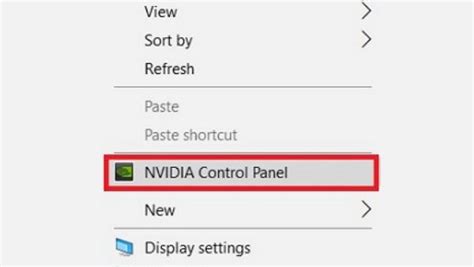
- Open NVIDIA Control Panel: Right-click on your desktop and select ‘NVIDIA Control Panel.’
- Configure G-Sync: In the left-hand menu, navigate to ‘Display’ -> ‘Set up G-SYNC.’
- Enable G-Sync: Check the box ‘Enable G-SYNC, G-SYNC Compatible.’
- Select Display: Choose your desired G-Sync monitor.
- Apply Settings: Select whether to enable for ‘Full screen mode’ or ‘Enable for full screen and windowed mode.’ The latter is generally recommended. Click ‘Apply.’
You should see a green G-Sync indicator (if enabled in the control panel) or the option appear in your monitor’s OSD confirming it’s active.
Setting Up FreeSync Correctly
For AMD users, the process is similar:
- Connect Monitor: Use a DisplayPort or compatible HDMI cable.
- Enable on Monitor: Access your monitor’s OSD and enable ‘FreeSync,’ ‘Adaptive Sync,’ or ‘VRR’ (Variable Refresh Rate).
- Open AMD Radeon Software: Right-click on your desktop and select ‘AMD Radeon Software.’
- Navigate to Display: Go to the ‘Gaming’ tab, then select ‘Display.’
- Enable FreeSync: Ensure ‘Radeon FreeSync’ is toggled to ‘Enabled.’
You may also find ‘Enhanced Sync’ here, which is AMD’s adaptive V-Sync solution for higher framerates but is separate from FreeSync.
Optimizing In-Game Settings and Troubleshooting
Once G-Sync or FreeSync is enabled, there are a few more steps to optimize your experience:
- Disable In-Game V-Sync: This is crucial. With adaptive sync enabled, V-Sync is redundant and can reintroduce input lag or stuttering. Always disable it in your game’s graphics settings.
- Cap Frame Rate (Optional but Recommended): For the smoothest experience, cap your in-game frame rate to just below your monitor’s maximum refresh rate (e.g., 141 FPS for a 144Hz monitor). This ensures your GPU stays within the adaptive sync range and prevents V-Sync from accidentally engaging if frames exceed the refresh rate.
- Check Monitor OSD: Many monitors will display the current refresh rate in their OSD, which can confirm if adaptive sync is active and dynamically changing.
- Troubleshooting: If you encounter issues, double-check all connections, ensure drivers are up-to-date, and try restarting your PC. Sometimes, disabling and re-enabling the feature in both the monitor OSD and graphics control panel can resolve glitches.
The Verdict: Is Adaptive Sync Worth It?
Absolutely. G-Sync and FreeSync are some of the most impactful display technologies for PC gaming in recent years. They fundamentally change how your GPU and monitor communicate, resulting in a significantly smoother and more enjoyable visual experience free from the distractions of tearing and stuttering. If you’re building a new gaming PC or upgrading your monitor, prioritizing adaptive sync compatibility should be at the top of your list. Setting it up correctly is key to unlocking its full potential and truly elevating your gameplay.


