My gaming PC stutters. How to diagnose and fix a CPU bottleneck?
Understanding CPU Bottlenecks
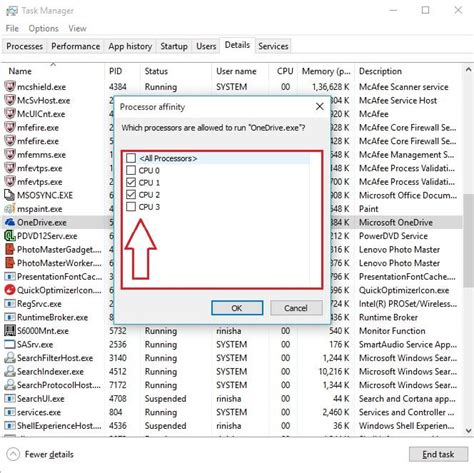
Experiencing stuttering or inconsistent frame rates in your favorite games can be incredibly frustrating. While many immediately suspect the graphics card, a CPU bottleneck is a surprisingly common culprit, especially as games become more demanding on processor resources. A CPU bottleneck occurs when your central processing unit (CPU) isn’t powerful enough to keep up with the demands of your graphics card (GPU) and the game’s engine. Essentially, the CPU struggles to process all the game logic, AI, physics, and draw calls fast enough to feed the GPU, causing the GPU to wait for instructions. This waiting leads to underutilized GPU power, lower frame rates than expected, and noticeable stuttering.
Symptoms: Is Your CPU the Culprit?
Recognizing the signs of a CPU bottleneck is the first step towards a solution. Here are some common indicators:
- Inconsistent Frame Rates: You might see high average FPS, but frequent drops or stutters, especially in busy scenes with many characters, complex physics, or large open worlds.
- Low GPU Usage: While monitoring your system, if your GPU usage consistently sits well below 99% (e.g., 50-70%) during gaming, even when frame rates are low, it’s a strong sign the GPU is waiting on another component – likely the CPU.
- High CPU Usage: Conversely, your CPU usage (or specific core usage) might be near or at 100% when stuttering occurs.
- Performance Doesn’t Improve with Lower Graphics Settings: If lowering graphical settings like texture quality or anti-aliasing (which are primarily GPU-bound) doesn’t significantly improve your frame rate or eliminate stuttering, it points to a CPU limitation. However, lowering CPU-intensive settings like draw distance or population density might help.
Diagnosing a CPU Bottleneck
Accurate diagnosis requires monitoring your system’s performance in real-time. Here’s how to do it:
Monitoring Tools
- Task Manager (Windows): A basic tool. Open by pressing
Ctrl+Shift+Esc, go to the ‘Performance’ tab, and watch CPU and GPU usage while gaming. It’s good for a quick overview but lacks in-game overlay. - MSI Afterburner with RivaTuner Statistics Server (RTSS): This is the gold standard for in-game monitoring. It allows you to display CPU usage (per core and overall), GPU usage, temperatures, frame rate, and frame time directly on your screen while playing.
- HWiNFO64: Provides extremely detailed sensor data for almost every component in your system, useful for deep dives into temperatures, clock speeds, and power draw.

What to Look For
Launch your game, enable your monitoring overlay, and observe. If you see your CPU utilization consistently at or near 100% while your GPU utilization is significantly lower (e.g., below 90%), you’ve likely identified a CPU bottleneck. Pay attention to individual core usage as well; some older game engines might heavily utilize one or two cores, even if overall CPU usage isn’t 100%.
Fixing CPU Bottlenecks: Software Solutions
Before considering costly hardware upgrades, try these software-based solutions:
- Adjust In-Game Settings: Focus on settings that are CPU-intensive. These often include:
- Draw Distance / View Distance: How far the game renders objects and scenery.
- Population Density / NPC Count: Number of characters or vehicles in the game world.
- Physics Settings: Complexity of in-game physics simulations.
- Shadow Quality: Sometimes CPU-intensive, depending on the game.
- AI Complexity: How smart and numerous non-player characters are.
Conversely, if your GPU has headroom, you can often increase GPU-bound settings like resolution, texture quality, or anti-aliasing to shift more load to the GPU, potentially balancing the system better.
- Close Background Applications: Make sure no unnecessary programs are running in the background. Browsers, Discord overlays, recording software, and other apps can consume valuable CPU cycles.
- Update Drivers: Ensure your chipset drivers (for your motherboard) and graphics card drivers are up to date. Driver updates often include performance optimizations.
- Operating System Optimization: Ensure Windows is updated, use a ‘High Performance’ power plan, and disable any unnecessary startup programs or services.
- Overclock Your CPU (with Caution): If you have an unlocked CPU and adequate cooling, a stable overclock can provide a performance boost. However, this carries risks, requires good cooling, and should only be attempted after thorough research.
Fixing CPU Bottlenecks: Hardware Solutions
If software adjustments aren’t enough, hardware upgrades are the most direct way to resolve a CPU bottleneck.
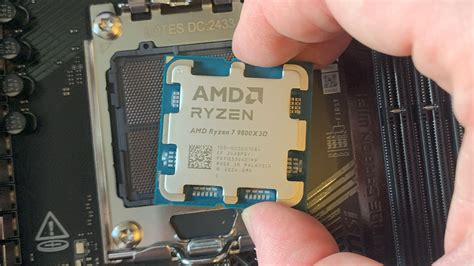
- Upgrade Your CPU: This is often the most effective solution. Research compatible CPUs for your existing motherboard and socket type. Consider processors with higher clock speeds and more cores/threads if your current CPU is significantly older or lower-end. Ensure your cooling solution can handle the new CPU’s thermal output.
- Upgrade RAM: While not always the primary fix, insufficient or slow RAM can sometimes contribute to CPU bottlenecks.
- Quantity: If you have less than 16GB, upgrading to 16GB or 32GB can provide a noticeable improvement in many modern games.
- Speed: For modern CPUs (especially AMD Ryzen processors), faster RAM (e.g., 3200MHz, 3600MHz) can significantly improve CPU performance by reducing memory latency.
- Improve Cooling: If your CPU is running hot and frequently thermal throttling (reducing its clock speed to prevent overheating), better cooling can help maintain its boost clocks and prevent performance dips. This could mean a new CPU cooler or improving case airflow with additional fans.
Conclusion
Diagnosing and fixing a CPU bottleneck requires a methodical approach, starting with careful monitoring of your system’s performance. Begin with software optimizations and in-game settings adjustments, as these are often free and can yield significant improvements. If stuttering persists and your CPU remains the bottleneck, a hardware upgrade – primarily a new CPU or faster RAM – will likely be necessary. The goal is a balanced system where your CPU and GPU can work in harmony, delivering the smooth, consistent frame rates essential for an enjoyable gaming experience.