





My gaming PC stutters in new titles. How to fix performance drops?

There’s nothing more frustrating for a PC gamer than investing in the latest titles only to be met with stuttering gameplay and unpredictable performance drops. This common issue can turn an immersive experience into a slideshow, often leaving players wondering if their once-mighty gaming rig is already obsolete. Before you panic or consider a costly upgrade, many performance problems can be diagnosed and resolved with a systematic approach.
Diagnosing the Root Cause: Where to Start
Performance stutters can stem from a variety of sources, ranging from outdated software to hardware limitations or even simple overheating. Pinpointing the exact cause is crucial for an effective fix. We’ll walk through the most common culprits and how to investigate them.

Step 1: Software & Driver Optimization
Often, the simplest fixes are software-related. Ensure your operating system and drivers are up to date and optimized for gaming.
- Update Graphics Drivers: This is paramount. NVIDIA, AMD, and Intel frequently release game-ready drivers that include performance optimizations and bug fixes for new titles. Visit your GPU manufacturer’s website and download the latest stable drivers. Perform a clean installation if possible.
- Update Windows: Ensure your Windows OS is fully updated. Microsoft often releases performance enhancements and critical security updates that can impact gaming.
- Check Game Settings: While tempting to max out every setting, new titles can be incredibly demanding. Experiment with reducing settings like anti-aliasing, shadow quality, texture resolution, and post-processing effects. Enable V-Sync if you’re experiencing screen tearing, but disable it if you prefer higher frame rates, especially if your monitor has G-Sync or FreeSync.
- Close Background Applications: Resource-hungry applications running in the background (web browsers with many tabs, streaming services, other games launchers) can hog CPU, RAM, and GPU resources. Close unnecessary programs via Task Manager.
- Verify Game Files: Corrupted game files can cause performance issues. Use your game launcher’s built-in “verify integrity of game files” option (e.g., Steam, Epic Games Launcher, Battle.net).
- Scan for Malware: Malicious software can consume significant system resources. Run a full scan with a reputable antivirus program.
Step 2: Monitor Your System’s Vitals
Understanding how your components are performing under load is key to identifying bottlenecks or issues.
- Monitor Temperatures: Overheating is a common cause of performance throttling. Use tools like MSI Afterburner, HWMonitor, or NZXT CAM to keep an eye on your CPU and GPU temperatures while gaming. If temperatures consistently exceed 85-90°C (185-194°F), your components may be thermal throttling.
- Check CPU/GPU/RAM Usage: Task Manager (Windows) or specific monitoring software can show you which components are hitting 100% utilization. If your CPU or GPU is constantly at 100% while another component is idling, you’ve likely found a bottleneck.
Step 3: Hardware Inspection & Maintenance
Sometimes, the problem lies within the physical components of your PC.
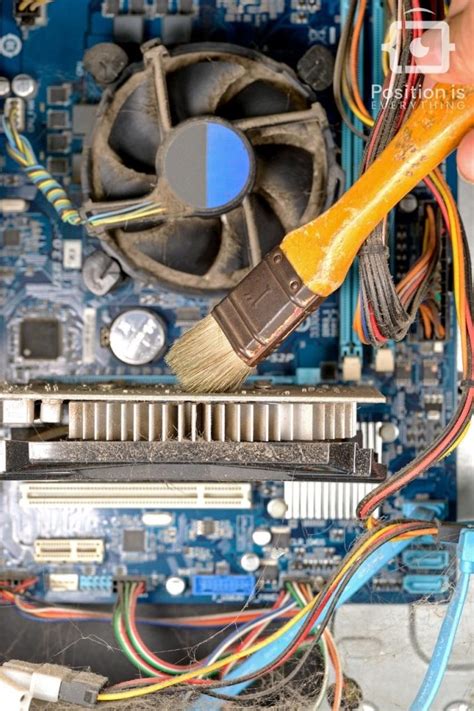
- Clean Your PC: Dust accumulation can severely impede airflow and cooling, leading to higher temperatures and thermal throttling. Regularly clean your CPU cooler, GPU heatsink, and case fans with compressed air.
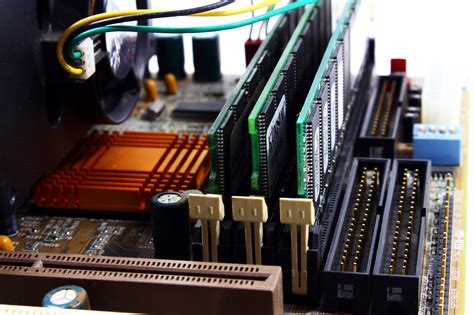
- Check Component Seating: Ensure your RAM sticks are properly seated in their slots and your graphics card is firmly in its PCIe slot. A loose connection can cause instability.
- Power Supply Check: An underpowered or failing power supply unit (PSU) can lead to instability and performance drops, especially under heavy load. Ensure your PSU meets the recommended wattage for your components, particularly your GPU.
- RAM Issues: Insufficient or faulty RAM can cause stutters. Check if you have enough RAM (16GB is generally recommended for modern gaming). If you suspect faulty RAM, run a memory diagnostic tool (like Windows Memory Diagnostic).
- Storage Drive Health: If your game is installed on a traditional HDD, slow loading times and stutters can occur. Modern titles often benefit greatly from being installed on an SSD. Check the health of your drives using tools like CrystalDiskInfo.
Step 4: Considering Hardware Upgrades (Last Resort)
If you’ve exhausted all troubleshooting steps and your PC continues to struggle, your hardware might genuinely be falling behind the demands of new games. This is especially true for older components.
- Graphics Card (GPU): The GPU is typically the most critical component for gaming performance. If yours is several generations old, an upgrade will provide the most significant boost.
- Processor (CPU): While less frequent, an aging CPU can bottleneck even a powerful GPU, especially in CPU-intensive open-world games.
- RAM: Upgrading from 8GB to 16GB (or even 32GB for very demanding titles/multitasking) can improve stability and reduce stutters. Ensure you have dual-channel memory configuration.
- Storage: Moving your primary game drive from an HDD to an NVMe SSD can dramatically reduce loading times and improve asset streaming, which can alleviate micro-stutters.
Conclusion
Experiencing stutters and performance drops in new gaming titles is a common yet solvable problem. By systematically working through software optimizations, driver updates, system monitoring, and hardware maintenance, you can often restore your PC’s smooth gaming performance. Remember to tackle the easiest and most common issues first, and only consider hardware upgrades as a final solution once all other avenues have been explored. Happy gaming!


