





How to fix mod load order crashes effectively?

Modding can transform your gaming experience, adding new content, improving graphics, and enhancing gameplay in countless ways. However, the more mods you install, the higher the chances of encountering issues, with mod load order crashes being one of the most frustrating. These crashes often stem from conflicts between mods that are loaded in an incorrect sequence, leading to instability, freezes, or outright game crashes. Understanding how to systematically approach and fix these issues is paramount for any serious modder.
Understanding Mod Load Order Fundamentals
At its core, mod load order refers to the sequence in which your game loads different modification files. Each mod makes changes to the game’s data, and if two mods attempt to alter the same piece of data, the one loaded later will usually “win” and overwrite the changes of the earlier one. When this overwrite results in incompatible data or missing dependencies, a crash occurs.
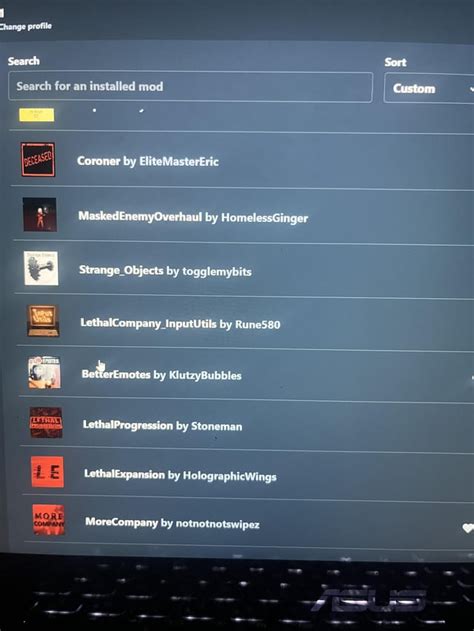
Most games process mods in a specific order, typically determined by a list of active plugins (e.g., .esp, .esm files in Bethesda games, or script files in others). The goal is to ensure that essential game files load first, followed by major overhauls, and then smaller patches or additions, all while resolving conflicts harmoniously.
Common Causes of Load Order Crashes
- Dependency Issues: A mod requires another mod to be present and loaded before it, but it’s not.
- Conflicting Overwrites: Two mods alter the same game asset (e.g., a script, texture, or record) in incompatible ways, and the load order doesn’t resolve the conflict gracefully.
- Corrupt or Dirty Mods: Mods that contain unintended edits, deleted references, or errors from their creation process.
- Plugin Limit Exceeded: Some games have a hard limit on the number of active plugins, which can cause crashes if exceeded.
- Missing Patches: Often, mods that affect similar areas or features require compatibility patches, which, if missing, lead to conflicts.
Essential Tools for Mod Management
Trying to manually sort hundreds of mods is a recipe for disaster. Effective mod management relies heavily on specialized tools:
- Mod Organizer 2 (MO2) or Vortex: These are sophisticated mod managers that handle installation, uninstallation, and crucially, virtual file systems that prevent direct game folder modification, making troubleshooting much easier. They also feature built-in load order sorting (e.g., LOOT integration).
- LOOT (Load Order Optimisation Tool): An absolute must-have, LOOT automatically sorts your plugin load order based on a comprehensive database of rules and provides warnings for potential issues like missing patches or dirty plugins.
- xEdit (SSEEdit, FO4Edit, etc.): A powerful, low-level editor for examining, cleaning, and creating patches for game plugins. It allows you to see exactly what records mods are changing and resolve conflicts manually.
General Strategies for Fixing Load Order Crashes
1. Read Mod Descriptions Thoroughly
Before installing any mod, always read its description page on Nexus Mods or its respective platform. Authors often provide crucial information regarding load order, dependencies, known incompatibilities, and required patches.
2. Always Use a Mod Manager
Never install mods manually. A good mod manager like MO2 or Vortex will save you countless headaches. They not only handle installation but also track file conflicts and allow for easy uninstallation and reordering.
3. Run LOOT Regularly
After installing new mods or making changes, always run LOOT. It will provide an optimized load order and highlight any critical warnings or errors. Pay close attention to its suggestions for cleaning plugins or installing compatibility patches.
4. Resolve Conflicts with xEdit
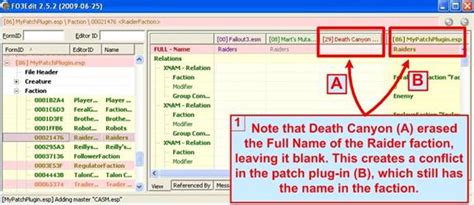
When LOOT identifies conflicts that can’t be automatically resolved, or if you’re still experiencing crashes, xEdit is your next step. Open your entire load order in xEdit. Conflicts will be highlighted, showing which mods are attempting to modify the same records. You can then:
- Manually Override: Decide which mod’s changes you want to keep by dragging records or specific values.
- Create a Merge Patch: Build a new plugin that combines the desired changes from multiple conflicting mods, ensuring all intended alterations are present without overwriting.
5. Test Incrementally
Do not install 50 mods at once and expect a stable game. Install a few mods, run LOOT, check for conflicts with xEdit, and then test your game. If it crashes, you know the issue lies within the last batch of mods you installed, making diagnosis much easier. This is especially true for large game overhauls.
6. Install Compatibility Patches
Many popular mods have dedicated compatibility patches for other widely used mods. Search for these. If none exist, you might need to create one yourself using xEdit or decide which mod you prioritize.
Advanced Troubleshooting Tips
Cleaning “Dirty” Plugins
Some official game masters or even poorly made mods contain “dirty” edits – records that were accidentally created or deleted during mod development. These can cause instability. LOOT will often flag these, and you can use xEdit to “clean” them by removing these unnecessary or harmful edits. Always back up your files before cleaning.
![Cleaning up your mod for release [Shadow Generations] [Tutorials]](/images/aHR0cHM6Ly90czIubW0uYmluZy5uZXQvdGg/aWQ9T0lQLkxFUnZ1UElVMHp5dFEyMTkxMDBUWmdIYUNjJnBpZD0xNS4x.webp)
Understanding Game Engine Specifics
Different game engines handle mods differently. For Bethesda games (Skyrim, Fallout), the .esm files (master files) generally load first, followed by .esp files. .esl files (light plugins) are designed to not count towards the plugin limit. Understanding these nuances for your specific game can be critical.
Utilize Modding Communities
When all else fails, turn to the community. Forums, Discord servers, and wikis dedicated to your game’s modding scene are invaluable resources. Chances are, someone else has encountered and solved the exact problem you’re facing.
Conclusion
Fixing mod load order crashes can feel like a daunting task, but with a systematic approach and the right tools, it becomes manageable. By understanding the fundamentals of load order, diligently reading mod descriptions, leveraging powerful mod managers and conflict resolution tools, and testing incrementally, you can achieve a stable and richly modded game experience. Patience and persistence are your greatest assets in the journey to a crash-free mod setup.


