





Why is my FPS dropping in games even with a powerful GPU?
It’s one of the most frustrating experiences for any PC gamer: you’ve invested in a powerful, state-of-the-art graphics card, yet your frames per second (FPS) still dip and stutter during intense gaming sessions. This common issue often leads to confusion, as many assume a high-end GPU is the sole determinant of smooth gameplay. However, the reality is that your gaming PC operates as a complex ecosystem, and a bottleneck in any single component can hinder the overall performance, regardless of your GPU’s raw power.
Understanding the Bottleneck Principle
A gaming PC’s performance is ultimately limited by its weakest link. While your GPU renders breathtaking visuals, other components are responsible for everything else: processing game logic, managing AI, streaming textures, and ensuring data flows smoothly. If one of these other components can’t keep up with your powerful GPU, the GPU will sit idle, waiting for data, leading to those frustrating FPS drops.

The CPU – More Important Than You Think
Often overlooked in the shadow of the GPU, your Central Processing Unit (CPU) plays a critical role in gaming. The CPU handles game physics, AI calculations, draw calls (telling the GPU what to render), and background tasks. If your CPU isn’t powerful enough to process this information quickly, it can’t feed data to your high-end GPU fast enough. This ‘CPU bottleneck’ causes the GPU to wait, resulting in lower FPS than it’s capable of delivering.
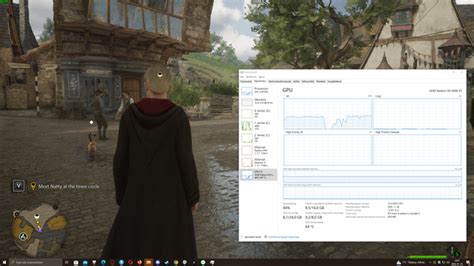
Monitor your CPU usage during gaming. If it’s consistently at 90-100% while your GPU usage is lower, your CPU is likely the limiting factor.
RAM and Storage Speed
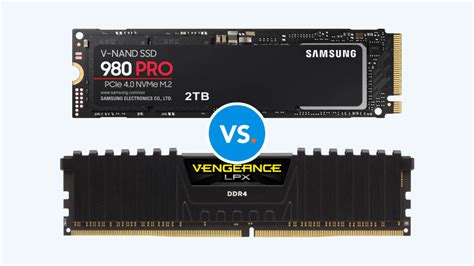
Random Access Memory (RAM) and your storage drive (SSD/HDD) also significantly impact game performance. Insufficient or slow RAM can force your system to use slower storage as virtual memory (page filing), causing stutters and drops as data is constantly swapped. Similarly, slow traditional Hard Disk Drives (HDDs) can lead to longer loading times and texture streaming issues, particularly in modern open-world games that demand fast data access.
Upgrading to a faster SSD (NVMe is ideal) and ensuring you have at least 16GB of fast RAM (3200MHz or higher is recommended) can drastically improve overall system responsiveness and prevent data-related bottlenecks.
Power Supply Unit (PSU) Limitations
Your Power Supply Unit (PSU) is the heart of your system, delivering electricity to all components. An underpowered or aging PSU can lead to system instability, random reboots, and, crucially, insufficient power delivery to your GPU and CPU under heavy load. When components don’t receive the stable power they need, they can throttle down or momentarily reduce their performance, causing noticeable FPS drops.
Always ensure your PSU has sufficient wattage for your components, with a comfortable overhead, and consider its age if you’re experiencing unexpected issues.
Thermal Throttling: The Silent Killer
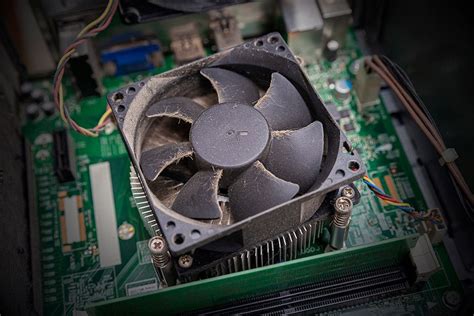
Overheating is a common culprit for performance drops. Both your CPU and GPU generate significant heat during gaming. If your cooling system (CPU cooler, GPU fans, case fans, case airflow) isn’t adequate, temperatures can rise to critical levels. To prevent damage, components automatically reduce their clock speeds – a process called thermal throttling – leading to immediate and severe FPS drops. This often happens intermittently as temperatures fluctuate.
Monitoring your CPU and GPU temperatures using software like HWMonitor or MSI Afterburner can quickly identify if thermal throttling is an issue. Regular cleaning of dust from fans and heatsinks, along with ensuring proper case airflow, is crucial.
Outdated or Corrupt Drivers
Graphics drivers are the software bridge between your operating system and your GPU. Outdated, corrupt, or incorrectly installed drivers can lead to a multitude of performance issues, including FPS drops, graphical glitches, and system instability. While less common, outdated chipset or other peripheral drivers can also contribute to overall system sluggishness.
Always keep your graphics drivers updated to the latest stable version directly from NVIDIA or AMD’s website. Consider performing a ‘clean installation’ of drivers to remove any remnants of previous versions.
Background Processes and Software Conflicts
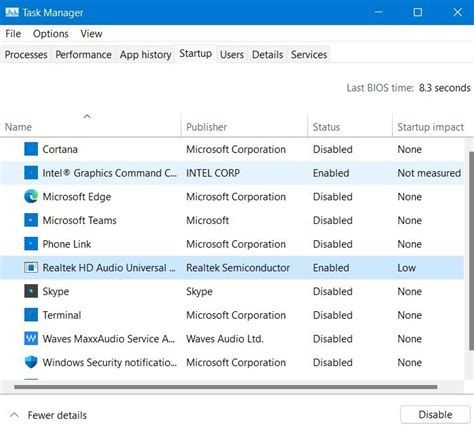
Even the most powerful PC can struggle if too many background applications are consuming resources. Antivirus scans, multiple browser tabs, streaming apps, cloud storage syncs, or even demanding widgets can all eat into your CPU and RAM, leaving fewer resources for your game. Software conflicts, such as an aggressive antivirus interfering with a game, can also cause performance hitches.
Before gaming, close unnecessary background applications. Check your Task Manager for resource-intensive processes. Consider running a system scan for malware or bloatware that might be secretly hogging resources.
In-Game Settings and Monitor Refresh Rate
While a powerful GPU can handle high settings, extreme configurations like ultra-high resolutions (4K), demanding ray tracing effects, or overly aggressive anti-aliasing can still push even the best cards to their limits, especially in graphically intense titles. Sometimes, reducing one or two very demanding settings can provide a significant FPS boost without a noticeable drop in visual quality.
Also, ensure your monitor’s refresh rate (e.g., 144Hz) is correctly set in your operating system and game settings. While an incorrect refresh rate won’t cause FPS drops, it can prevent you from experiencing the full smoothness your system is capable of, making lower frame rates feel even worse.
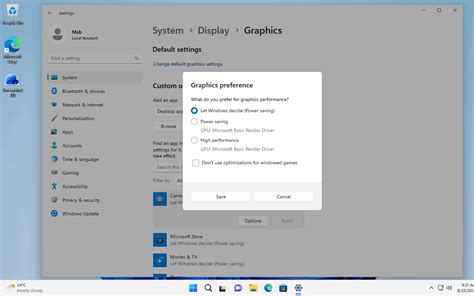
Troubleshooting Steps
- Monitor Usage: Use tools like MSI Afterburner, HWMonitor, or Task Manager to check CPU, GPU, RAM, and disk usage during gameplay.
- Update Drivers: Ensure your GPU, chipset, and other essential drivers are up to date.
- Check Temperatures: Monitor CPU and GPU temperatures to rule out thermal throttling.
- Close Background Apps: Shut down any unnecessary applications before launching a game.
- Verify Game Files: Use your game launcher’s (Steam, Epic, etc.) function to verify the integrity of game files.
- Adjust In-Game Settings: Experiment with lowering demanding graphics settings.
- Check Power: Ensure your PSU is adequate and connections are secure.
Conclusion
Experiencing FPS drops with a powerful GPU is undoubtedly frustrating, but it’s rarely a sign that your GPU is underperforming. More often, it points to an underlying bottleneck or issue elsewhere in your system. By systematically investigating your CPU, RAM, storage, cooling, power supply, and software environment, you can identify and resolve the culprit, allowing your powerful GPU to finally unleash its full potential for a smooth and immersive gaming experience.


