





How to optimize PC cooling for intense gaming sessions?

Intense gaming sessions push your PC’s components to their limits, generating significant heat. Without adequate cooling, this heat can lead to thermal throttling, reduced performance, and even long-term damage to your hardware. Optimizing your PC’s cooling system is not just about extending component lifespan; it’s crucial for maintaining peak performance and a smooth, immersive gaming experience. This guide will walk you through various strategies, from basic maintenance to advanced upgrades, to ensure your gaming rig stays cool under pressure.
Assessing Your Current Cooling Situation
Before making any changes, it’s essential to understand your PC’s current thermal performance. Use monitoring software like HWMonitor, MSI Afterburner, or HWiNFO to track CPU and GPU temperatures during gaming. High temperatures (consistently above 80°C for CPU/GPU) indicate a need for improvement. Also, a visual inspection of your PC’s interior is a critical first step.
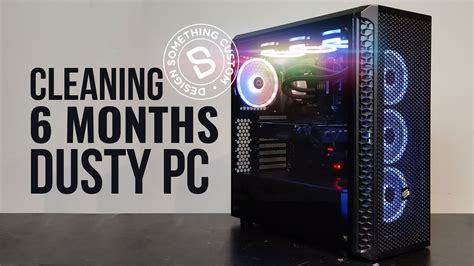
- Dust Accumulation: Dust acts as an insulating layer, trapping heat. Over time, it can significantly impede airflow through heatsinks and fans.
- Cable Management: Poorly managed cables can obstruct airflow, creating dead zones where heat can build up.
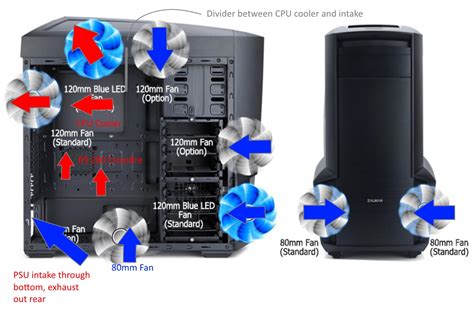
- Fan Orientation: Ensure your case fans are correctly oriented to create a positive or negative pressure system for optimal airflow.
Optimizing Airflow within Your Case
Effective airflow is the foundation of good PC cooling. It involves drawing in cool air, directing it over heat-generating components, and exhausting hot air efficiently.
Case Fan Configuration
Most cases have multiple fan mounting points. A common and effective setup involves:
- Intake Fans: Typically at the front and bottom of the case, pulling cool air in.
- Exhaust Fans: Usually at the rear and top of the case, pushing hot air out.
Aim for a slightly positive pressure system (more intake than exhaust) to minimize dust ingress, or a balanced approach. Experiment with fan speeds and placement if your case allows for it.
Cable Management
Take the time to route cables behind the motherboard tray or along the case edges. Use zip ties or Velcro straps to bundle them neatly. This simple step can dramatically improve unrestricted airflow to your components.
Upgrading Core Cooling Components
If basic maintenance and airflow optimization aren’t enough, it might be time to consider hardware upgrades.
CPU Coolers
The CPU is a major heat generator. Stock coolers are often insufficient for intense gaming.
- Air Coolers: High-performance air coolers feature large heatsinks and powerful fans to dissipate heat. They are generally reliable and cost-effective.
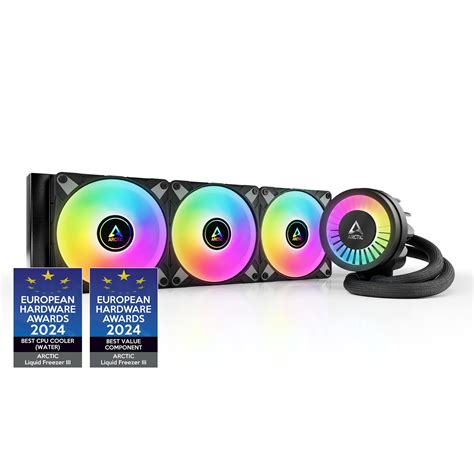
- All-in-One (AIO) Liquid Coolers: These closed-loop systems use a pump, radiator, and fans to circulate coolant, offering superior cooling performance, especially for overclocked CPUs.
GPU Cooling and Undervolting
Your graphics card is often the hottest component during gaming. While replacing a GPU cooler is more complex, you can:
- Improve Case Airflow: Ensure your GPU is getting sufficient fresh air.
- Undervolt Your GPU: Reducing the voltage supplied to the GPU can significantly lower temperatures with minimal impact on performance. Many GPU tuning utilities allow for this.
Thermal Paste Application
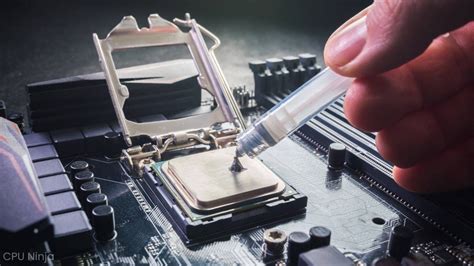
The thermal paste between your CPU/GPU and their respective coolers degrades over time, reducing heat transfer efficiency. Reapplying high-quality thermal paste every few years can make a noticeable difference. Ensure proper cleaning of old paste and apply new paste according to manufacturer recommendations (pea-sized dot or line method).
Advanced Cooling Strategies
- Custom Fan Curves: Most motherboard BIOS or software utilities allow you to set custom fan curves, increasing fan speed as temperatures rise, providing dynamic cooling.
- Delidding (CPU): For advanced users, delidding involves removing the integrated heat spreader (IHS) from the CPU and replacing the stock thermal interface material with liquid metal, offering significant temperature drops. This voids warranty and carries risks.
- Ambient Room Temperature: The temperature of your room directly impacts your PC’s cooling potential. Keep your gaming space as cool as possible.
Conclusion
Optimizing your PC’s cooling is an ongoing process that significantly impacts gaming performance and hardware longevity. By regularly cleaning dust, managing cables, ensuring proper airflow, and considering targeted upgrades like better CPU coolers or thermal paste, you can keep your system running cool and stable, allowing you to enjoy your intense gaming sessions without worrying about overheating. Invest the time in your PC’s thermal health, and it will repay you with consistent, high-performance gaming.


