





Why does my gaming PC overheat during intense sessions, and how can I improve cooling performance?
Understanding PC Overheating During Intense Gaming
Intense gaming sessions push your PC hardware to its limits, generating significant heat. When this heat isn’t effectively dissipated, your system can overheat, leading to performance drops, stability issues, and even long-term damage to components. Recognizing the causes and implementing effective cooling strategies is crucial for maintaining optimal performance and extending the lifespan of your gaming rig.

Common Reasons Your Gaming PC Gets Too Hot
Several factors contribute to a gaming PC’s inability to maintain safe operating temperatures:
- Insufficient Airflow: A common culprit, poor case design, obstructed vents, or an imbalanced fan setup can stifle the flow of cool air in and hot air out.
- Dust Accumulation: Over time, dust acts as an insulating layer on heatsinks, fans, and vents, severely impeding heat transfer.
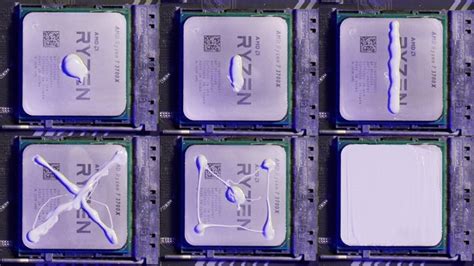
- Degraded Thermal Paste: The thermal paste between your CPU/GPU and their respective coolers can dry out or degrade, losing its ability to efficiently transfer heat.
- Inadequate Stock Coolers: Many CPUs come with ‘stock’ coolers that are sufficient for basic use but may struggle under the sustained load of modern gaming.
- High Ambient Temperatures: If your room is already hot, your PC’s cooling system has to work much harder to dissipate heat, often struggling to keep up.
- Overclocking: While it boosts performance, overclocking significantly increases heat generation, requiring robust cooling solutions.
Signs Your PC is Overheating
Watch out for these indicators:
- Performance Throttling: Your games suddenly run slower, with lower frame rates, as components intentionally reduce speed to cool down.
- System Crashes or Freezes: Severe overheating can lead to blue screens of death (BSODs) or unexpected shutdowns.
- Loud Fan Noise: Fans spinning at maximum RPM trying to combat rising temperatures.
- Hot Case to the Touch: The exterior of your PC chassis feels noticeably hot.
Strategies to Improve Your PC’s Cooling Performance
1. Clean Your System Regularly
Dust is the enemy of cooling. Use compressed air to blow out dust from CPU heatsinks, GPU fins, case fans, and power supply vents. Make sure to hold fans still while cleaning to prevent damage.

2. Optimize Case Airflow
Proper airflow creates a path for cool air to enter and hot air to exit:
- Fan Configuration: Aim for positive or neutral pressure. Typically, more intake fans at the front/bottom and exhaust fans at the top/rear.
- Cable Management: Route cables neatly behind the motherboard tray to prevent them from obstructing airflow.
- Case Selection: If you’re building a new PC or considering an upgrade, choose a case known for good airflow with mesh panels and ample fan mounts.
3. Upgrade Your CPU and GPU Coolers
For serious gamers, stock coolers often fall short:
- CPU Coolers: Invest in an aftermarket air cooler (e.g., Noctua, be quiet!) or an All-in-One (AIO) liquid cooler. These offer significantly better thermal performance.
- GPU Cooling: While less common to replace the GPU cooler itself, ensuring excellent case airflow is vital for the GPU, as it’s often the hottest component.

4. Reapply High-Quality Thermal Paste
If your PC is a few years old or you’ve installed a new cooler, reapply fresh thermal paste. Brands like Arctic MX-4, Noctua NT-H1, or Thermal Grizzly Kryonaut are highly effective at transferring heat from the CPU/GPU die to the heatsink.
5. Manage Your Environment and Settings
- Lower Ambient Temperature: Use air conditioning or fans in your room to reduce the temperature around your PC.
- Elevate Your PC: Keep your PC off thick carpets to ensure unobstructed airflow to the power supply and bottom intakes.
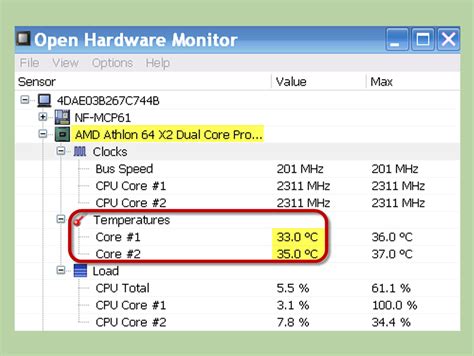
- Monitor Temperatures: Use software like HWMonitor, MSI Afterburner, or NZXT CAM to keep an eye on CPU and GPU temperatures.
- Consider Under-volting: Advanced users can slightly reduce voltage to the CPU/GPU, reducing heat generation with minimal performance loss.
Conclusion
An overheating gaming PC is not only frustrating but also potentially damaging. By understanding the root causes and proactively implementing cooling improvements—from regular cleaning and optimizing airflow to upgrading components and monitoring temperatures—you can ensure your system runs smoothly, quietly, and at peak performance during even the most demanding gaming sessions. Prioritize your PC’s health for an uninterrupted and enjoyable gaming experience.


