





Boost gaming FPS: Top Windows settings for performance?
Unleash Your PC’s Gaming Potential with Windows Optimization
Many PC gamers invest heavily in high-end hardware, only to overlook the significant impact that optimized Windows settings can have on their gaming performance. Even a powerful rig can be held back by inefficient default configurations. By tweaking a few key areas within Windows, you can unlock extra Frames Per Second (FPS), reduce latency, and achieve a smoother, more enjoyable gaming experience. This guide will walk you through the essential Windows settings you need to adjust to get the most out of your gaming PC.
Optimize Your Power Plan for Maximum Performance
One of the most fundamental changes you can make is ensuring your PC is operating at its maximum power potential. Windows typically defaults to a ‘Balanced’ power plan to conserve energy, which can throttle your CPU and GPU during intensive tasks like gaming.
- Access Power Options: Search for “Edit power plan” in the Windows search bar, then click “Power Options” in the address bar.
- Select High Performance or Ultimate Performance: If available, choose ‘Ultimate Performance’ for desktops or ‘High Performance’ for laptops. If ‘Ultimate Performance’ isn’t visible, you might need to enable it via a Command Prompt command (search online for “ultimate performance power plan” for instructions).
- Customize Plan Settings: Click “Change plan settings” next to your chosen plan, then “Change advanced power settings.” Ensure your ‘Processor power management’ is set to 100% for both minimum and maximum processor state when plugged in.
Leverage Game Mode and Graphics Settings
Windows 10 and 11 come with dedicated gaming features designed to prioritize game performance. Ensuring these are correctly configured is crucial.
- Enable Game Mode: Go to Settings > Gaming > Game Mode. Toggle ‘Game Mode’ to On. This helps Windows prioritize your game’s CPU and GPU resources.
- Hardware-accelerated GPU Scheduling: In Settings > System > Display > Graphics > Change default graphics settings, toggle ‘Hardware-accelerated GPU scheduling’ to On. This can reduce input lag and improve performance on supported hardware. You might need to restart your PC after enabling this.
- Graphics Performance Preference: In Settings > System > Display > Graphics, you can add specific games or applications and set their ‘Graphics performance preference’ to ‘High performance’. This ensures your dedicated GPU is always used for those titles.
Minimize Background Processes and Notifications
Unnecessary background applications and notifications can consume valuable CPU, GPU, and RAM, impacting your game’s performance. Cleaning these up is a quick win for FPS.
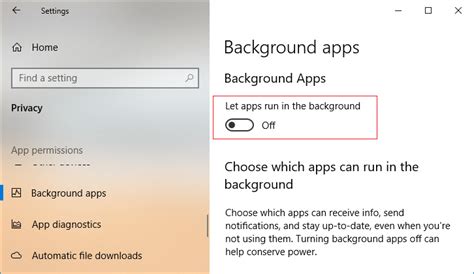
- Disable Background Apps: Go to Settings > Apps > Apps & features. Review the list and uninstall any applications you don’t use. For apps you want to keep but don’t need running in the background, go to Settings > Privacy & security > Background apps (Windows 10) or Settings > Apps > Startup (Windows 11) and toggle off anything unnecessary.
- Use Focus Assist: Go to Settings > System > Focus assist (Windows 10) or Settings > System > Notifications > Focus sessions (Windows 11). Configure it to automatically turn on when you’re playing a game, suppressing notifications that could interrupt your gameplay.
- Manage Startup Programs: Open Task Manager (Ctrl+Shift+Esc), go to the ‘Startup’ tab, and disable any programs you don’t need to launch automatically with Windows.
Adjust Visual Effects for Performance
While aesthetically pleasing, some Windows visual effects can consume system resources. Sacrificing a bit of visual flair for performance can be beneficial, especially on older systems.
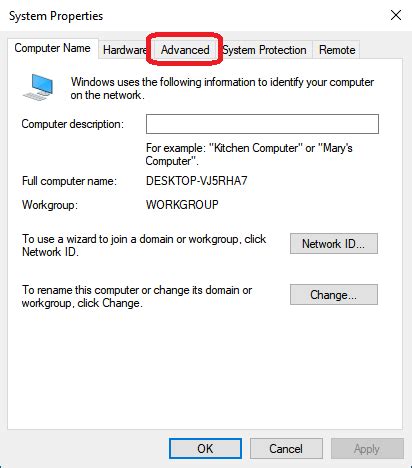
- Access Performance Options: Search for “Adjust the appearance and performance of Windows” in the search bar.
- Choose for Best Performance: In the ‘Visual Effects’ tab, select “Adjust for best performance.” Alternatively, you can choose “Custom” and manually uncheck effects you deem unnecessary, such as “Animate windows when minimizing and maximizing” or “Fade or slide menus into view.”
Keep Drivers Updated and Manage Windows Updates
While not a direct ‘setting,’ keeping your graphics drivers up to date is paramount. Additionally, ensuring Windows updates don’t interfere with your gaming sessions is critical.
- Graphics Drivers: Always download the latest drivers directly from your GPU manufacturer’s website (NVIDIA, AMD, Intel). These often include game-specific optimizations.
- Pause Windows Updates: Go to Settings > Windows Update > Advanced options. You can pause updates for a set period, preventing unexpected reboots or background downloads during crucial gaming time.
- Storage Sense & Disk Cleanup: Use Windows’ built-in tools to keep your drives clean. Search for “Storage settings” or “Disk Cleanup” to free up space from temporary files and unnecessary system clutter, which can indirectly improve system responsiveness.
Conclusion
Optimizing your Windows settings is a cost-effective and often overlooked way to significantly boost your gaming FPS and overall PC performance. By implementing these adjustments to your power plan, game mode, graphics preferences, background processes, visual effects, and update management, you can ensure your system is running at peak efficiency, providing a smoother, more responsive, and ultimately more enjoyable gaming experience. Take the time to fine-tune these settings, and you’ll likely notice a remarkable difference in your favorite titles.


