





How can I minimize input lag with my wireless gaming mouse and keyboard setup?

Understanding Input Lag in Wireless Gaming
Wireless gaming peripherals offer unparalleled freedom, but the specter of input lag often looms large, deterring competitive players. Input lag refers to the delay between performing an action (like clicking a mouse or pressing a key) and that action registering in the game. While modern wireless technology has come a long way, minor delays can still impact precision and reaction times, especially in fast-paced genres like FPS or fighting games. Minimizing this lag is crucial for a seamless and competitive gaming experience.

Optimize Your Wireless Connection
Choose the Right Wireless Technology
- 2.4 GHz RF (Radio Frequency): This is the gold standard for wireless gaming peripherals due to its dedicated, low-latency connection via a USB dongle. It typically offers a 1ms response time, rivaling wired connections.
- Bluetooth: While convenient for general use, Bluetooth often introduces more latency than 2.4 GHz. It’s generally not recommended for competitive gaming where every millisecond counts, although newer, optimized Bluetooth versions are improving.
Strategic Dongle Placement
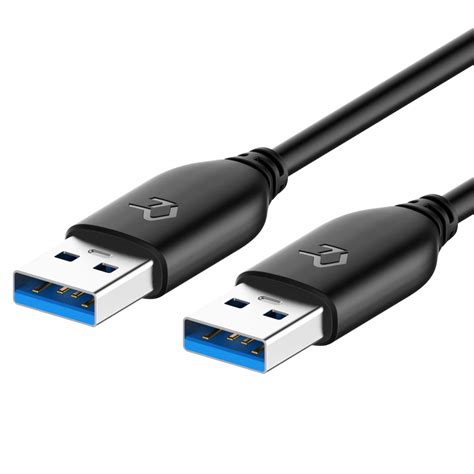
The position of your 2.4 GHz USB receiver (dongle) is critical. Keep it as close as possible to your mouse and keyboard, preferably using a USB extension cable to bring it onto your desk, away from your PC’s rear I/O. This reduces the physical distance signals travel and minimizes potential interference from your PC’s internal components.
Mitigate Environmental Interference
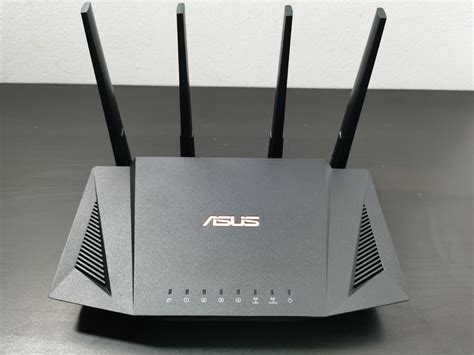
Wireless signals are susceptible to interference from other devices operating on similar frequencies. Common culprits include Wi-Fi routers, other Bluetooth devices, cordless phones, and even microwaves.
- Distance from Routers: Ensure your gaming setup, especially the dongle, is not directly adjacent to your Wi-Fi router.
- Minimize Other Wireless Devices: If possible, temporarily disable unnecessary Bluetooth devices or Wi-Fi on other devices in close proximity while gaming.
- Physical Obstructions: Large metal objects (like your PC case itself or monitors) can block or weaken wireless signals. Ensure a clear line of sight between your dongle and peripherals if possible.
Hardware and Setup Considerations
Invest in Quality Peripherals
Not all wireless gaming mice and keyboards are equal. High-end models from reputable brands often feature proprietary low-latency wireless technologies (e.g., Logitech Lightspeed, Razer HyperSpeed Wireless) specifically designed to minimize input lag.
USB Port Selection
Plug your dongle into a direct USB port on your motherboard, ideally a USB 2.0 port if available, as USB 3.0 ports have been known to sometimes generate interference on the 2.4 GHz band. Avoid connecting through unpowered USB hubs, front panel ports (which can have longer internal cabling), or monitor passthrough ports.
Battery Management
While not a direct cause of lag, low battery levels can sometimes lead to inconsistent signal strength and eventual disconnections. Keep your devices charged or swap batteries regularly to ensure optimal performance. Many modern wireless gaming devices are designed to maintain full performance until the battery is critically low, but it’s good practice.
![[300+] Roblox Backgrounds | page 3 | Wallpapers.com](/images/aHR0cHM6Ly90czQubW0uYmluZy5uZXQvdGg/aWQ9T0lQLkVyNVpxZ2tGMV9zMFU5NVFpazBxS0FIYUU4JnBpZD0xNS4x.webp)
Software and Driver Optimization
Keep Drivers and Firmware Updated
Manufacturers frequently release driver and firmware updates that improve performance, stability, and sometimes reduce latency. Regularly check for updates for both your mouse and keyboard through their respective software (e.g., Logitech G Hub, Razer Synapse, SteelSeries GG).
Operating System Settings
- Power Plan: Ensure your Windows power plan is set to “High Performance” to prevent your USB ports from entering power-saving states.
- Game Mode: Windows Game Mode can help prioritize resources for your game, potentially reducing background processes that might contribute to lag.
- Polling Rate: In your peripheral’s software, set the polling rate to the highest available (e.g., 1000 Hz or 1ms). This dictates how often your device reports its position/input to the PC.
Conclusion
Minimizing input lag with a wireless gaming mouse and keyboard setup involves a combination of smart hardware choices, optimized setup, and diligent maintenance. By prioritizing 2.4 GHz RF connections, ensuring optimal dongle placement, mitigating environmental interference, investing in high-quality peripherals, and keeping software updated, you can achieve a wireless gaming experience that feels virtually indistinguishable from wired, allowing you to focus on your game without compromise.




