





How do I boost FPS in my favorite PC games without buying new hardware?

Struggling with low frame rates can turn an exciting gaming experience into a frustrating slideshow. While new hardware offers an obvious solution, it’s not always feasible or necessary. Many gamers overlook the powerful performance gains achievable through smart software optimization and system tweaks. This guide will walk you through effective strategies to significantly boost your FPS and enjoy smoother gameplay, all without spending a dime on new components.
The Foundation: Driver Updates
Your graphics card (GPU) drivers are the direct communication link between your hardware and your games. Outdated drivers can severely hinder performance, while the latest versions often include game-specific optimizations and bug fixes that translate directly into higher FPS. Always prioritize updating your GPU drivers from NVIDIA, AMD, or Intel’s official websites.
Beyond your GPU, ensure your chipset drivers are also current. These manage communication between your CPU, memory, and other components, and keeping them updated can iron out system bottlenecks and improve overall stability, indirectly contributing to better gaming performance.
![[Sequoia] 'An error occurred preparing the software update'](/images/aHR0cHM6Ly90czIubW0uYmluZy5uZXQvdGg/aWQ9T0lQLnhZTXFnS1RZR18tNTVOdUV1R2ZfQndIYUdwJnBpZD0xNS4x.webp)
Mastering In-Game Graphics Settings
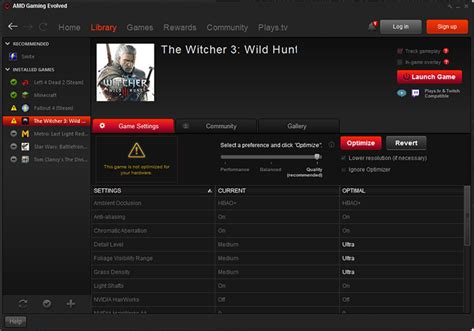
This is arguably the most impactful area for immediate FPS gains. Most modern games offer a plethora of graphics options, and understanding which ones to tweak can make a huge difference. Start by experimenting with resolution; dropping from 1440p to 1080p, for example, can massively increase frame rates.
Next, delve into individual settings. Shadows, anti-aliasing (AA), ambient occlusion, volumetric lighting, and draw distance are often the most demanding. Reducing their quality or disabling them entirely can free up significant GPU resources. Textures, while important for visual fidelity, tend to impact VRAM usage more than raw FPS unless set extremely high on a card with limited VRAM. Find a balance that provides a smooth framerate without making the game visually unappealing.
Optimizing Your Operating System
Your operating system, particularly Windows, can consume valuable resources that could otherwise be allocated to your games. Take advantage of built-in features like Windows Game Mode, which prioritizes your game and helps prevent background processes from interfering. Adjust your power plan to “High Performance” to ensure your CPU and GPU aren’t being throttled.
Furthermore, go through your background applications and startup programs. Disable anything unnecessary that launches with Windows or runs in the background while you’re gaming. Apps like Discord, Spotify, or web browsers, while useful, can cumulatively impact performance. Close them if not needed or use their built-in “Game Overlay” features judiciously.
System Hygiene and Storage
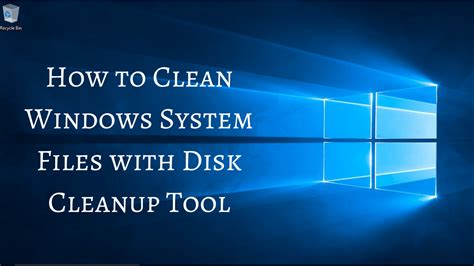
A clean and well-maintained system runs more efficiently. Regularly clean up temporary files, cache, and other junk using Windows Disk Cleanup or third-party tools. For traditional Hard Disk Drives (HDDs), defragmenting your drive can improve load times and general system responsiveness, though this is not necessary for Solid State Drives (SSDs).
Ensure your game drive, especially if it’s an HDD, isn’t close to full. Performance can degrade significantly when storage approaches capacity. While not directly boosting FPS, a clean system environment reduces potential bottlenecks and ensures your hardware can focus its resources on gaming.
Consider Strategic Overclocking (With Caution)
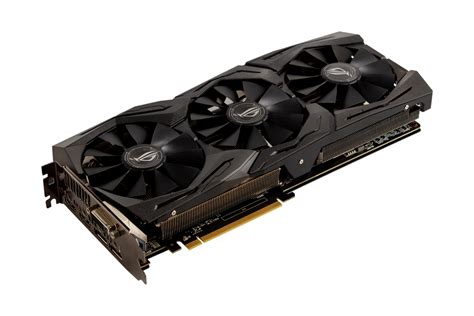
Overclocking involves increasing your CPU or GPU’s clock speed beyond its factory settings to achieve higher performance. While it can yield significant FPS gains, it comes with risks such as increased heat generation, system instability, and potential hardware degradation if done improperly. Only attempt overclocking after thorough research and understanding of the process, and ensure you have adequate cooling.
Many GPUs come with manufacturer-provided software (e.g., MSI Afterburner, ASUS GPU Tweak) that simplifies overclocking and allows for precise control and monitoring of temperatures and clock speeds. For CPUs, overclocking is typically done through your motherboard’s BIOS/UEFI settings. Always proceed with caution, make small adjustments, and stress-test your system after each change.
Conclusion: Smart Tweaks, Big Gains
Boosting your PC’s gaming FPS doesn’t always require opening your wallet. By diligently updating drivers, fine-tuning in-game settings, optimizing your operating system, maintaining system hygiene, and carefully considering overclocking, you can unlock a surprising amount of untapped performance from your existing hardware. Invest some time in these optimizations, and you’ll likely find yourself enjoying a much smoother and more enjoyable gaming experience.


