





How do I calibrate my gaming monitor for optimal color accuracy & response time?

Why Calibrate Your Gaming Monitor?
For gamers, a monitor isn’t just a display; it’s a window into the game world, where every pixel, color, and millisecond counts. An uncalibrated monitor can present washed-out colors, inaccurate black levels, and slower response times than its full potential, diminishing both immersion and competitive edge. Calibrating your gaming monitor ensures you’re seeing the game exactly as developers intended, with vibrant colors, deep contrasts, and minimal ghosting or input lag, leading to a superior gaming experience.
Starting with the Basics: Environment and Initial Setup
Before diving into advanced settings, ensure your environment is conducive to accurate calibration. Control ambient lighting by reducing glare and direct light sources on your screen. Place your monitor at eye level and sit a comfortable distance away. Verify your monitor’s native resolution and refresh rate are correctly set in your operating system’s display settings (e.g., Windows Display Settings or NVIDIA Control Panel/AMD Radeon Software). Running at anything less than native resolution will soften the image, and a sub-optimal refresh rate will limit your frame potential.
![[100+] Gaming Pc Pictures | Wallpapers.com](/images/aHR0cHM6Ly90czQubW0uYmluZy5uZXQvdGg/aWQ9T0lQLmRQZ1J1d1FNREdMMlVCUDcyTHotRFFIYUU4JnBpZD0xNS4x.webp)
Mastering On-Screen Display (OSD) Settings for Color Accuracy
Your monitor’s OSD menu is the first and most crucial step in calibration. These physical buttons or joystick controls grant access to fundamental display parameters. Navigate through the menu and look for the following settings:
- Brightness: Adjust to a comfortable level that doesn’t strain your eyes in your typical gaming environment. A good starting point is often around 120 cd/m² (candelas per square meter), which professional calibrators aim for.
- Contrast: This controls the difference between the brightest whites and darkest blacks. Too high, and you lose detail in bright areas; too low, and dark areas become muddy. Aim for a setting where you can distinguish subtle shades at both ends of the grayscale.
- Gamma: Gamma dictates how mid-tones are displayed. Most monitors default to 2.2, which is standard for Windows and sRGB color space. Adjusting this can significantly impact the perceived depth and realism of images.
- Color Temperature: Often represented as Kelvin (K), this determines the ‘warmth’ or ‘coolness’ of your display. 6500K (D65) is the industry standard for accurate white point, appearing neutral. Presets like ‘Warm,’ ‘Cool,’ or ‘User’ may be available. Select 6500K or fine-tune individual RGB gains in ‘User’ mode if available.
- Color Space/Profile: If your monitor offers sRGB, Adobe RGB, or DCI-P3 presets, choose sRGB for most games, as this is the standard. If you have a wide-gamut monitor, consider a preset that scales colors appropriately for content not specifically mastered for wider gamuts.
Advanced Software Calibration (ICC Profiles)
While OSD settings cover the basics, for true color accuracy, a hardware calibrator (colorimeter or spectrophotometer) and accompanying software are recommended. These devices measure your monitor’s output and create an ICC (International Color Consortium) profile unique to your display. This profile corrects inaccuracies at a system level, ensuring colors are rendered precisely across all applications. While an investment, it’s invaluable for content creators and those demanding pixel-perfect visuals.
Optimizing Response Time and Input Lag
Response time is crucial for fast-paced games. It measures how quickly a pixel can change from one color to another. Gamers primarily care about GtG (Grey-to-Grey) response time. Look for these settings in your OSD:
- Overdrive/Response Time: Most gaming monitors have an ‘Overdrive’ or ‘Response Time’ setting, often with levels like ‘Off,’ ‘Normal,’ ‘Fast,’ or ‘Extreme.’ This feature injects more voltage into pixels to make them change state faster. Experiment with these settings. Too low, and you’ll see ghosting (smearing behind moving objects); too high, and you might introduce inverse ghosting or ‘overshoot’ (a bright halo appearing around moving objects). Find the sweet spot that minimizes ghosting without causing artifacts.
- Motion Blur Reduction (MBR) / MPRT: Features like NVIDIA’s ULMB, AMD’s FreeSync Premium Pro (MBR), or proprietary monitor-specific technologies (e.g., ASUS ELMB, MSI MPRT) strobe the backlight to reduce perceived motion blur. This often comes at the cost of brightness and can sometimes introduce flicker. It’s usually incompatible with adaptive sync technologies (G-Sync/FreeSync), so you’ll need to choose between them based on your priority.
- Input Lag: While not a direct setting you can ‘adjust,’ input lag is the delay between your input (mouse click, key press) and it appearing on screen. Game Mode or Low Input Lag modes in your OSD can bypass some image processing to reduce this delay. Always enable these if available.
Testing and Fine-Tuning Your Settings
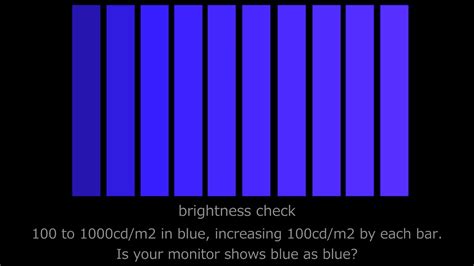
After making adjustments, it’s essential to test them. Utilize online calibration tools (like Lagom LCD tests or Eizo Monitor Test) to check gamma, black levels, white saturation, and gradients. For response time, a UFO test (e.g., TestUFO.com) is excellent for visually assessing ghosting and motion blur. Finally, launch your favorite games. Does the image look natural? Are dark areas distinguishable? Is motion fluid without artifacts? Adjust incrementally until you find the perfect balance that suits your personal preference and gaming style.
Conclusion
Calibrating your gaming monitor is an ongoing process of optimization that significantly enhances your visual experience. By carefully adjusting OSD settings for color accuracy and experimenting with response time features, you unlock your monitor’s full potential, ensuring every game looks its best and responds instantly to your commands. Take the time to fine-tune your display, and you’ll be rewarded with a clearer, more immersive, and ultimately more enjoyable gaming journey.


