





How do I diagnose & fix FPS drops for optimal gaming performance on my PC?

Experiencing Frame Per Second (FPS) drops can quickly turn an immersive gaming experience into a frustrating struggle. Whether you’re a casual player or a competitive gamer, consistent FPS is crucial for smooth gameplay and responsiveness. This guide will walk you through the essential steps to diagnose and resolve FPS drops, helping you reclaim optimal gaming performance on your PC.
Understanding the Root Causes of FPS Drops
Before diving into solutions, it’s important to understand what might be causing your FPS to plummet. Common culprits often fall into a few key categories:
- Hardware Limitations: Your CPU, GPU, or RAM might not meet the game’s requirements, or are simply struggling to keep up.
- Outdated or Corrupt Drivers: Graphics card drivers are critical for gaming performance; outdated or faulty ones can severely impact FPS.
- Overheating: Components like your CPU and GPU can throttle their performance when they get too hot, leading to significant FPS drops.
- Background Processes & Software Conflicts: Other applications running in the background can consume valuable system resources.
- In-Game Settings: Graphics settings that are too high for your system can overload your hardware.
- Power Management Issues: Incorrect power settings in Windows or your GPU control panel can limit performance.
Diagnosing the Problem: Tools and Techniques
Accurate diagnosis is the first step to a lasting fix. Utilize these tools to pinpoint the source of your FPS drops:
- Monitoring Software: Tools like MSI Afterburner, HWiNFO64, or even the built-in Task Manager can display real-time usage of your CPU, GPU, RAM, and temperatures. Look for spikes in usage or high temperatures coinciding with FPS drops.
- Benchmark Tools: Running a synthetic benchmark (e.g., 3DMark, Unigine Heaven) can help you compare your system’s performance against similar setups and identify if your hardware is performing as expected.
- Game-Specific FPS Counters: Most games have an in-built FPS counter, or you can use overlays like NVIDIA GeForce Experience or AMD Radeon Software to monitor FPS directly during gameplay.
Fixing FPS Drops: Step-by-Step Solutions
1. Update Your Drivers
This is often the most critical and easiest fix. Always keep your graphics drivers up to date. Visit the official websites for NVIDIA, AMD, or Intel to download the latest drivers for your GPU. Also, ensure your chipset drivers and other essential hardware drivers are current.
2. Optimize Your System Settings
- Close Background Applications: Before launching a game, close any unnecessary programs, browser tabs, or applications running in the background.
- Adjust Windows Power Plan: Set your power plan to ‘High Performance’ or ‘Ultimate Performance’ (if available). You can find this in ‘Control Panel > Hardware and Sound > Power Options’.
- Disable Startup Programs: Use Task Manager (Ctrl+Shift+Esc) to disable programs that automatically launch with Windows and aren’t essential for gaming.
- Enable Game Mode: Windows 10/11 has a ‘Game Mode’ designed to optimize your PC for gaming. Ensure it’s enabled in ‘Settings > Gaming > Game Mode’.
- Disk Cleanup & Defragmentation: Regularly clean temporary files (Disk Cleanup) and, for traditional HDDs, defragment your drive. SSDs do not require defragmentation.

3. Address Overheating Issues
High temperatures are a major cause of performance throttling. Here’s how to combat it:
- Clean Your PC: Dust accumulation can significantly impede airflow. Regularly clean out dust from your CPU cooler, GPU heatsink, and case fans using compressed air.
- Improve Airflow: Ensure your PC case has adequate airflow with properly configured intake and exhaust fans. Consider upgrading your case fans or CPU cooler if temperatures remain high.
- Reapply Thermal Paste: If your CPU or GPU is several years old, the thermal paste might have dried out. Reapplying fresh thermal paste can dramatically improve cooling performance. (This is for advanced users).

4. Tweak In-Game Graphics Settings
Even powerful PCs can struggle with certain settings. Experiment with lowering these graphics options:
- Resolution: Lowering the resolution is one of the most effective ways to boost FPS.
- Texture Quality: High-resolution textures consume a lot of VRAM. Reduce if you have a lower-end GPU.
- Shadows: Shadows are often very demanding. Lowering shadow quality or turning them off can yield significant gains.
- Anti-Aliasing: While it smooths jagged edges, anti-aliasing (especially higher settings like MSAA) is very resource-intensive.
- View Distance/Draw Distance: Reducing how far the game renders objects can improve performance in open-world titles.
- Post-Processing Effects: Effects like motion blur, depth of field, and ambient occlusion can be taxing.
5. Consider Hardware Upgrades
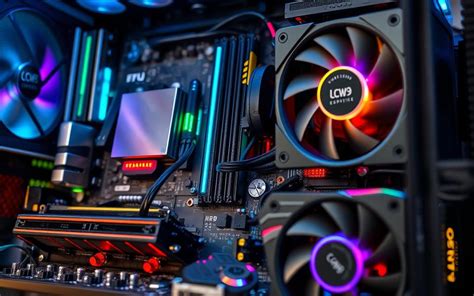
If you’ve tried everything above and still experience significant FPS drops, your hardware might genuinely be the bottleneck. Evaluate whether your CPU, GPU, or RAM meets the recommended specifications for the games you play. An upgrade, particularly to your graphics card or adding more RAM, can make a monumental difference.
Conclusion
Diagnosing and fixing FPS drops requires a systematic approach, but with the right tools and techniques, you can identify and resolve most common issues. Start with driver updates and system optimization, then move on to cooling and in-game settings. Regular maintenance and monitoring will ensure your PC remains a powerhouse for optimal gaming performance. Enjoy your stutter-free gaming experience!


