





How do I keep game mods working after major updates without breaking my saves?

Navigating Game Updates in a Modded Ecosystem
Major game updates are a double-edged sword for modding enthusiasts. While they bring new content, fixes, and features, they often wreak havoc on carefully curated mod setups, potentially corrupting save files or rendering the game unplayable. The key to preserving your modded experience and precious save games lies in proactive preparation and cautious post-update management. This guide will walk you through the essential steps to keep your modded game running smoothly, even after the developers push out a significant patch.
1. Proactive Measures: Before the Update Hits
The best defense is a good offense. Taking a few precautionary steps before an anticipated game update can save you hours of frustration later on.
Backup Everything, Religiously
This is arguably the most crucial step. Before any major update, or even before installing new mods, create comprehensive backups:
- Game Files: If your game client (e.g., Steam) allows, back up the entire game folder. This way, you have a working copy to revert to if needed.
- Save Files: Locate your game’s save file directory (often in “Documents” or “AppData”) and copy the entire folder to a safe location outside of the game’s installation path.
- Mods Folder: Backup your entire mods folder, especially if you manually installed many.
Utilize a Robust Mod Manager
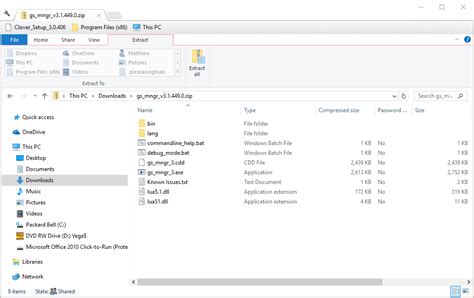
For games with extensive modding communities (like Skyrim, Fallout, or Stardew Valley), a dedicated mod manager (e.g., Mod Organizer 2, Vortex, Nexus Mod Manager) is indispensable. These tools streamline mod installation, conflict resolution, and — crucially for updates — allow for easier disabling, enabling, and reinstallation of mods without touching the core game files. They also often manage profiles, letting you switch between different mod setups.
Stay Informed via Modding Communities
The modding community is your best resource. Keep an eye on modding forums, Nexus Mods pages, game subreddits, and Discord channels. Mod authors often announce impending compatibility issues or release updated versions of their mods shortly after a game patch. Community members will also quickly report widespread problems and potential workarounds.
2. Navigating the Update: During and After
Once the update is live, resist the urge to jump right in. Patience is key.
Delay Automatic Updates (If Possible)
Some game launchers allow you to pause or delay updates. If you can, hold off on updating your game immediately. This gives mod authors time to update their mods and allows the community to identify major breaking changes. It also ensures your backed-up game version remains compatible with your current mods.
Check Mod Compatibility and Updates
Before launching the updated game, go through your active mod list. Check each mod’s page for update notifications or compatibility patches. Prioritize essential mods first. Many mod managers can help you identify outdated mods or mods with known issues.
Update/Reinstall Mods Carefully
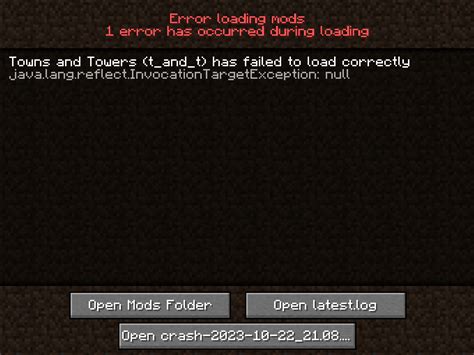
Once an updated version of a mod is available, install it using your mod manager. If a mod hasn’t been updated, consider disabling it temporarily. Some mods might still work, but others could cause crashes or serious save corruption. Reinstalling mods, especially those that inject into game files, can sometimes resolve unexpected issues.
3. Troubleshooting and Recovery
Even with the best preparation, issues can arise. Here’s how to troubleshoot.
Isolate the Problem
If your game is crashing or saves are corrupted, the first step is to isolate the problematic mod. Disable all mods and try launching the game. If it runs, re-enable mods in small batches until the issue reappears. This binary search method can quickly pinpoint the culprit.
Revert to a Previous Game Version
If you backed up your entire game folder before the update, you might be able to revert to that older version. This is often a last resort if too many crucial mods are broken and unfixable in the current game version. Be aware that saves created in the new game version might not be compatible with the old one.
Clean Install (Game and Mods)
For persistent, inexplicable problems, a full clean install of both the game and your mods might be necessary. This ensures no residual files are causing conflicts. Remember to back up your saves before doing this!

Conclusion: Patience and Preparedness Are Your Allies
Keeping your modded games functional after major updates requires a blend of foresight, methodical execution, and community engagement. By consistently backing up your files, leveraging mod management tools, staying informed, and exercising patience, you can significantly reduce the risk of broken saves and corrupted game experiences. Embrace the process, and you’ll continue to enjoy the rich, personalized gameplay that mods provide.

