





How do I troubleshoot sudden FPS drops while gaming on my PC?
Understanding and Addressing Sudden FPS Drops on Your PC
Sudden drops in Frames Per Second (FPS) can severely impact your gaming experience, turning an immersive session into a choppy, frustrating ordeal. These performance dips often indicate an underlying issue with your PC’s hardware, software, or settings. Troubleshooting requires a systematic approach to identify and resolve the root cause.
1. Monitor System Resources and Temperatures
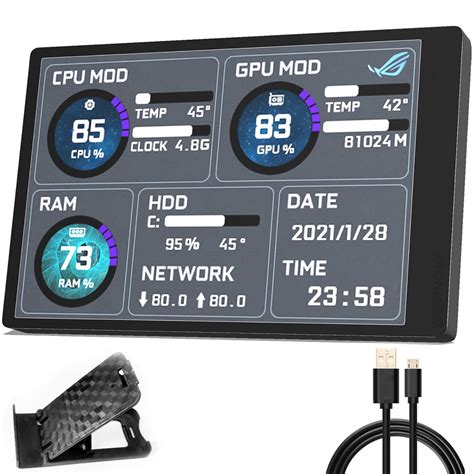
One of the most common culprits for sudden FPS drops is overheating. When components like your CPU or GPU get too hot, they automatically throttle their performance to prevent damage, leading to significant FPS reductions. High resource usage by background applications can also starve your game of necessary processing power.
- Check Temperatures: Use monitoring software like HWMonitor, MSI Afterburner, or NZXT CAM to keep an eye on your CPU and GPU temperatures while gaming. If they consistently exceed 80-85°C, overheating is likely.
- Review Resource Usage: Open Task Manager (Ctrl+Shift+Esc) and go to the ‘Processes’ tab. Sort by CPU, GPU, Memory, or Disk usage to identify any applications hogging resources, especially when your game is running.
2. Update or Reinstall Graphics Drivers
Outdated, corrupt, or incompatible graphics drivers are a frequent cause of performance issues. Manufacturers regularly release updates that optimize performance, fix bugs, and add support for new games.
- Update Drivers: Visit the official website of your graphics card manufacturer (NVIDIA, AMD, Intel) and download the latest drivers for your specific model.
- Clean Reinstallation: If updating doesn’t help, consider performing a clean installation using a tool like Display Driver Uninstaller (DDU) in Safe Mode. This removes all previous driver files, preventing potential conflicts.
3. Optimize Power Settings and Game Configurations
Incorrect power settings or overly demanding in-game graphics options can push your system beyond its limits, leading to stuttering and FPS drops.
- Windows Power Plan: Ensure your Windows power plan is set to ‘High Performance’ or ‘Ultimate Performance’ (if available). You can find this in ‘Control Panel > Hardware and Sound > Power Options’.
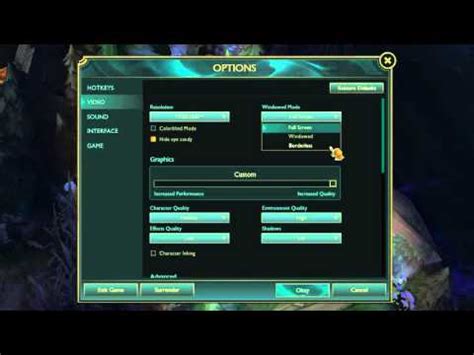
- Game Settings: Experiment with lowering demanding graphics settings within the game, such as resolution, anti-aliasing, shadow quality, or texture detail. Disabling V-Sync or G-Sync might also impact performance, depending on your monitor and GPU.
4. Eliminate Background Processes and Startup Programs
Many applications launch automatically with Windows and continue to run in the background, consuming valuable CPU, RAM, and GPU resources that your game could otherwise use.
- Task Manager Cleanup: Close any unnecessary applications running in the background while gaming.
- Disable Startup Programs: In Task Manager, go to the ‘Startup’ tab and disable programs you don’t need to launch with Windows.
- Game Mode: Ensure Windows Game Mode is enabled (Settings > Gaming > Game Mode), as it prioritizes your game’s resources.
5. Scan for Malware and System Corruption
Malicious software can significantly impact system performance, often running stealthily in the background and consuming resources. Similarly, corrupted system files can lead to instability.
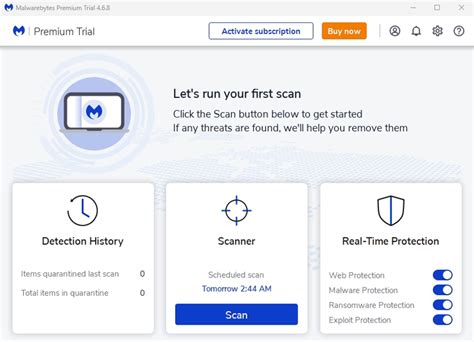
- Antivirus Scan: Perform a full system scan using reputable antivirus software (e.g., Windows Defender, Avast, Malwarebytes).
- System File Checker: Open Command Prompt as an administrator and run
sfc /scannowto check for and repair corrupted Windows system files.
6. Verify Hardware Integrity
While less common for sudden drops, failing hardware components can manifest as performance issues over time. This includes RAM, storage drives, or even the power supply.
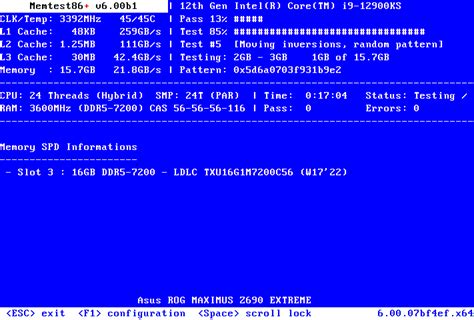
- RAM Test: Use Windows Memory Diagnostic Tool (search ‘mdsched.exe’) to check for issues with your RAM.
- Storage Health: Check the health of your SSD or HDD using tools like CrystalDiskInfo. Slow read/write speeds on a failing drive can cause stuttering, especially in open-world games.
- Power Supply: Ensure your Power Supply Unit (PSU) provides sufficient and stable power to all components, especially during peak load. An insufficient or failing PSU can lead to instability and performance drops.
7. Evaluate Hardware Limitations
Sometimes, the issue isn’t a fault but simply that your hardware is no longer sufficient for the demands of modern games. If your components consistently struggle even after optimizing everything, it might be time for an upgrade.
- Game Requirements: Compare your PC’s specifications against the recommended system requirements for the games you’re playing.
- Aging Components: Older CPUs or GPUs may struggle with newer titles, regardless of optimization.

By systematically working through these troubleshooting steps, you should be able to identify and resolve the cause of sudden FPS drops on your gaming PC, returning to a smooth and enjoyable gaming experience.


